

n8n
Bring the companies that visit your website into your n8n workflows with the Webmetic node.
The Webmetic node is a community node verified by n8n, and it reads identified companies from your Webmetic account. At the end you'll have:
- the Webmetic node in your n8n, connected to your account
- a step that delivers the companies of a period, one item per company with data, scores, and visits
- if you want, one contact per company with email address and LinkedIn or phone numbers
A typical workflow looks like this:
- 1Schedulen8n starts the workflow, for example every hour.
- 2Get visitsThe Webmetic node fetches the companies that were on your website in the period.
- 3Filter hidden companiesA filter removes companies you don't see by name on the Free plan.
- 4Find a contactWebmetic looks for one matching person per company and unlocks their contact details.
- 5Your toolYour CRM, your inbox, or your chat receives the result.
Before you start
- Account: You need a Webmetic account with a website that runs the tracking code. The node only delivers companies Webmetic identified on that website.
- Access: You need n8n, either n8n Cloud or self-hosted. The owner or an admin of the n8n instance installs the node, and then everyone can use it.
- Rights: Only admins see the Integrations menu item. If a partner manages your account, the partner decides whether it appears.
- Plan: Integrations are available on every plan, including the Free plan. On the Free plan, Webmetic only transfers the companies you see by name. For details, see Free plan. The other companies arrive without data, and step 5 filters them out.
- Costs: The integration costs no credits. Unlocking contacts costs credits. For details, see Credits.
- Contacts: For step 6, set up contacts once for your account, as described in Set up contacts. You don't need admin rights for that.
Apart from unlocking with Contact > Find, the node changes nothing in your Webmetic account. No data flows back from n8n to Webmetic.
1. Copy the API key
You connect the node to Webmetic with your Visitor Intelligence key.
- Click Menu > Integrations > API. The API keys window opens.
- If the Visitor Intelligence card shows No key generated yet., click Generate key.
- In the Visitor Intelligence card, click the Copy icon.
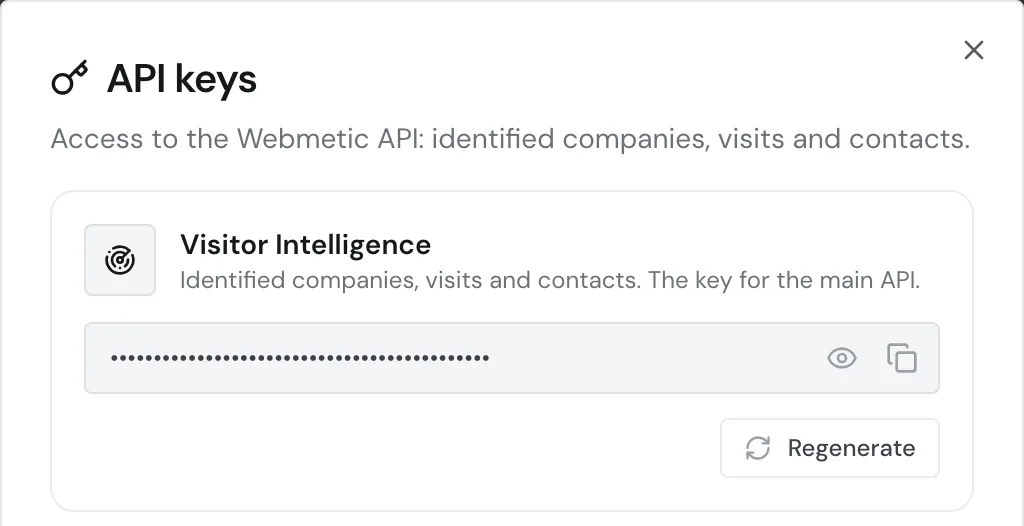
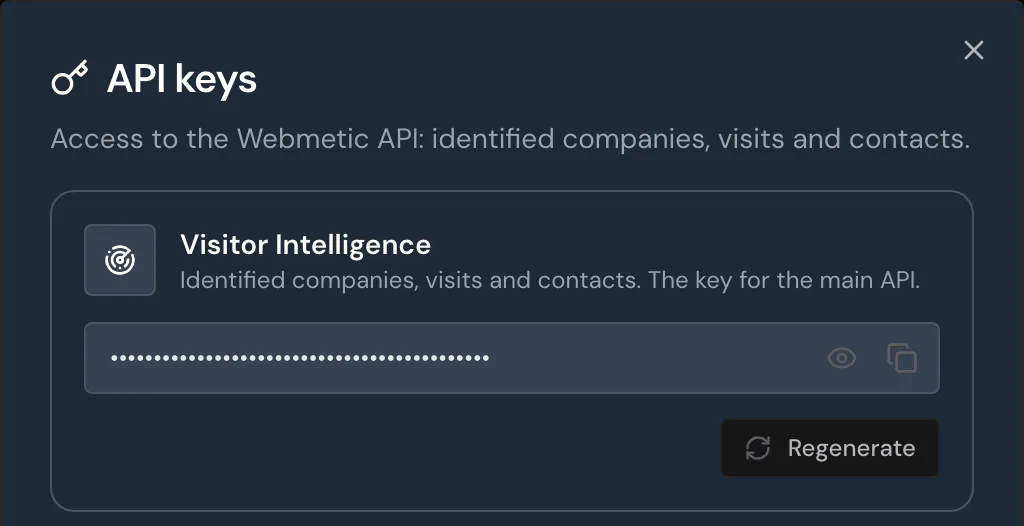
Don't use the key from Enrichment or Data Layer. All three start with wmtc_, but only Visitor Intelligence gives access to visits and contacts.
For more about the key, see Authentication.
A new key disconnects n8n
The key applies to your whole account. After Regenerate, the old key stops working in n8n too, until you enter the new one there.
2. Install the Webmetic node
The node is called Webmetic in n8n and n8n-nodes-webmetic on npm. These steps work for n8n Cloud and for self-hosted n8n.
- Open a workflow and its nodes panel.
- Search for "Webmetic". The node appears at the bottom under More from the community.
- Select the node and install it. n8n installs the node for the whole instance.
If you host n8n yourself, you can also install the node under Settings > Community Nodes > Install with the package name n8n-nodes-webmetic.
Use the current version of the node. If you host n8n yourself, you see an Update button under Settings > Community Nodes when a new version is available. On n8n Cloud, the owner or an admin of the instance updates the node.
3. Create the credential
- Add the Webmetic node to your workflow.
- Create a new credential of the type Webmetic API.
- Paste your key into the API Key field.
- Save the credential. n8n checks your key with Webmetic right away.
If Webmetic doesn't recognize the key, n8n reports "Webmetic does not recognize this key." Copy the Visitor Intelligence key again.
4. Get companies
A visits node asks about one of your websites for one period. Under Resource, you choose which companies it delivers:
| Resource | Delivers |
|---|---|
| New Visit | Companies whose first visit ever falls within the period |
| Intensive Visit | Companies with at least one visit of 30 seconds or longer, and only those visits |
| Returning Visit | Companies with at least two visits within the period. Earlier visits don't count |
- Under Resource, select New Visit, for example. Operation shows Get.
- Under Domain, enter the main domain as it appears under Menu > Websites: without
https://and withoutwww., for exampleyour-website.com. This also applies if you use the tracking code on a subdomain. - Optional: Under Additional Fields, use Add Field to add From Date and To Date. If you leave them out, the period runs from
-30 daystonow. - Run the node once. n8n shows one item per company.
From Date and To Date understand years, days, hours, and minutes, for example -1 hour or -7 days. Webmetic rejects weeks and months, so write -14 days instead of -2 weeks.
Both fields also understand now, 2026-01-31, heute, gestern, and 31.01.2026. If you give a To Date without a time, it includes the whole day.
Start the workflow with a schedule that matches From Date. If it runs every hour, set From Date to -1 hour. For Returning Visit, the period must contain both visits. Choose a longer period for it.
5. Filter out hidden companies
On the Free plan, the node also delivers companies you don't see by name. These companies are called "Verborgenes Unternehmen", carry blurred: true, and have no data apart from the times of their visits.
This name is German even if your account uses another language.
After the visits node, add a filter that only lets through items for which this expression is true:
{{ $json.blurred !== true }}Companies you can read have no blurred field, so you check for "not true", not for "false".
Without the filter, step 6 stops with status 403 at a hidden company. During your trial and on paid plans, you see every company by name, and the filter lets all of them through.
6. Find contacts
Optional: With Contact > Find, Webmetic looks for the first matching person at a company and unlocks their contact details.
Costs credits
Every unlock costs credits, and it can't be undone. Webmetic only charges for data it delivers. Data your account has already unlocked costs nothing again.
- After the filter, add a second Webmetic node.
- Under Resource, select Contact. Operation shows Find.
- Leave Company ID at
{{ $json.company_id }}so the node takes the ID from the visits node. - Under Reveal, choose what Webmetic unlocks: email address and LinkedIn, phone numbers, or both. The default is email address and LinkedIn.
- Optional: Choose departments under Departments and a level under Minimum Level.
Departments offers the same seven departments as the dashboard. Minimum Level offers Manager and Above, Division Lead and Above, and Executives Only.
An empty field and Same as Webmetic Setup use the values from your Contact profile. If you only set Departments, the level from the profile stays.
Webmetic picks the first person with all the requested data, otherwise the first with part of it. The same request later finds the same person and then costs nothing.
If Webmetic finds nobody, the node delivers no item for that company and charges nothing. The branch ends there.
The result gives you only the person. You get the company data from the visits node with $('Webmetic').item.json. Use the name the visits node has in your workflow.
Delivered fields
A visits node delivers one item per company. Where a value is missing, you get null or an empty list.
| Area | Fields |
|---|---|
| Company | company_id, company_name, company_url, company_logo_url, address, postal_code, city, country, country_code |
| Contact and register | phone_number, fax_number, email_address, email_pattern, email_pattern_confidence, directors, vat_id, tax_number, registration_number, registration_court |
| Online profiles | linkedin, facebook, instagram, youtube, twitter |
| Description and size | short_description_de, short_description_en, full_description_de, full_description_en, nace_codes, employee_count, revenue |
| Scores | lead_score (activity), fit_score (fit), relevance_score (relevance) |
| Visits in the period | sessions with every visit and its page views, sessions_total, pages_total |
First entry in sessions | timestamp, weburl, session_duration, session_time, utm_source, utm_medium, utm_campaign, utm_term, utm_content, utm_campaign_id, click_id, click_type, visitor_city, visitor_country, visitor_zip, visitor_country_code |
| Free plan only | blurred on hidden companies |
For what the three scores mean, see Relevance, activity, and fit.
Contact > Find delivers found, contact_id, name, job_title, company_name, email, linkedin, direct_phone, mobile_phone, total, country, country_fallback, credits_used, and credits_remaining.
Webmetic looks for people in the company's country. If country_fallback is true, Webmetic found nobody there and picked the person from other countries.
Calls and limits
- No trigger: Webmetic doesn't start a workflow by itself. The node asks when your schedule starts it.
- One website per node: For several websites, you need several visits nodes.
- One request per second: Webmetic answers requests from visits nodes once per second per IP address. Put a pause between two visits nodes.
- Everything at once: One call delivers every matching company of the period in one response, without paging and without sorting. If you choose long periods, you get large responses.
- Filters in n8n: The node doesn't filter by segment, score, industry, or country. Add a filter in n8n for that, for example on
relevance_score.
Check the workflow
- Run the workflow once by hand.
- Open the output of the visits node. You see one item per company.
- Open the output of Contact > Find. Each item shows one person, and
credits_remainingshows your remaining credits.
Troubleshooting
Why does the visits node deliver no item?
Webmetic identified no company on your website in the period that matches the Resource. That isn't an error. For a test, set From Date to a longer period, for example -90 days.
What does an error message from the node mean?
The node reports errors in English.
| Message | Cause | Fix |
|---|---|---|
| Webmetic does not recognize this API key | The key is wrong or was regenerated. | Copy the Visitor Intelligence key again. |
| This domain is not in your Webmetic account | Domain differs from the website in your account. | Enter the main domain without https:// and without www., as under Websites. |
| Too many requests to Webmetic | More than one request per second. | Put a pause between the visits nodes. |
| Webmetic answered with status 400 | From Date or To Date can't be read, for example -2 weeks. | Write days, hours, or a date. |
Webmetic answered with status 403, PLAN_REQUIRED | Find received a hidden company. | Filter as in step 5. |
| The contact setup in Webmetic is missing | Your account hasn't set up contacts yet. | Set up contacts. |
| This company has not visited your website | Company ID doesn't come from your visits node. | Leave Company ID at its default. |
| Webmetic knows no website for this company | Webmetic knows no website for the company. | There are no contacts for this company. |
| Not enough Webmetic credits | You don't have enough credits. Webmetic charged nothing. | Buy more credits. |
| Webmetic is already revealing this contact | The same person is being unlocked right now, or another credit transaction ran at the same time. | Run the node again, or turn on Retry On Fail in its settings. |
| Contact data is temporarily unavailable | Contact data can't be reached right now. | Try again in a few minutes. |
How does the workflow continue after an error?
By default, an error at one company stops the whole run. In the node's settings, choose Continue under On Error so the run doesn't stop at the first error.
FAQ
Why does only a single item arrive?
The node comes from a workflow you built with an older version. It delivers every company in one result list.
n8n keeps the old node version in your older workflows. If you add the Webmetic node again, it delivers one item per company.
Can the AI agent in n8n use the node?
Yes. The Webmetic node is enabled to work as a tool of an AI agent in n8n. Contact > Find still costs credits there.