

Clay
Send every new company on your website to a Clay table as a row, through a webhook.
Webmetic sends every company that visits your website for the first time to a webhook in Clay. In Clay you enrich and qualify the company, for example a machine builder after its first visit to your pricing page. At the end you'll have:
- a Clay table with one row for every new company
- in each row the company's data and its first visit
- columns for the fields you work with in Clay
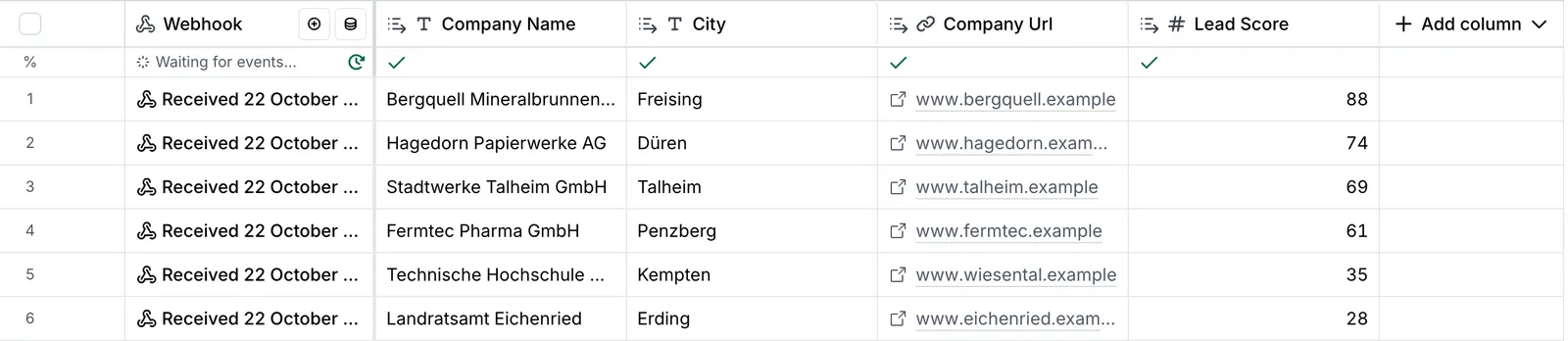
- 1VisitA company visits your website for the first time.
- 2WebhookWebmetic sends the company to the URL of your Clay table.
- 3RowClay creates one row for each delivery.
- 4Keep workingYou enrich and qualify the rows in Clay.
Before you start
- Time: Setup takes about 10 minutes.
- Account: You need a Webmetic account with at least one website.
- Access: You need a Clay workspace. In Clay, webhooks are only available on paid plans and during Clay's trial.
- Rights: Only admins see the Integrations menu item. If a partner manages your account, the partner decides whether it appears.
- Plan: Webhooks are available on every plan. On the Free plan, Webmetic only sends the companies you see by name and leaves out the others entirely. For details, see Plans.
- Cost: The integration costs no credits.
1. Create a webhook in Clay
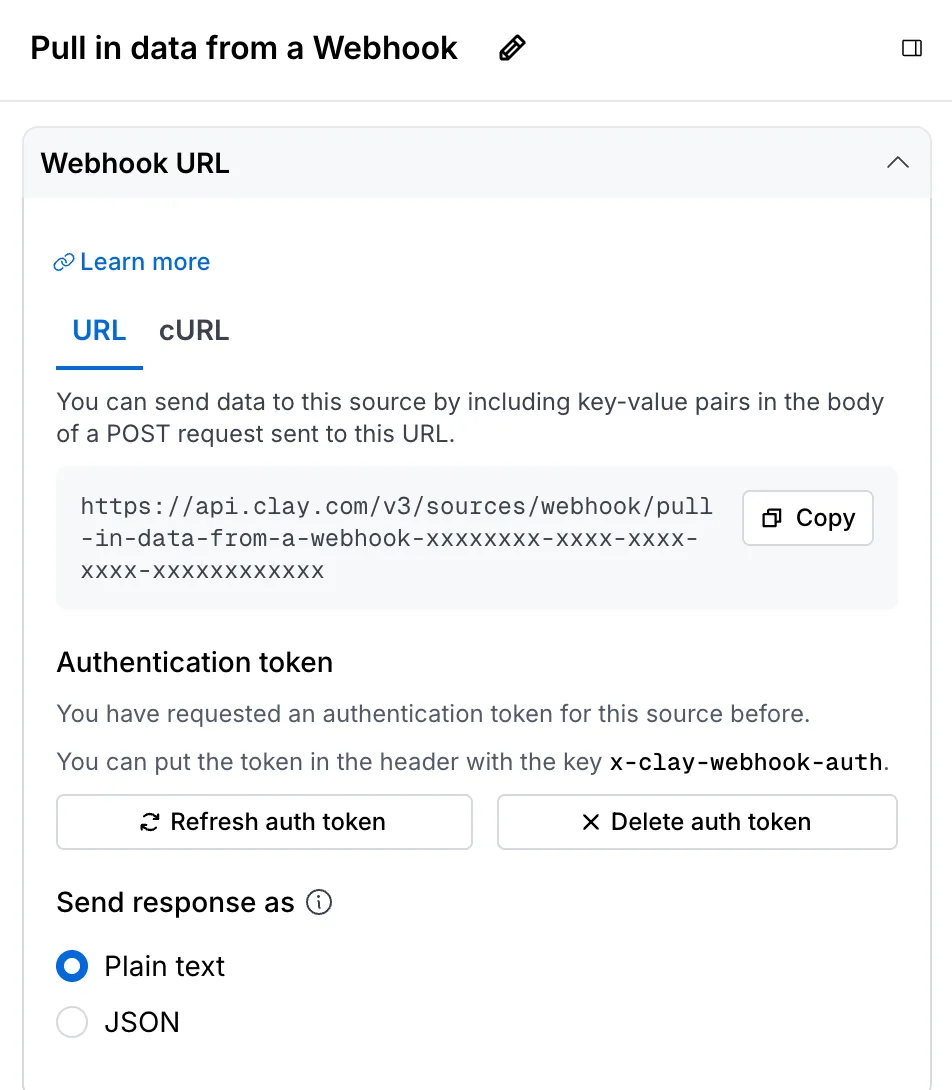
Clay gives you a URL and a token, which you enter in Webmetic in step 2.
- In a Clay workbook, click Add at the bottom. The Create panel opens, or opens by itself in a new workbook.
- In the Create panel, click All sources.
- Search for
webhookand choose Webhook. Clay creates the table Pull in data from a Webhook Table and opens the Pull in data from a Webhook panel. - Under Webhook URL, copy the URL with Copy and keep it at hand.
- Click Add auth token. Clay asks for confirmation in the Create auth token? window.
- Click Create. Clay shows you the token this one time only.
- Copy the token and keep it next to the URL, because you need both in step 2.
- Under Send response as, leave Plain text selected.
In the panel, Clay tells you the header name for the token: x-clay-webhook-auth.
2. Create a webhook in Webmetic
- Open Menu > Integrations > Webhooks. The Webhooks window opens.
- Click New webhook.
- Under URL, paste the URL you copied from Clay.
- Optional: Under Name, enter a name, for example
Clay. - Under Event, leave New company selected. With any other event, Webmetic can send the same company again, and the Clay table only accepts a limited number of entries.
- Under Websites, choose the websites whose companies you want to send to Clay. At first, all of them are selected.
- Click Advanced to show the Additional headers section.
- Click Add header.
- In the header row, enter
x-clay-webhook-authin the Name field and the token from Clay in the Value field. - Click Create webhook. The Secret (optional) window opens, but Clay doesn't need the secret.
- Click Got it to close the window.
For every field of a new webhook, see Create a webhook.
3. Test and create columns
With a test row, you create the columns before real companies arrive.
- In the Webhooks window, click Test on your webhook. Webmetic sends the invented company Beispiel GmbH and shows the message "Test delivered" with status 200.
- In Clay, click the cell in the Webhook column of the new row. The Cell details panel opens.
- Expand Data and then Company to see the company's fields.
- Point at a field, for example Postal Code, and click Add to column.
- Click Create column, or choose an existing column under Map to an existing column.
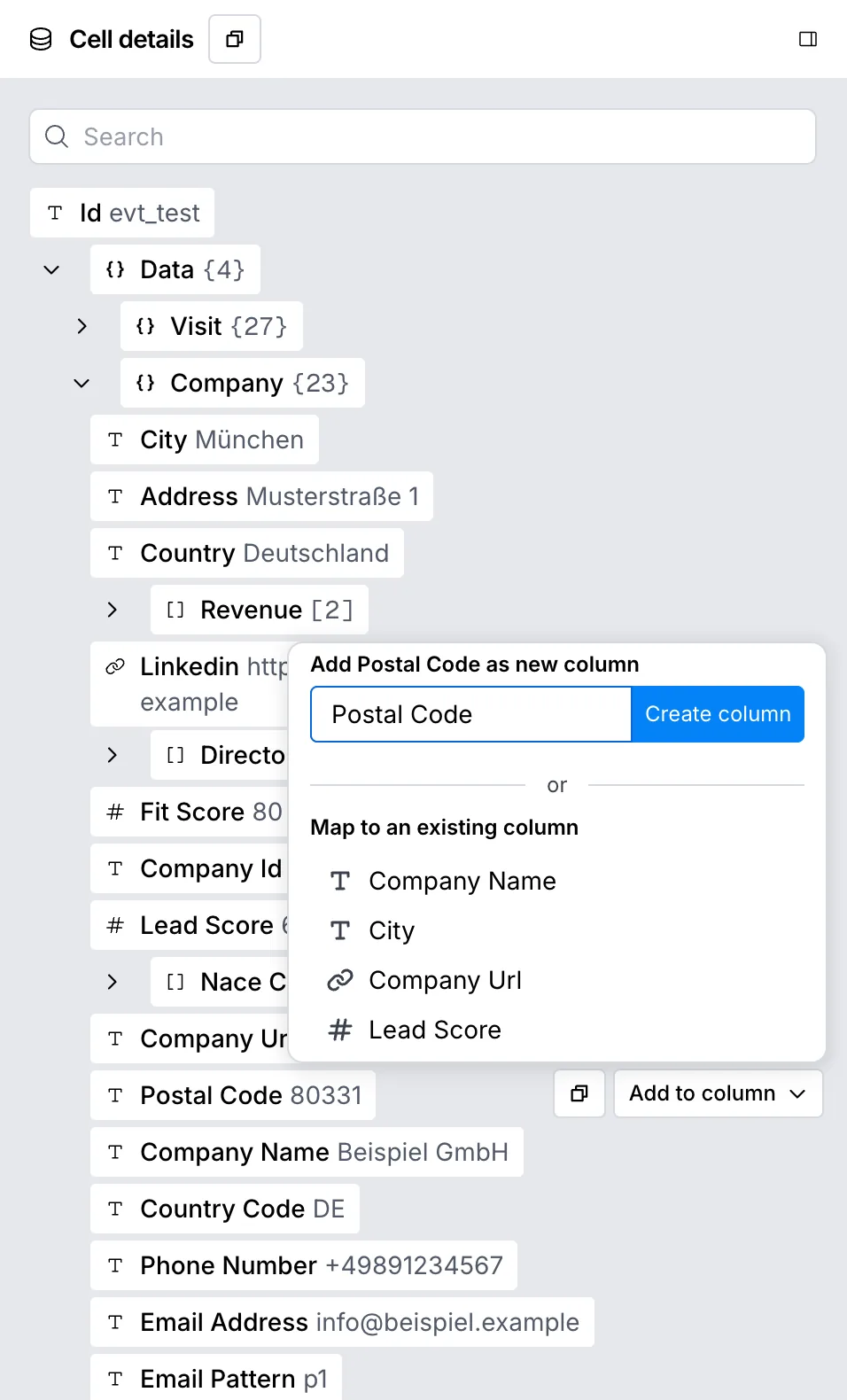
Repeat steps 4 and 5 for every field you need. Clay fills these columns in new rows by itself. When you're done, delete the test row in Clay, because it holds an invented company.
What arrives in Clay
Webmetic sends a new company a few minutes after the visit appears in the dashboard, and Clay creates one row for each delivery.
Under Data, you find Company with the company data and Visit with the visit and its page views. Clay capitalizes the field names, so company_name becomes Company Name. Lead Score is the activity.
If Webmetic doesn't know a value, the field is missing. For every field, see Data format. No data flows back from Clay into Webmetic.
Limits
- A webhook sends companies that visit your website for the first time after you set it up. If your website already has or had a webhook, companies from the 48 hours before can be included too, if Webmetic only finished processing their visit afterwards. You fetch earlier companies through the API. That also needs a paid plan in Clay.
- According to Clay, a webhook table in Clay accepts at most 50,000 entries, even if you delete rows.
- You can't change the URL of a webhook. For a new Clay table, create a new webhook in Webmetic.
Troubleshooting
Why don't any rows arrive in Clay?
The usual cause is a token or header name that doesn't match. You see which status Clay returned in your webhook's Log, under Response.
- In the Webhooks window, click Edit on your webhook.
- Under Advanced, check that the name is exactly
x-clay-webhook-auth. - Enter the token again in the Value field and click Save.
To send deliveries with the status Failed again, click Resend in the Log.
If the log only shows the test, no new company has visited your website since setup. That isn't an error.
Why doesn't the test row arrive?
The message "Test failed" also names the reason. Because a new token can take up to 60 seconds to work according to Clay, wait that long before you test again. If the URL is wrong, create a new webhook.
Why is the webhook disabled?
If no delivery reaches Clay for 3 days, Webmetic disables the webhook and emails every admin. To turn it on again, see Re-enable a webhook.