

Lexware Office
Connect Lexware Office and create identified companies there as customer contacts.
With this integration you create a company from Webmetic as a contact in Lexware Office, for example before you send it a quote. At the end you'll have:
- Lexware Office connected to your Webmetic account
- the companies you choose as customers in Lexware Office, with name, address, email address, and phone number
Before you start
- Time: The connection takes a few minutes, and there is nothing to configure.
- Account: You need a Webmetic account with a website where Webmetic has already identified companies.
- Access: You need a Lexware Office account that lets you allow Webmetic access to your contacts.
- Rights: Only admins see the Integrations menu item. If a partner runs your account under its own name, this integration isn't available yet. Once Lexware Office is connected, every user can transfer companies with the Send to Lexware button.
- Plan: Integrations are part of every plan, including the Free plan. On the Free plan, Webmetic only transfers the companies you see by name. For details, see Free plan.
- Cost: The integration costs no credits.
1. Connect Lexware Office
You connect Lexware Office by signing in to Lexware Office, and you don't need an API key.
-
Click Menu > Integrations > Lexware. Under What is sent, the Lexware window shows what Webmetic sends.
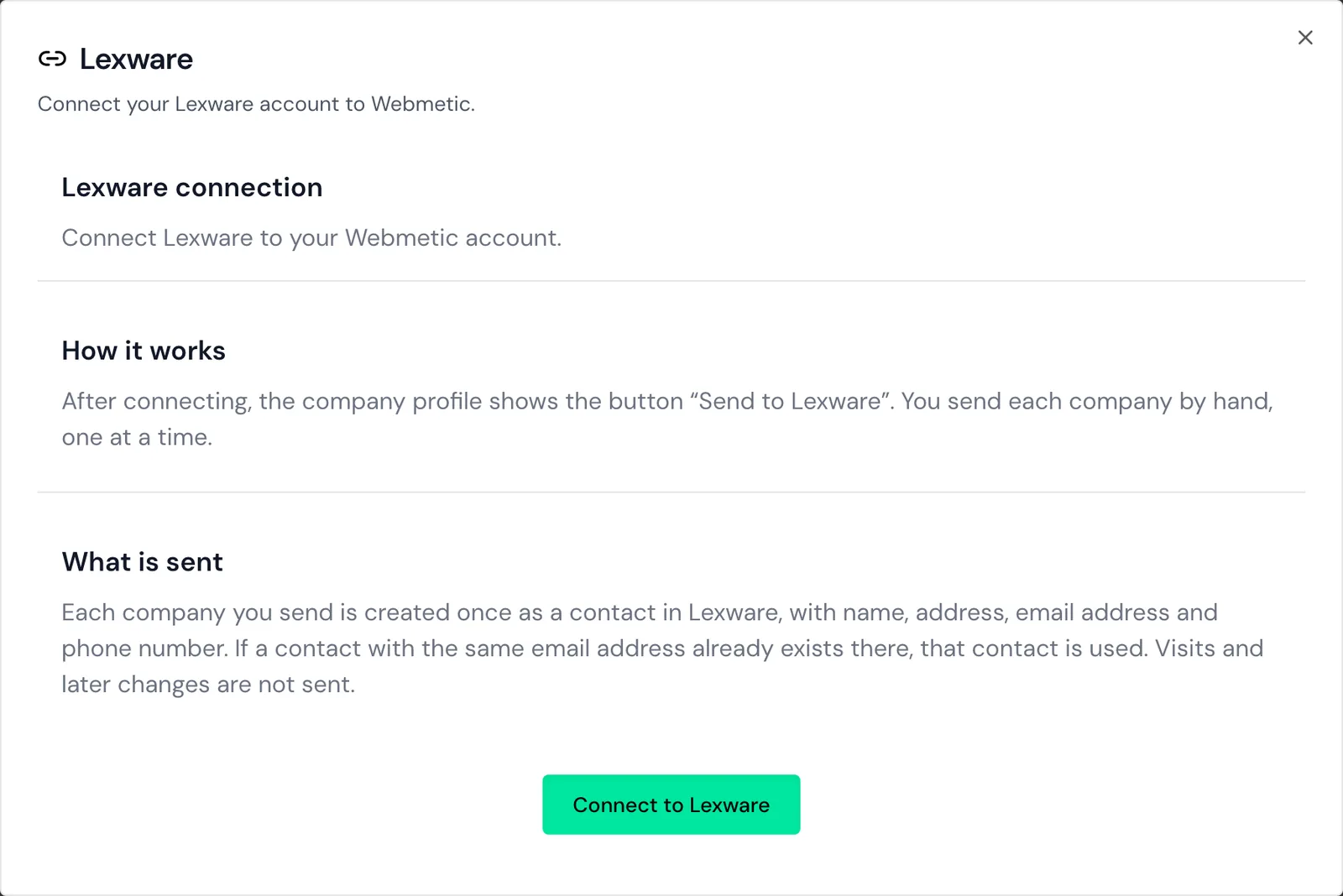
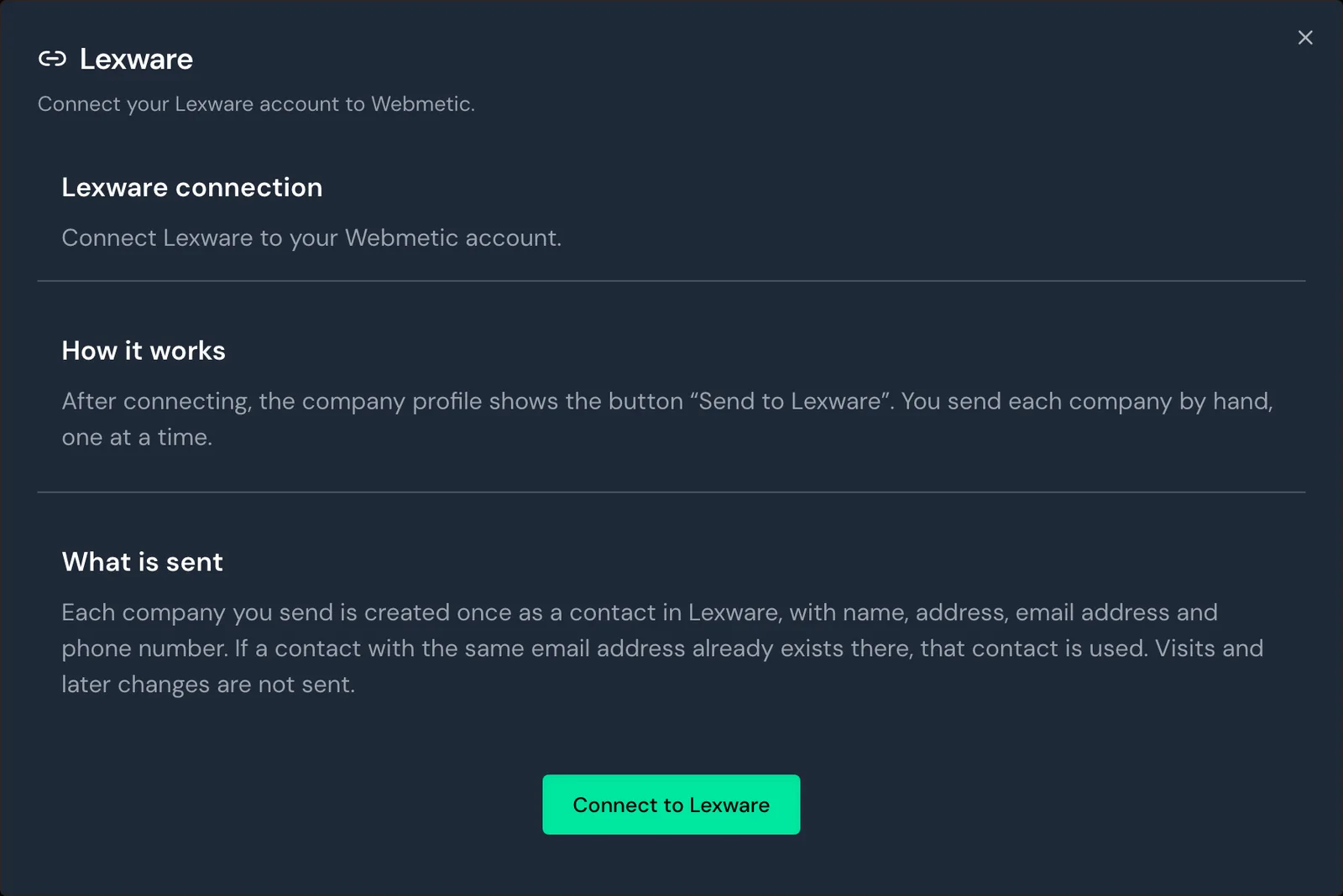
The Lexware window with the Connect to Lexware button -
Click Connect to Lexware. Your browser switches to the Lexware Office sign-in.
-
Sign in to Lexware Office with the account that should receive the contacts.
-
Allow Webmetic access. Webmetic only asks for access to your profile and your contacts.
Lexware Office then sends you back to Webmetic, and the page confirms the connection by itself. Webmetic opens the window again, which is now called Lexware settings and shows the status Connected to Lexware.
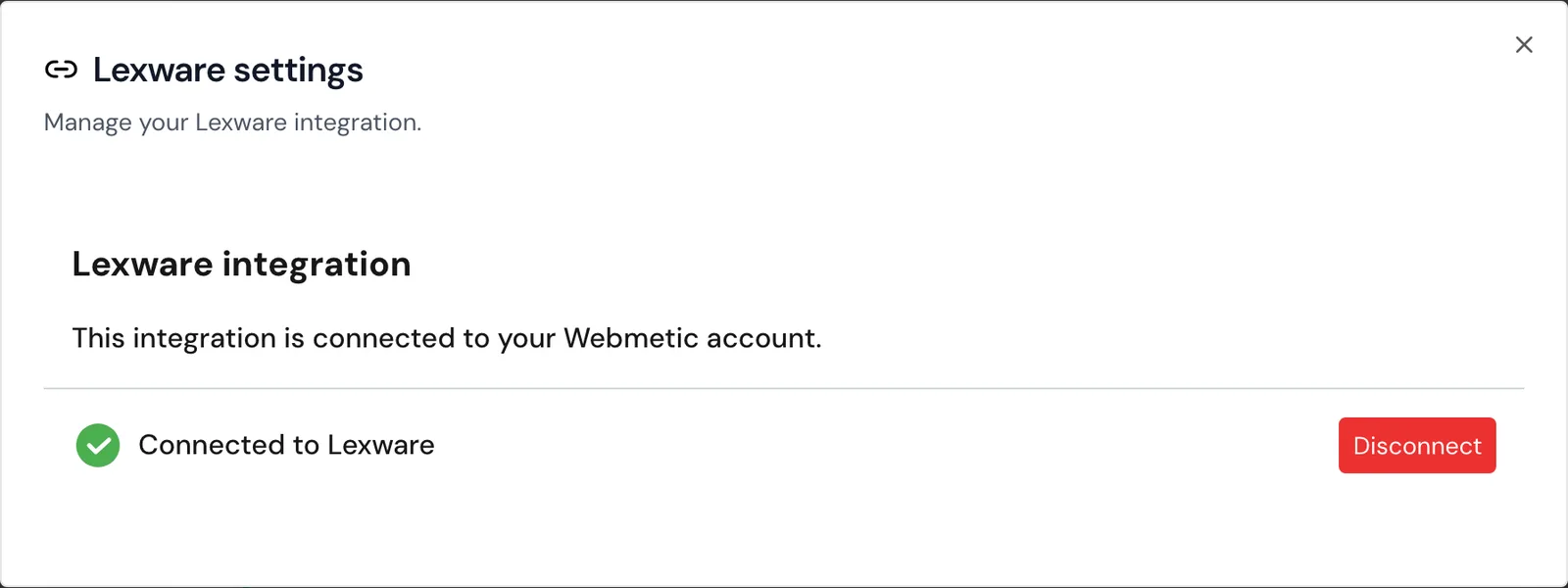
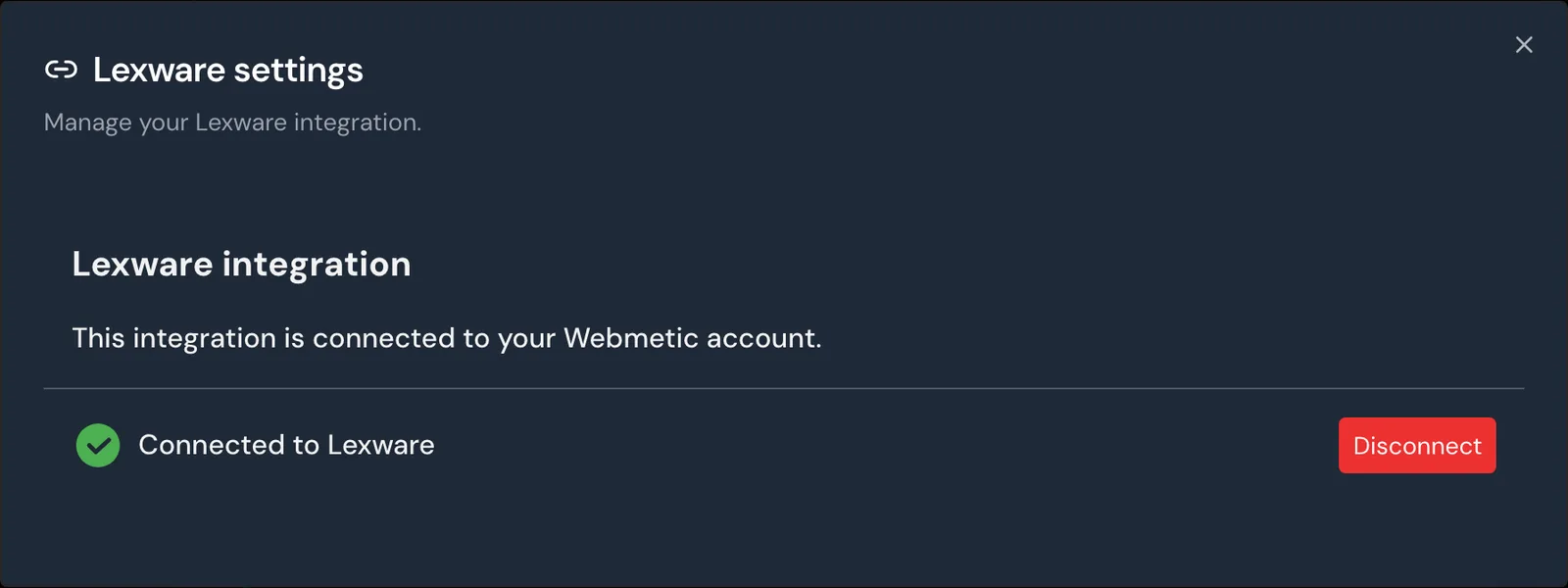
The connection applies to your whole Webmetic account and all its websites.
2. Send a company
You send each company on its own from its profile. Webmetic doesn't send companies by itself, and it doesn't send whole lists or segments either.
- Open a company in the company list. The profile opens.
- On the right, under Manage data, click Send to Lexware. The button now shows Sent to Lexware with a green dot.
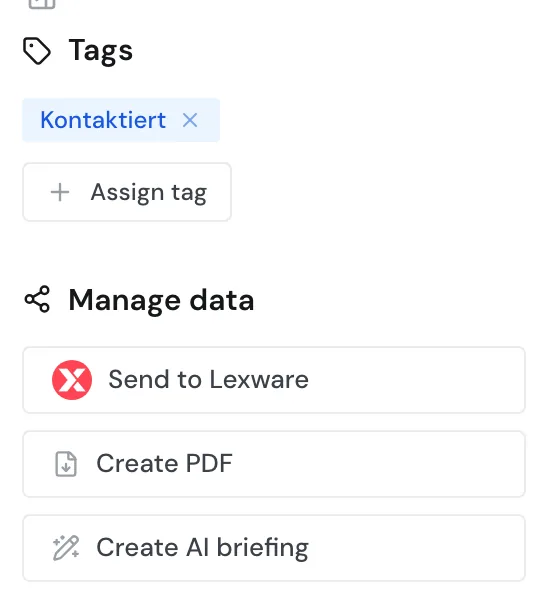
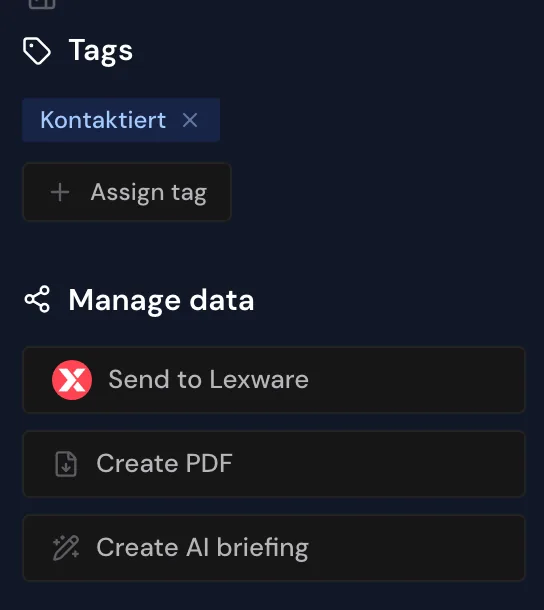
Webmetic starts the transfer right away in the background. Manage data shows where the section sits in a narrow browser window.
What is sent
For each company, Webmetic creates one contact as a company and assigns it to your customers (the Lexware Office labels are German):
| Item | What Webmetic sends |
|---|---|
| Name | The company's name |
| Address | Street, postal code, city, and country as the billing address (Rechnungsadresse) |
| Email address | The company's general email address, if Webmetic knows it |
| Phone number | The company's phone number, if Webmetic knows it |
| Note (Notiz) | The text "Webmetic" |
Webmetic sends no visits, no website, no industry, no employee count, and no revenue. You also keep relevance, activity, tags, comments, and contacts in Webmetic only.
Behavior after sending
- Webmetic sends each company once, with the data it has at that moment. Changes you see in Webmetic later don't reach Lexware Office.
- If Lexware Office already has a contact with the same email address, Webmetic uses that contact. Without an email address, Webmetic always creates a new contact.
- If you click Sent to Lexware, Webmetic takes the company out without asking. The contact in Lexware Office stays.
- Webmetic never changes or deletes a contact in Lexware Office. You won't see any data from Lexware Office in Webmetic, because nothing comes back.
Check the transfer
- After a few minutes, open Kontakte (contacts) in Lexware Office.
- Look for the contact with the company's name. The contact's Notiz (note) says "Webmetic".
The Sent to Lexware button only means that Webmetic has queued the company for sending. If sending fails, Webmetic tries again in the next run, within 15 minutes.
If the second attempt fails too, Webmetic doesn't try any further, and the dashboard shows no message.
If the contact is still missing in Lexware Office after 15 minutes, click Sent to Lexware in the profile and then Send to Lexware. If the company has no email address, every new send creates another contact. So first check carefully that the contact is missing in Lexware Office.
Disconnect
- Click Menu > Integrations > Lexware.
- Click Disconnect. Webmetic doesn't ask for confirmation and disconnects.
You keep the contacts in Lexware Office. Webmetic gives up its access in Lexware Office, and every profile shows the Send to Lexware button again. If you connect again later, Webmetic sends nothing by itself.
If disconnecting fails, Webmetic shows no message. So check that the window shows the Connect to Lexware button again afterwards.
Troubleshooting
Why is the button missing in the profile?
Without a connection to Lexware Office, you don't see a button for sending in the profile. In that case, ask an admin to complete step 1. On the Free plan, the button is also missing for companies whose name you don't see.
Why does the return to Webmetic show an error?
If you declined access in Lexware Office, the page shows the message Something went wrong. In that case, start again with step 1 and allow access this time.
Why is Lexware Office no longer connected?
Lexware Office shows its active connections under Einstellungen > Erweiterungen (settings, extensions). If you disconnect Webmetic there, Webmetic disconnects too. This also happens when Lexware Office no longer accepts Webmetic's sign-in at the next send. Webmetic doesn't report this, and the window shows the Connect to Lexware button again. In that case, connect Lexware Office again as described in step 1.
FAQ
Can I connect several Lexware accounts?
No. One Webmetic account connects to exactly one Lexware Office account.
Does Webmetic send contacts too?
No. Webmetic only sends the company, not the contacts you have unlocked.