

HubSpot
Connect HubSpot to Webmetic so the companies Webmetic identifies reach HubSpot with their visits.
With the HubSpot integration, your sales team works in HubSpot with the companies Webmetic identifies on your website. At the end you'll have:
- HubSpot connected to your Webmetic account
- every company you send as a record in HubSpot, with the fields you choose
- its visits as notes on that record
- new visits and current values about once a day
Webmetic sends in one direction: nothing comes back from HubSpot, and Webmetic never deletes a record in HubSpot.
Before you start
- Time: Connecting takes a few minutes.
- Account: You need a Webmetic account with at least one website and a HubSpot account. The free HubSpot CRM is enough.
- Access: Your user in HubSpot needs the App Marketplace access permission or must be a Super Admin. So that Webmetic can create fields, they usually also need the Edit property settings permission.
- Rights: Only admins see the Integrations menu item. If a partner runs your account under its own name, this integration isn't available yet. Once HubSpot is connected, every user can send companies with the Send to HubSpot button.
- Plan: Integrations are available on every plan, including the Free plan. On the Free plan, Webmetic only sends the companies you see by name. For details, see Free plan.
- Cost: The integration costs no credits.
1. Connect HubSpot
You connect exactly one HubSpot account to your Webmetic account, and the connection applies to all your websites.
- Click Menu > Integrations > HubSpot. The HubSpot window shows the HubSpot connection.
- Click Connect HubSpot. Your browser switches to the HubSpot sign-in.
- Sign in to HubSpot.
- Choose the HubSpot account Webmetic should write to. HubSpot then shows which access Webmetic requests: only companies and their fields, no contacts or deals.
- Click Connect app.
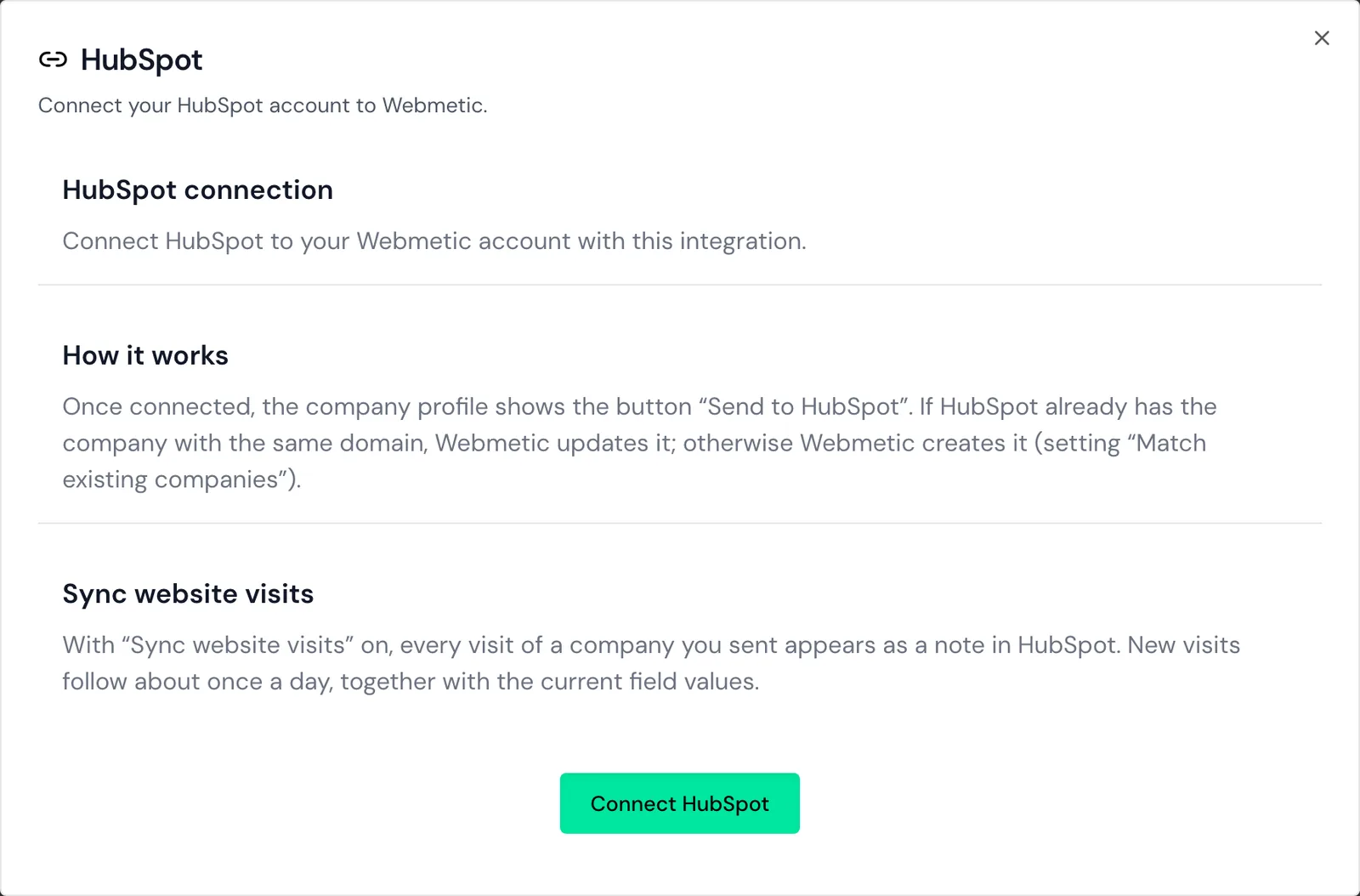
HubSpot then sends you back to Webmetic, and the page confirms the connection by itself. Webmetic opens the window again, now called HubSpot settings, and shows the status Connected to HubSpot.
2. Check fields and options
When you connected, Webmetic already selected all fields. In the background, it creates the fields your HubSpot account doesn't have yet.
Every switch in the window saves as soon as you change it, so there is no save button you need to click.
- Optional: Under Synced fields, click Manage 33 fields and switch off the fields in Field mapping that Webmetic should not send. All fields are listed under HubSpot field mapping.
- Under Sync options, leave Match existing companies on. We recommend this because Webmetic then updates an existing company with the same domain instead of creating a second record.
- If you want to see the visits in HubSpot, leave the Sync website visits switch on. Webmetic then adds each visit as a note on the record.
- Optional: Switch on the Tag companies sent to HubSpot option. Webmetic then gives every company you send the tag "HubSpot".
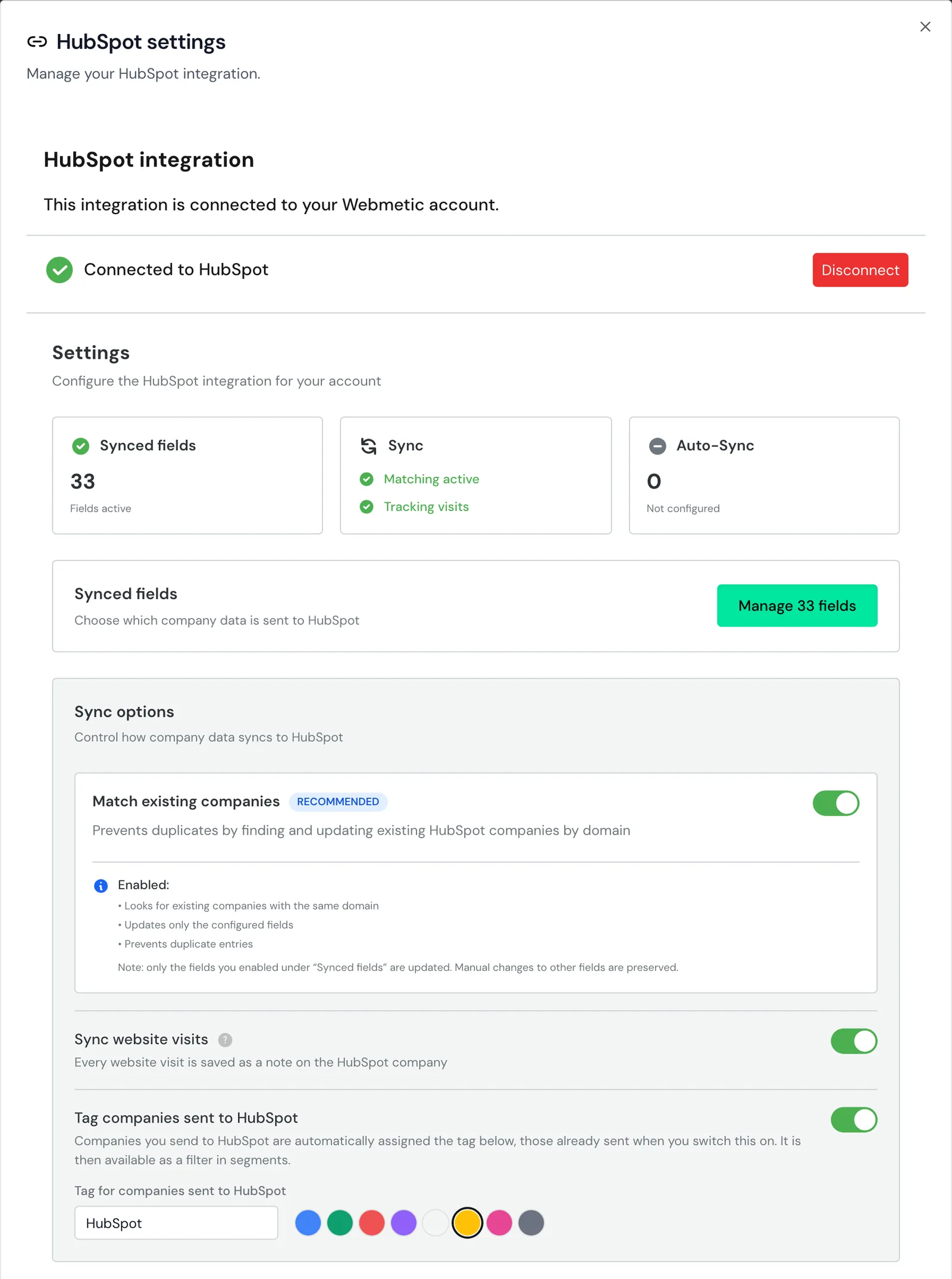
Both options are on after you connect. The Match existing companies option applies to the companies you send afterwards.
If you switch off Sync website visits, Webmetic adds no new notes for any company. If you switch the option on again later, Webmetic only sends the visits since the company's last transfer.
Webmetic matches by domain only, never by name or address.
Tagging is off after you connect. When you switch it on, Webmetic creates the tag "HubSpot" or reuses an existing tag with that name. Every company sent so far gets the tag, and so does every company you or automatic sync send afterwards.
Below the switch you can rename the tag and choose its color. Like any other tag, you can use it as a filter in segments.
If you switch tagging off or take a company out, the company keeps its tag. If a send fails, the company gets no tag.
3. Send companies
You send companies one at a time from their profile, or all companies of a website automatically.
Send single companies
Open a company's profile and click Send to HubSpot under Manage data. The button then shows Sent to HubSpot, and Webmetic starts sending right away in the background. Manage data shows where the section sits and how you take a company out again.
Send all companies of a website
Webmetic sends all companies so far to HubSpot
When you switch it on, Webmetic sends every company that has visited the website up to then. Webmetic does not delete these records, not even after you switch it off. Check first whether these companies belong in your HubSpot.
- Click Menu > Integrations > HubSpot.
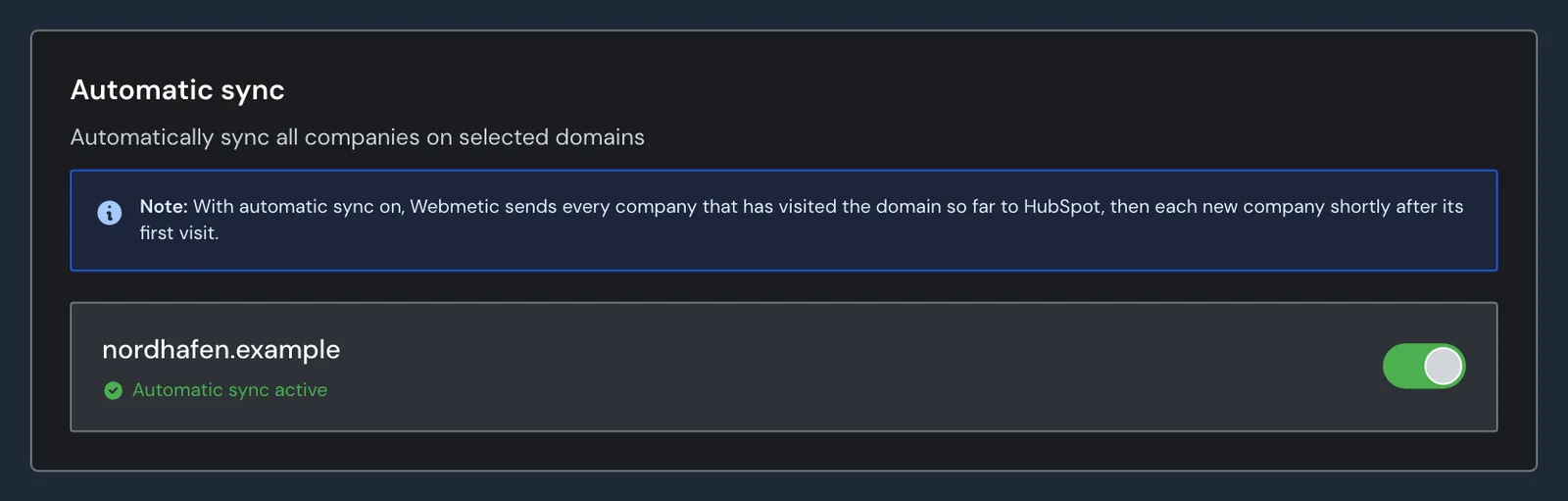
- Under Automatic sync, switch on the toggle next to your website. Below it you now see the note Automatic sync active.
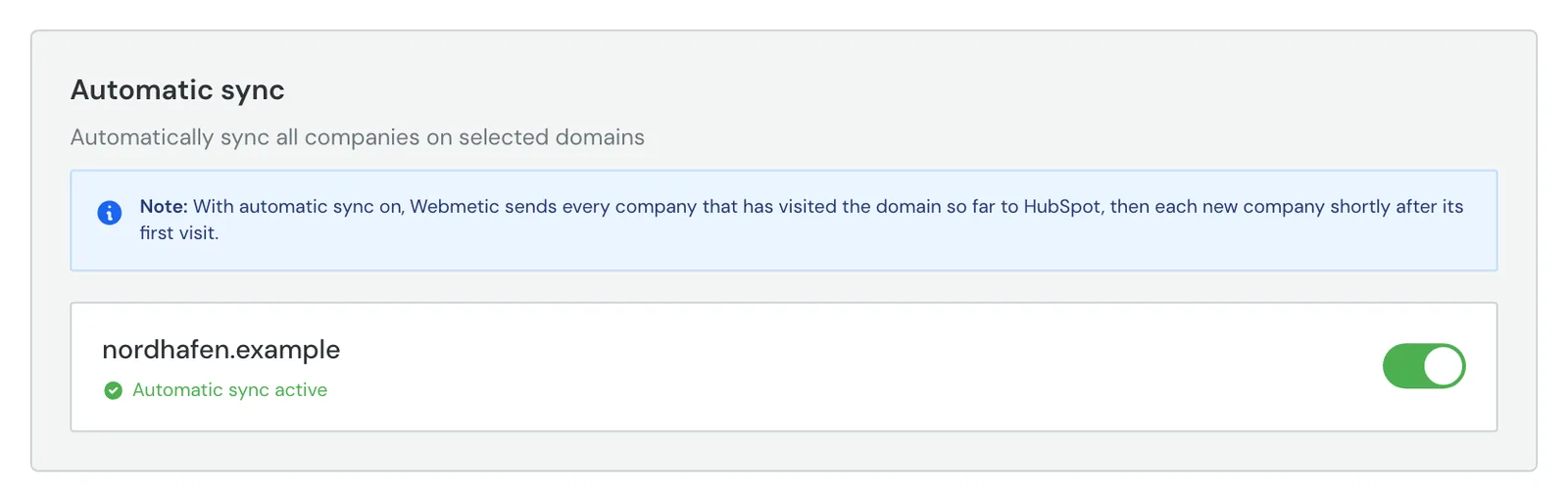
Webmetic then starts sending in the background. After that, Webmetic checks every 15 minutes for companies that visit your website for the first time and adds them.
If you then take a company out in the profile, Webmetic doesn't send it again as long as automatic sync stays on. If you switch automatic sync off and on again, Webmetic sends all companies again.
If you switch the toggle off, Webmetic sends no new companies. Companies Webmetic already sent keep getting notes and current values until you take the company out in the profile.
What is sent
- Record: Every company gets one record in HubSpot. If Match existing companies is on, Webmetic uses an existing company with the same domain. Otherwise Webmetic creates a new one.
- Fields: Webmetic sends the fields that are on in the field mapping. A field with a value overwrites the value in HubSpot on every update, also on existing records. Webmetic never sends empty values.
- Notes: Webmetic adds one note per visit with the duration, the source, and the pages viewed. The note carries the date of the visit, and its text is in English.
Webmetic sends no contacts, deals, tags, comments, or segments. Which fields exist and what a note looks like is described in HubSpot field mapping.
When Webmetic sends
On the first send, Webmetic links the company in HubSpot or creates it. Then Webmetic adds every past visit as a note and writes the fields.
Webmetic sends new visits and current values about once a day.
| What | When |
|---|---|
| A company you send with Send to HubSpot | Right away in the background |
| All companies that have visited a website so far | When you switch on automatic sync for the website |
| New companies of a website with automatic sync | In the background every 15 minutes |
| New visits and current values of companies already sent | About once a day, each visit once |
Check the transfer
- Open a company's profile in Webmetic.
- Under Manage data, click Send to HubSpot. The button shows Sent to HubSpot.
- Search for the company in HubSpot by its domain.
- Check the fields on the record. You find the notes under Activities > Notes.
The Sent to HubSpot button only means that Webmetic has queued the company for sending. If the transfer fails, the dashboard shows no message.
So check the record in HubSpot yourself.
Disconnect
Disconnecting applies to the whole account at once
Webmetic doesn't ask for confirmation when you disconnect. Afterwards, Webmetic can't restore which record in HubSpot belongs to which company.
- Click Menu > Integrations > HubSpot.
- Click Disconnect. The window shows the Connect HubSpot button again.
Webmetic then stops sending and switches off automatic sync for all websites. Records, notes, and fields stay in HubSpot.
The Webmetic app stays installed in HubSpot until you remove it there. To do so, click the settings icon in HubSpot > Integrations > Connected Apps > Actions > Uninstall. HubSpot then asks you to type "uninstall" and click Uninstall again.
If you connect again later, Webmetic resets the field mapping. All default fields are on again, and fields you added yourself are gone. The switches under Sync options keep their values.
Webmetic then sends nothing by itself. If you send a company again or switch automatic sync on again, Webmetic links each company by domain when Match existing companies is on. If Sync website visits is on, it also adds all visits as notes once more.
Troubleshooting
Why does the return to Webmetic show an error?
If the page shows the message Something went wrong, the connection did not go through, and the page does not tell you why.
Check your permissions in HubSpot. If the App Marketplace access or Edit property settings permission is missing, a Super Admin in HubSpot can grant it to you. Then start again with step 1.
Why is a company missing in HubSpot?
Check these causes:
- On the Free plan, Webmetic only sends the companies you see by name.
- Someone took the company out in the profile. As long as automatic sync stays on, Webmetic does not add the company again.
- Someone deleted the record in HubSpot. Webmetic does not create it again by itself.
- The transfer failed without a message in the dashboard.
To try again, click Sent to HubSpot in the profile and then Send to HubSpot.
If Sync website visits is on, Webmetic then adds all visits as notes once more. If Match existing companies is off, Webmetic also creates a second record.
Why does a company appear twice?
Webmetic found no company with the same domain in HubSpot. That happens when Match existing companies is off or the existing record has no domain. Clean up the duplicate records in HubSpot and leave the option on.
Why do notes appear twice on a record?
Someone sent the company again after taking it out or after a new connection, or automatic sync was switched on again after a new connection. Webmetic then adds all visits once more. Delete the duplicate notes in HubSpot.
Why does Webmetic change values your team maintains?
Every field that is on in the field mapping overwrites the value in HubSpot on every update. Switch the field off in HubSpot field mapping.
FAQ
Does Webmetic create contacts in HubSpot?
No. Webmetic only sends companies and their visits, not even the contacts you unlocked.
Can I send a segment to HubSpot?
No. Send the companies one at a time, or switch on automatic sync for the website.