

Billing
See your plan, payment method, and invoices, upgrade your plan, or cancel it.
Menu > Billing opens the Manage billing window. At the end you'll have:
- seen which plan is running, when it renews, and how you pay
- bought, upgraded, or cancelled a plan
- opened your invoices and checked your address for future invoices
Before you start
- Rights: Only admins open Billing and book a different plan. Users with the User role see the plan badge at the top without Upgrade, and clicking the badge shows the note "An admin of your account manages the plan and billing." Any user can buy credits, though. For details, see Credits.
- Account: This page covers accounts that Webmetic bills directly. If your partner bills your account, you don't see Billing.
- Plan: On the trial and the Free plan, you buy a plan in the checkout. Starter and Growth can be upgraded right in the window. On Enterprise and with an Existing plan, plan changes go through Support.
- Cost: Nothing on this page costs credits. Outside the trial, Webmetic charges an upgrade right away, and you can only move back to a smaller plan through Support.
Check your plan and payment
Open Menu > Billing. At the top, the window shows your plan with its volume, billing period, and status, and below it Price, Payment method, Renews on, and Included credits.
The status tells you where your plan stands:
- Active: Your plan is running and renews on the date shown.
- Payment processing: A direct debit is still in progress, but your plan is already active.
- Payment overdue: A payment failed, and what to do next is described under Settle an open payment.
- Cancelled, ends: Your plan ends on the date shown next to this status.
If your account is on Enterprise, the Enterprise box shows the status Active. Webmetic then bills under your contract, and for questions about the plan, contract, or invoices you click Contact support. If no plan is running, the window shows the message "There is no plan running for your account." and the Choose a plan button. With an Existing plan, the window looks different from what this page describes.
Buy a plan
On the trial and the Free plan, you buy a plan in four steps: Plan, Address, Payment, and Confirmation.
- Click Upgrade in the top bar or Choose a plan under Billing.
- Under Identified companies per month, choose the volume. Webmetic suggests a volume based on the account's usage so far.
- Choose Annual or Monthly. If you choose annual, you pay for one year in advance.
- Click Choose Starter or Choose Growth. What sets the two plans apart is described in Plans.
- Check the Billing address, which Webmetic prefills from your company details.
- Optional: If your company isn't based in Germany, enter the VAT ID. With a valid number, Webmetic invoices without German VAT.
- Click Continue to payment to get to the payment form.
- Choose a payment method in the Stripe payment form.
- Click Place order. Webmetic then confirms your purchase in the last step.
Your plan is active right away, even while a direct debit is still in progress. If you buy during the trial, the plan only starts when the trial ends, and Webmetic tells you the start date. Until then, Webmetic only saves your payment method, and the top bar shows the plan with its start date.
Cancel a booked plan
You can cancel a plan you bought during the trial before it starts.
- Open Menu > Billing. Webmetic shows the booked plan with its start date.
- Click Cancel booked plan to open the Cancel subscription window.
- Choose a reason and click Cancel subscription in that window.
The booked plan then doesn't start, Webmetic charges nothing, and the trial keeps running until its end.
Upgrade your plan
With an upgrade, you choose a larger volume or move from Starter to Growth. It applies right away, and the billing period stays annual or monthly as before.
- In Manage billing, click Upgrade to open the Upgrade your plan window.
- Choose the plan under Tier and the new volume under Volume per month.
- Check the amount under Due today before you confirm.
- Click Upgrade now. With a card, the bank may ask for a confirmation of the payment.
Webmetic charges the new price right away and deducts the unused part of the current plan until the end of the period. With a card, the plan only changes once the payment goes through, and if the bank declines it, the plan stays as it was. With direct debit, the plan changes right away and Webmetic debits the difference.
If you move from Starter to Growth, you get the difference in included credits once for the current month.
If you have cancelled, an upgrade takes your cancellation back, and the Upgrade your plan window points this out. The plan then keeps running and renews as usual. If your bank has to confirm the card payment, this applies only once the upgrade invoice is paid.
During the trial, upgrading the booked plan costs nothing today, and the new plan starts when the trial ends.
If you already use Growth with the largest volume, the Upgrade your plan window shows the Ask about Enterprise button instead of the selection. It sends the Webmetic team a request.
Downgrade or change the billing period
You can't switch to a smaller plan, a smaller volume, or another billing period in the dashboard. If you'd like to move to a smaller plan or change the billing period, write to Support, and the Webmetic team changes the plan for you.
Cancel your plan
A cancellation applies at the end of the current billing period. The billing period lasts one month or one year and follows the day your plan started, not the calendar month. Until then, you keep every feature of your plan. The dashboard offers no immediate cancellation and no refund.
-
In Manage billing, click Cancel subscription.
-
On Starter and Growth, another window opens first. Click Continue to cancel there.
-
Under the question Why are you cancelling?, choose a reason. Without a reason, the window's Cancel subscription button stays disabled.
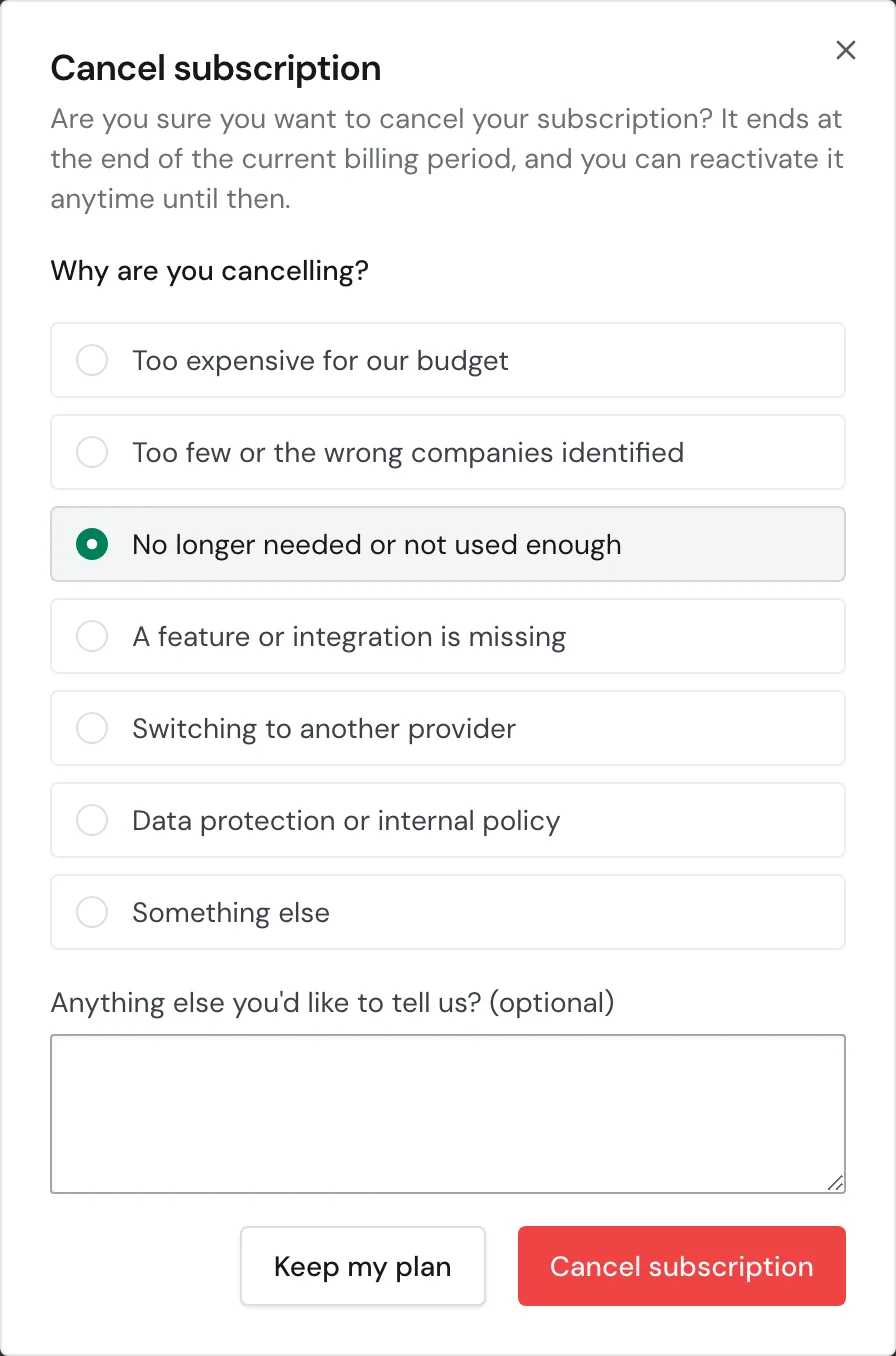
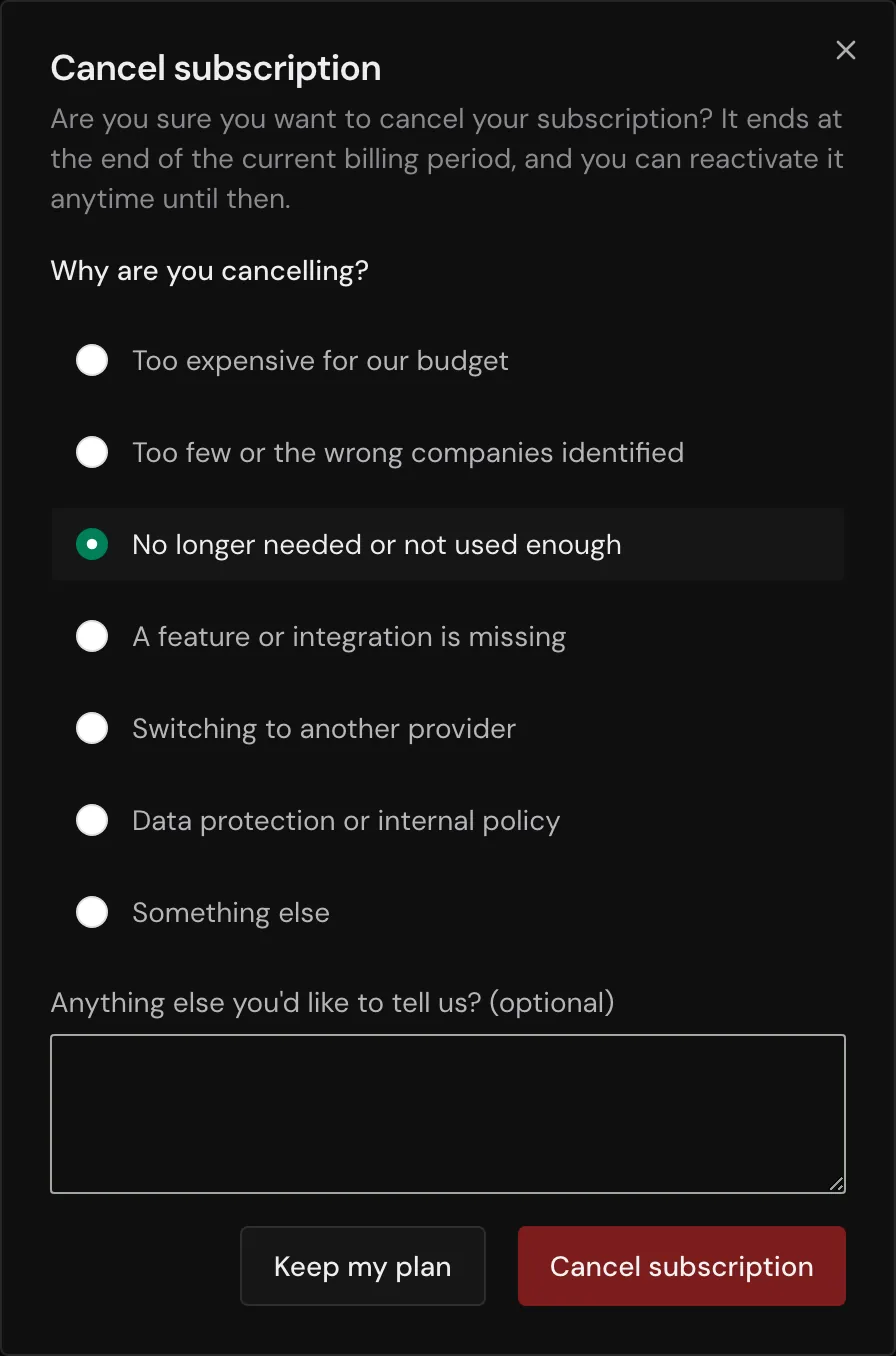
The Cancel subscription window with a reason selected -
Optional: Leave the Webmetic team a comment.
-
Click Cancel subscription in this window. Webmetic schedules the cancellation for the end of the period.
The window then shows the Cancelled, ends status with the end date, and the top bar counts the days until the end.
On the end date, the account moves to the Free plan and keeps its data and credits. What the Free plan shows is described in Trial and Free plan.
Take a cancellation back
Until the end date, you take a cancellation back with one click. After that it's no longer possible, and you buy a new plan instead.
-
Open Menu > Billing, or click Renew in the top bar.
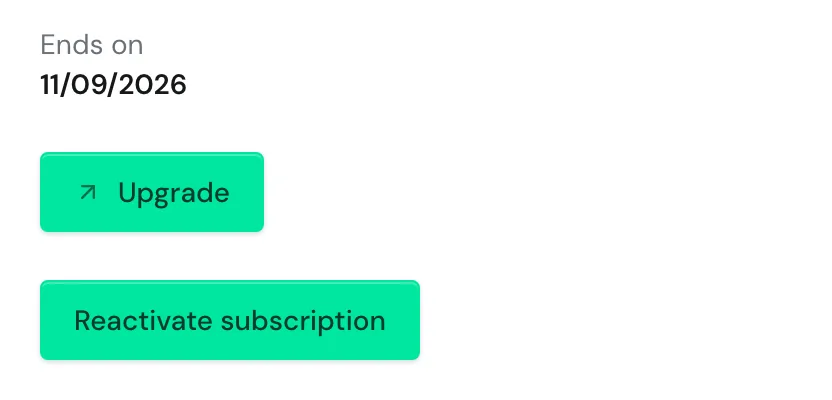
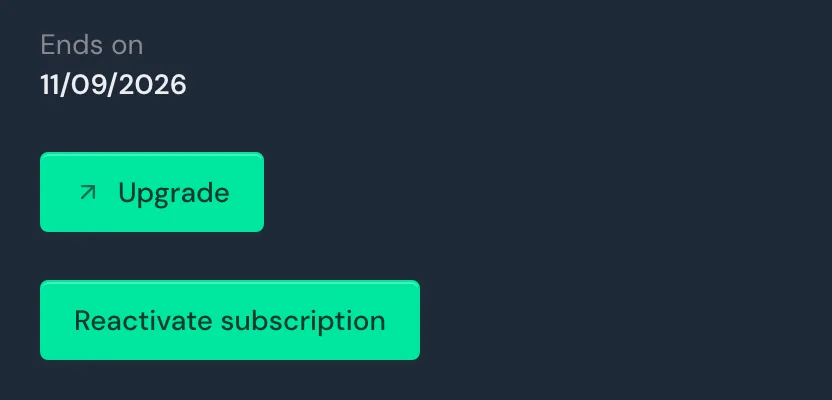
The Manage billing window with a scheduled cancellation and the Reactivate subscription button -
Click Reactivate subscription. Webmetic confirms that your subscription is reactivated.
Your plan then keeps running and renews as it did before you cancelled.
Change your payment method
The Payment method box shows the card with its last four digits or SEPA Direct Debit.
- Under Payment method, click Edit. If no payment method is saved yet, click Add payment method instead. The Stripe customer portal opens in a new tab.
- Change your payment method there.
Open your invoices
The Billing history shows the five most recent invoices, both for the plan and for purchased credits. Each invoice has a status: Paid, Open, Draft, Void, or Uncollectible.
- Click an invoice number. The invoice opens in a new tab, where you can download it.
- For older invoices, click Show all. The Stripe customer portal then shows every invoice of the account.
Change your billing address
Webmetic takes your billing address from your company details.
- Open Menu > Company > Company details.
- Change the name or address. If the company isn't based in Germany, also enter the VAT ID.
- Click Save. Webmetic uses the new address for future invoices.
If the name, street, postal code, or city is missing, Webmetic saves the details but doesn't update the billing address. For details, see Company details.
Settle an open payment
If a payment fails, the plan shows the Payment overdue status. The top bar shows the same note with the Open billing button. The plan keeps its features for now, but scheduled notifications and Enrichment pause until the payment arrives. As soon as admins then open Visitor Intelligence, Webmetic shows them the Manage billing window by itself. Until the invoice is paid, the window can't be closed.
- In the Billing history, click Pay next to the open invoice to open it in a new tab.
- Pay the invoice on the page that opens.
If a SEPA direct debit is returned, the plan ends right away and the account moves to the Free plan. You then buy a plan again as described under Buy a plan.