

Users and roles
Create logins for your team and decide who manages the account and the team as an admin.
Everyone on your team gets their own login to your Webmetic account, and their role decides what they see in the menu. At the end you'll have:
- a separate login for everyone who works with Webmetic
- the right role for each person, Admin or User
- an overview of who sees and does what in the dashboard
Before you start
- Time: Each task on this page takes you a few minutes.
- Account: You need a Webmetic account, and whoever registers it is its first admin.
- Access: You'll find everything under Menu > Company > Users. If a partner manages your account, the partner decides which menu items you see.
- Rights: Every user sees the list, but only admins can add users, change roles, reset passwords, and delete users.
- Plan: Users and roles are part of every plan, including the Free plan and the trial. You can add as many users as you like.
- Cost: Users and roles cost no credits.
Each email address belongs to exactly one Webmetic account. If someone already has a Webmetic login in another account, they need a different address for yours.
Roles and permissions
Webmetic has two roles: admins manage the account and the team, and people with the User role work with the data. A role applies to the whole account, so everyone sees all websites in the account. There are no custom roles and no permissions per website.
| Area | Admin | User |
|---|---|---|
| Visitor Intelligence, ICP Analytics, Contacts, Enrichment, and Smart Pages | Yes | Yes |
| Send companies to connected tools, for example to HubSpot | Yes | Yes |
| Connect the AI assistant with your own login | Yes | Yes |
| Buy credits | Yes | Yes |
| Websites, Tracking code, Usage | Yes | Yes |
| Ideal customer profile, Contact profile, Organization types | Yes | Yes |
| Company details, Domain blacklist, CSV tag import | Yes | Yes |
| View the list of users | Yes | Yes |
| Add users, change roles, reset passwords, delete users | Yes | No |
| DPA | Yes | No |
| SSO settings | Yes, on the Enterprise plan | No |
| Integrations with the API key | Yes | No |
| Billing | Yes | No |
Only admins book a different plan. If someone with the User role clicks the plan badge at the top, Webmetic tells them that an admin manages the plan. If your partner bills your account, you don't see Billing.
Add a user
- Open Menu > Company > Users. The User management window shows all users in your account with their role.
- Click Add user. The Add new user window opens.
- Enter First name, Last name, and Email. You need to fill in all three fields.
- Click Add. The person appears in the list with the User role.
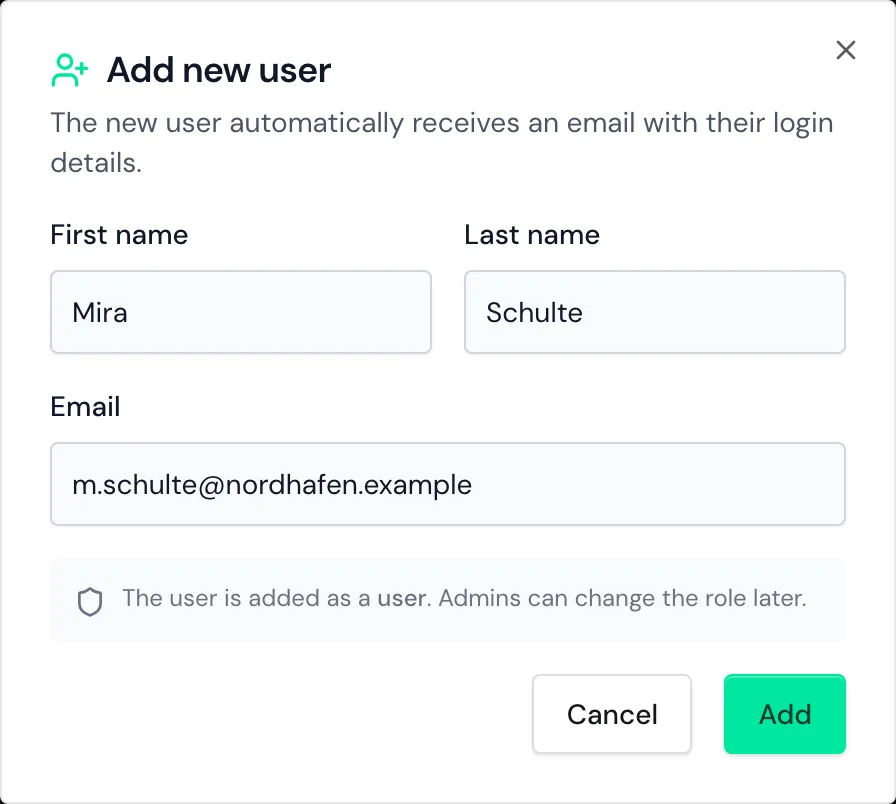
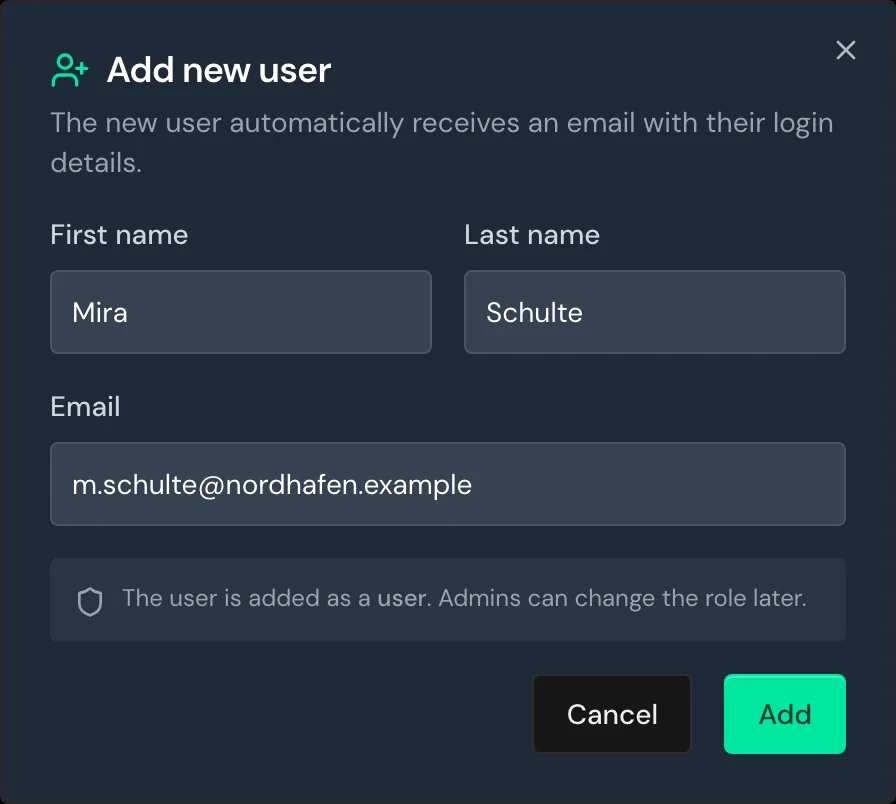
The person doesn't need to accept an invitation, because Webmetic creates a password and emails them the login details. After signing in for the first time, the person clicks their name or initials in the top right and changes the password under Change password. For details, see Profile and password.
The dashboard and emails first appear in the language of the admin who added the person. Each person can switch their language under My profile at any time.
If Webmetic can't send the email, the window shows a yellow notice, and the person is still added. In that case, send them new login details with Reset a password.
Webmetic adds users in two other ways, both with the User role:
- Hand over the setup: In the setup wizard, the option Also add as a user adds the person who installs the tracking code. For details, see Hand over to your IT team or agency.
- Single sign-on: With SSO, Webmetic creates new users when they sign in for the first time. For details, see Single sign-on.
Change a role
- Open Menu > Company > Users.
- In the person's row under Options, click the star. For the User role the star is called Make admin, for admins Remove admin access.
- Click Confirm. The list now shows the person's new role.
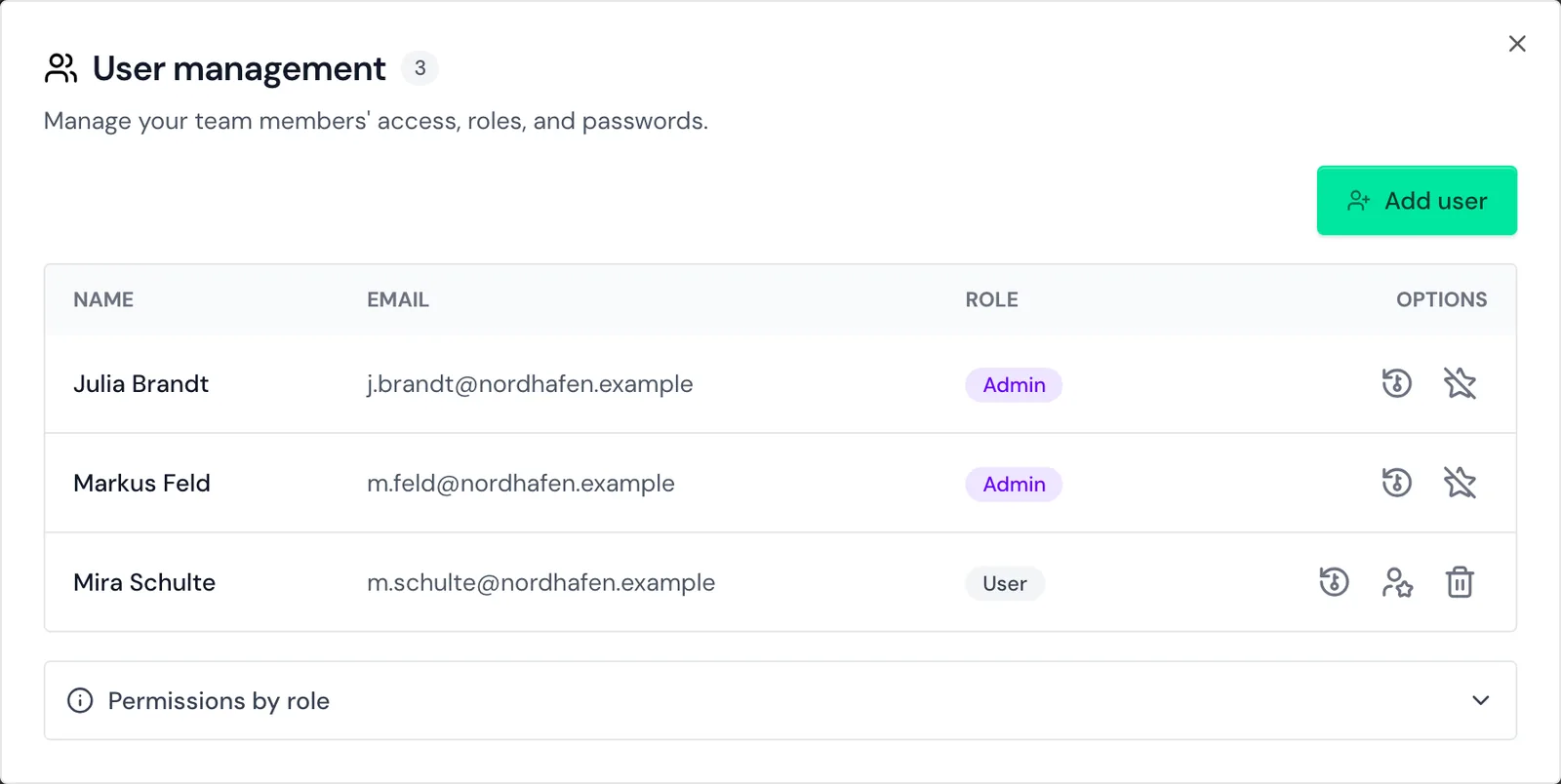
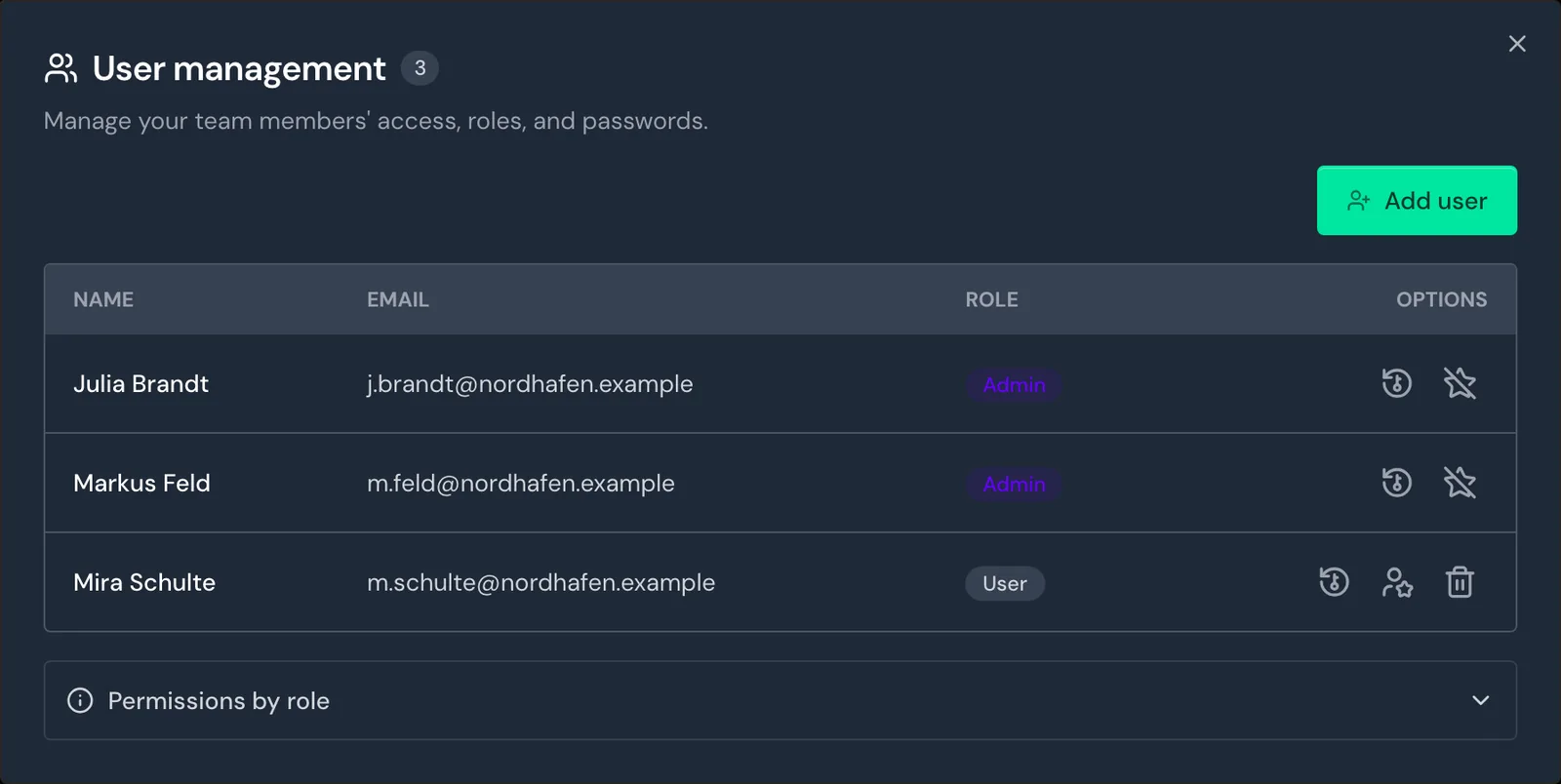
The person sees the matching menu as soon as they reload the page in their browser.
You can't change your own role. Because every account keeps at least one admin, you also can't demote the last admin. If you no longer want to be an admin yourself, ask a second admin to do it.
Reset a password
If someone has forgotten their password or the email with the login details didn't arrive, reset the password like this:
- Open Menu > Company > Users.
- In the person's row, click the key Reset password.
- Click Confirm. Webmetic creates a new password and emails it to the person.
Delete a user
Deleted users can't be restored
You can't undo deleting a user. If you add the same address again later, Webmetic creates a new login with a new password.
Because the trash icon only appears for the User role, demote an admin before deleting them.
- Open Menu > Company > Users.
- If the person is an admin, click the star Remove admin access and then Confirm.
- In the person's row, click the trash icon Delete user.
- Click Delete. Webmetic removes the login from your account.
Webmetic doesn't send the person a message about it, and the following remains:
- Comments: The person's comments stay visible, but nobody can edit or delete them afterwards, not even an admin.
- Account data: Segments, tags, Smart Pages, the ideal customer profile, and the websites belong to the account and stay unchanged.
- Notifications: The person stays a recipient and appears as an external address. So check the recipients of your notifications.
If the person was an admin, they could see the API key. To be safe, generate a new key as described in End access.
Change a name or email address
You can't change names or email addresses in the user management. Everyone changes their own name under My profile, and for a new email address, contact Support.