

Company details
Keep your own company's name, address, and VAT ID up to date so invoices and the DPA are correct.
This page is about your own company, the one that has the contract with Webmetic. The company profile describes the companies that visit your website.
Webmetic uses your details for the billing address and the data processing agreement (DPA), and visitors to your website don't see them. At the end you'll have:
- your company's name, address, country, and phone up to date in Webmetic
- optionally, a VAT ID for invoices without German VAT
- the same details on future invoices once your account has a billing address
Before you start
- Time: Entering the name and address takes about two minutes.
- Rights: The company details apply to the whole account, and any user can change them, whether admin or User.
- Plan: The company details are available on every plan, including the Free plan and the trial.
- Cost: The window costs no credits.
When you save, Webmetic overwrites the old details and keeps no history.
Change your company details
-
Open Menu > Company > Company details. The Company details window shows the stored details.
-
Under Company, enter your company's name as it should appear on your invoices.
-
Under Address, enter the street and number, postal code, and city, plus the additional line if you need it.
-
Under Country, choose your company's country.
-
Optional: Under Phone, enter a phone number.
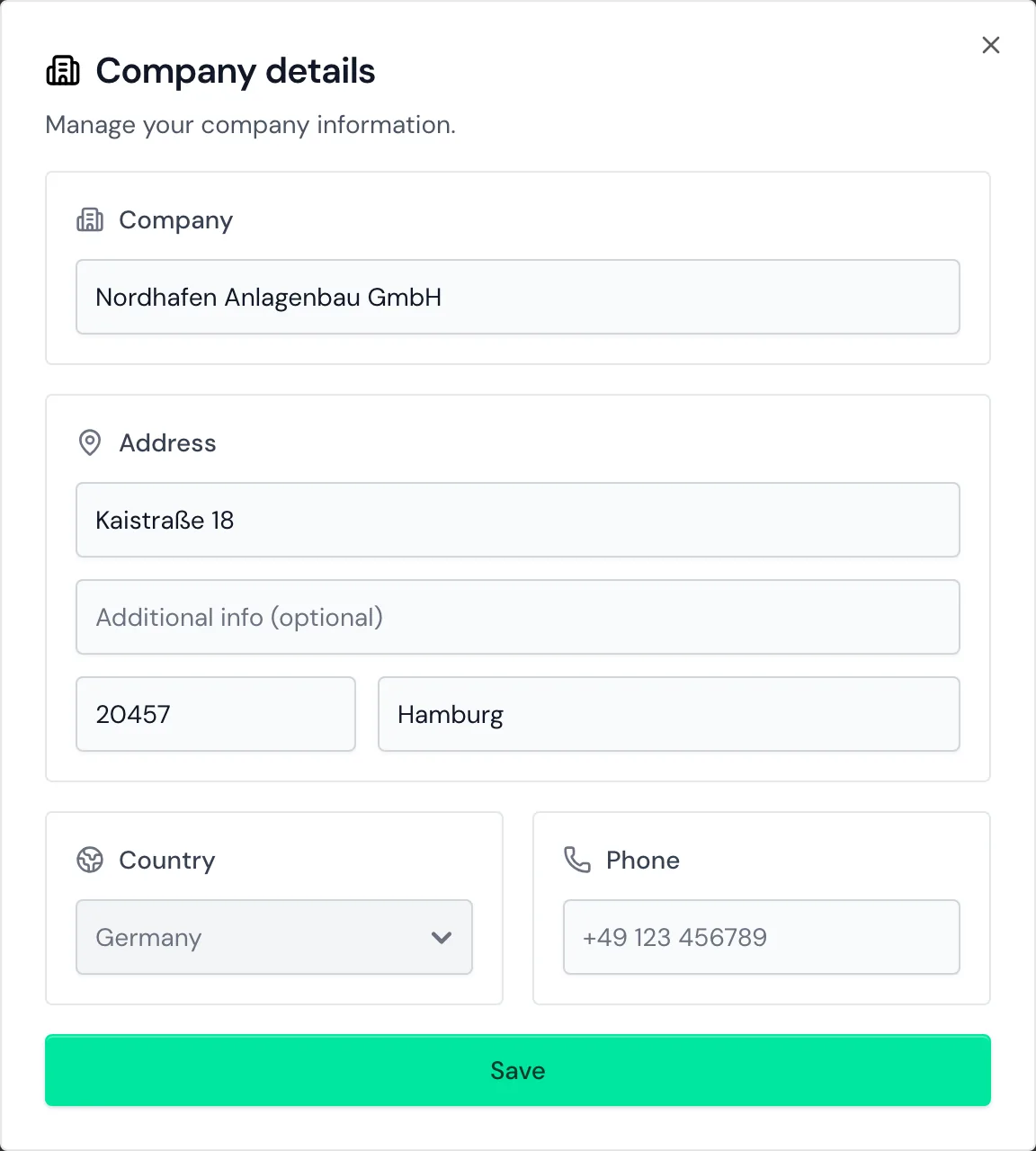
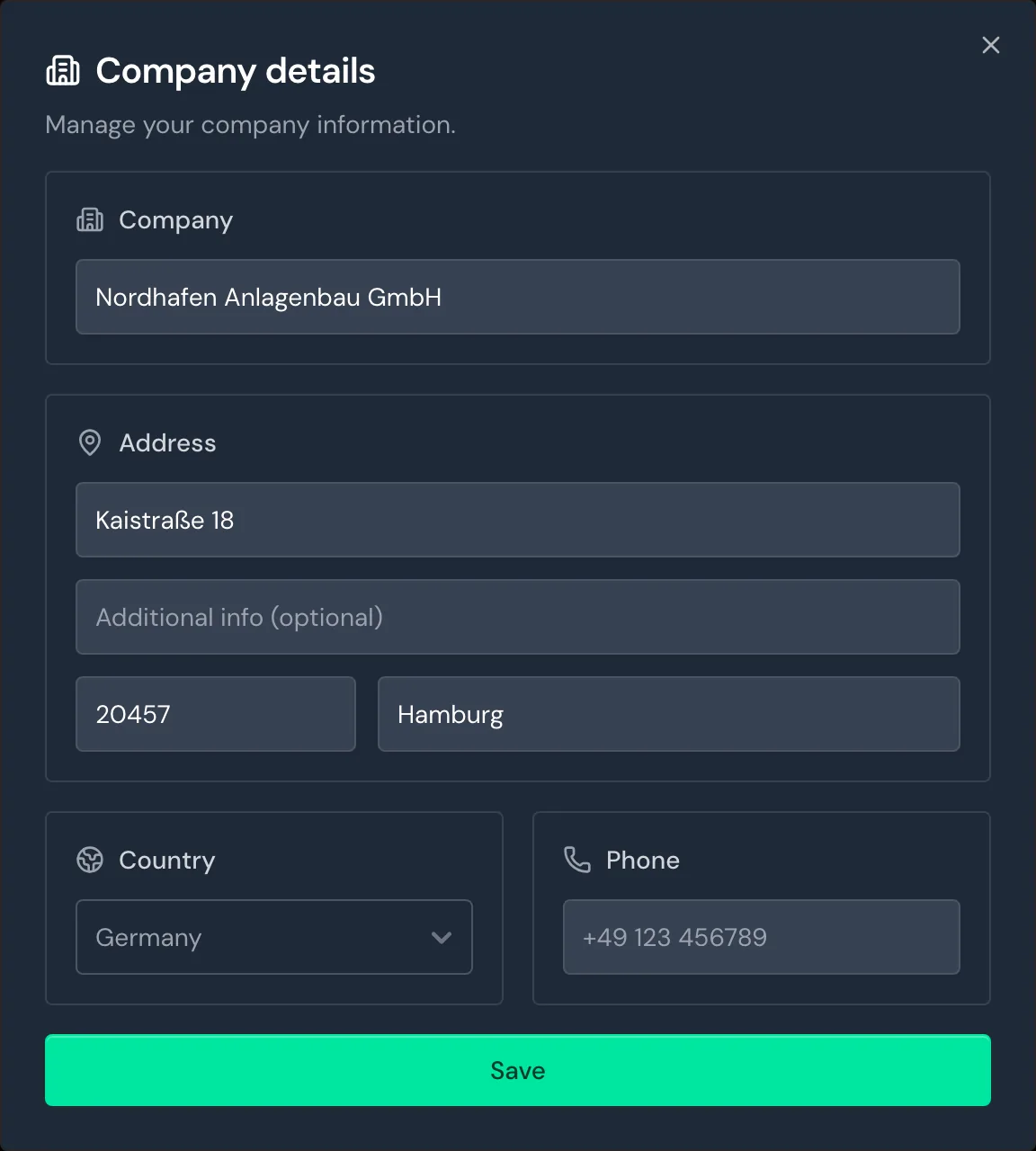
The Company details window with the name, address, and country of Nordhafen Anlagenbau -
Click Save. Webmetic saves the details and shows the message "Company details saved."
Webmetic saves nothing until you click Save, not even when you close the window.
The Country list contains the EU countries, Switzerland, Iceland, Norway, and the United Kingdom. If no country is stored yet, it shows Germany, and Webmetic stores it the next time you click Save.
You find the DPA under Menu > Company > DPA, and the DPA's PDF takes the name and address from your company details. A DPA that has already been created doesn't change later, even if you change your company details.
Add your VAT ID
With a valid VAT ID, we invoice companies outside Germany without German VAT (reverse charge).
- Under Country, choose the company's country. The VAT ID field appears below Phone.
- Enter your VAT ID, for example ATU12345678 for a company in Austria.
- Click Save.
If the VAT ID doesn't match the selected country, the window shows the message "This VAT ID doesn't match the selected country."
If you switch the country, update the VAT ID in the same window or clear the field. To remove the VAT ID completely, clear the field and click Save.
For Germany, the window shows the field only if a VAT ID is already stored. If your company isn't in Germany, you can also enter the VAT ID in the Billing address step when you buy a plan.
Billing address
When you buy a plan, Webmetic fills the Billing address step with your company details. The same goes for the address when buying credits. Webmetic copies whatever you change there in either case into the company details.
Once the account has a billing address, it also works the other way round. On saving, Webmetic copies the name, address, country, and VAT ID to the billing address, but not the phone number.
The new address applies to future invoices, which admins download under Billing.
If the company name, street, postal code, or city is missing, Webmetic still saves the details. The billing address then stays unchanged, and the window shows a notice instead of the confirmation.
If the window says that your billing address couldn't be updated, contact support.