

Single sign-on
Connect Webmetic to Microsoft Entra ID so your team signs in with their Microsoft account.
With single sign-on (SSO), your team signs in to Webmetic with your company's Microsoft account. An admin sets up SSO once for the whole account. At the end you'll have:
- sign-in through SSO login with the Microsoft account
- a user for every new person on your team, which Webmetic creates when they first sign in
- if you want, SSO-only mode, in which only admins can still sign in with a password
This feature is in beta. Names and settings may still change.
Before you start
- Time: The steps in Webmetic take a few minutes, plus the setup in Microsoft Entra.
- Account: Your company uses Microsoft Entra ID with work accounts. Webmetic doesn't support other providers such as Google, Okta, or SAML.
- Access: You or your IT team have access to the Microsoft Entra admin center.
- Rights: Only admins see the menu item SSO settings. In Microsoft Entra you need at least the Application Developer role. Whoever assigns people or grants admin consent needs the Cloud Application Administrator role.
- Plan: SSO is part of the Enterprise plan. On other plans the menu item shows a lock, and clicking it opens the window Get SSO with Enterprise with the Request Enterprise button. Only admins book a different plan.
- Cost: SSO costs no credits.
Register an app in Microsoft Entra
Webmetic needs its own app in your Microsoft directory. Microsoft also describes the steps in its guide to registering an app.
-
In the Microsoft Entra admin center, open Entra ID > App registrations.
-
Click New registration.
-
Under Name, enter a name, for example Webmetic.
-
Under Supported account types, choose the option for a single tenant. Webmetic only admits people from your own directory.
-
Under Redirect URI, choose the platform Web and enter this address:
https://app.webmetic.de/auth/entra/callback -
Click Register. Your app's Overview page opens.
-
Copy the Application (client) ID and the Directory (tenant) ID. You'll enter both values in Webmetic later.
When people sign in, Webmetic only asks for the User.Read permission, and Microsoft adds it to every new app. If your directory requires admin consent, an admin grants it under API permissions with Grant admin consent for followed by the directory's name.
Create a client secret
Webmetic signs in to Microsoft with a client secret. Webmetic doesn't support certificates.
- In your app, open Certificates & secrets > Client secrets.
- Click New client secret.
- Enter a description and choose how long the secret lasts. Microsoft allows at most 24 months and recommends less than 12.
- Click Add.
- Copy the Value of the new secret right away, not its ID. Once you leave the page, Microsoft never shows the value again.
Write down the expiry date. To renew the secret in time, see Change settings.
Restrict sign-in in Microsoft Entra
Recommended: Admit only the people who work with Webmetic. Otherwise anyone in your directory can sign in, and Webmetic creates a user for them.
- Open Enterprise apps and select your app.
- Under Properties, set the app so that people have to be assigned to it.
- Under Users and groups, click Add user/group and select the people or groups.
Set up SSO in Webmetic
- Open Menu > Company > SSO settings. The SSO settings window opens.
- In the Microsoft Entra ID configuration section, enter the Application (client) ID in the Application ID (client) field.
- Enter the Directory (tenant) ID in the Directory ID (tenant) field.
- Enter the secret's Value in the Client secret field.
- Click Save. Webmetic shows the message "SSO configuration saved.", and the status changes to SSO active.
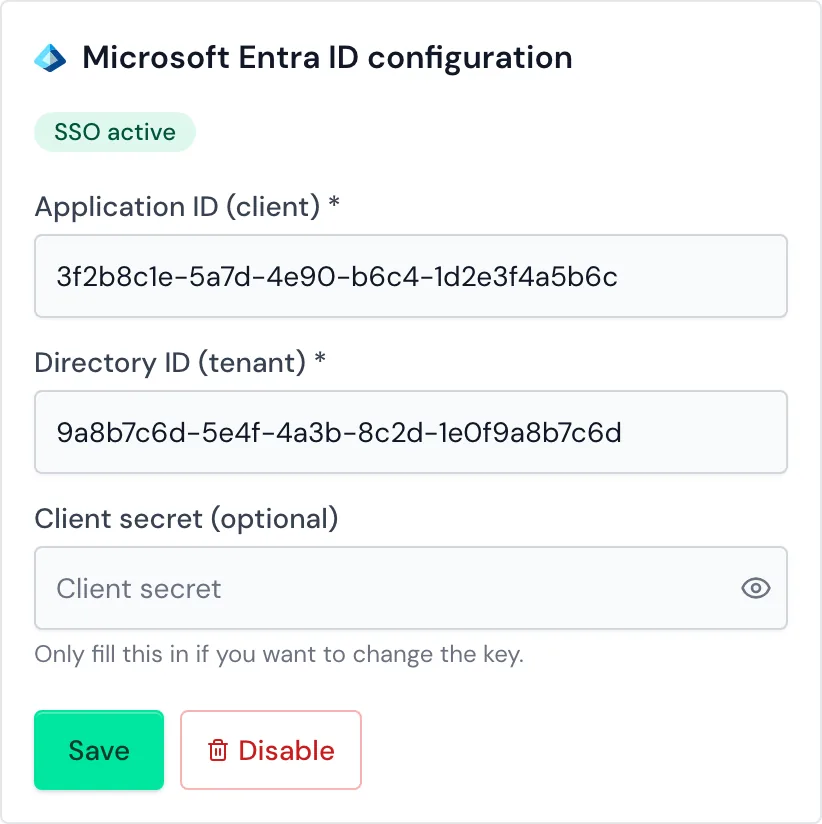
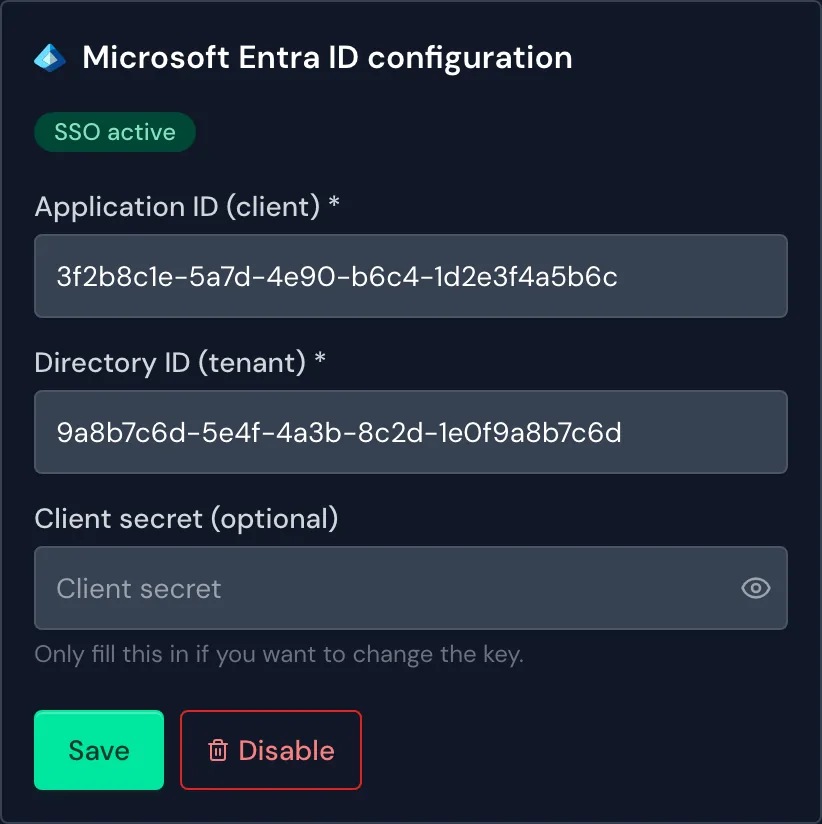
SSO applies as soon as you save. Because there's no button for testing, check the values with the first sign-in.
Sign in with SSO
This is how your team and you sign in. Test the sign-in before you tell your team.
Sign out first or use a private browser window. Complete the sign-in in the same browser tab.
- Open the sign-in page.
- Click SSO login.
- Under Your work email, enter your email address.
- Click Sign in with Microsoft. Microsoft asks you to sign in if you aren't signed in there yet.
- Sign in to Microsoft. Webmetic then opens your dashboard.
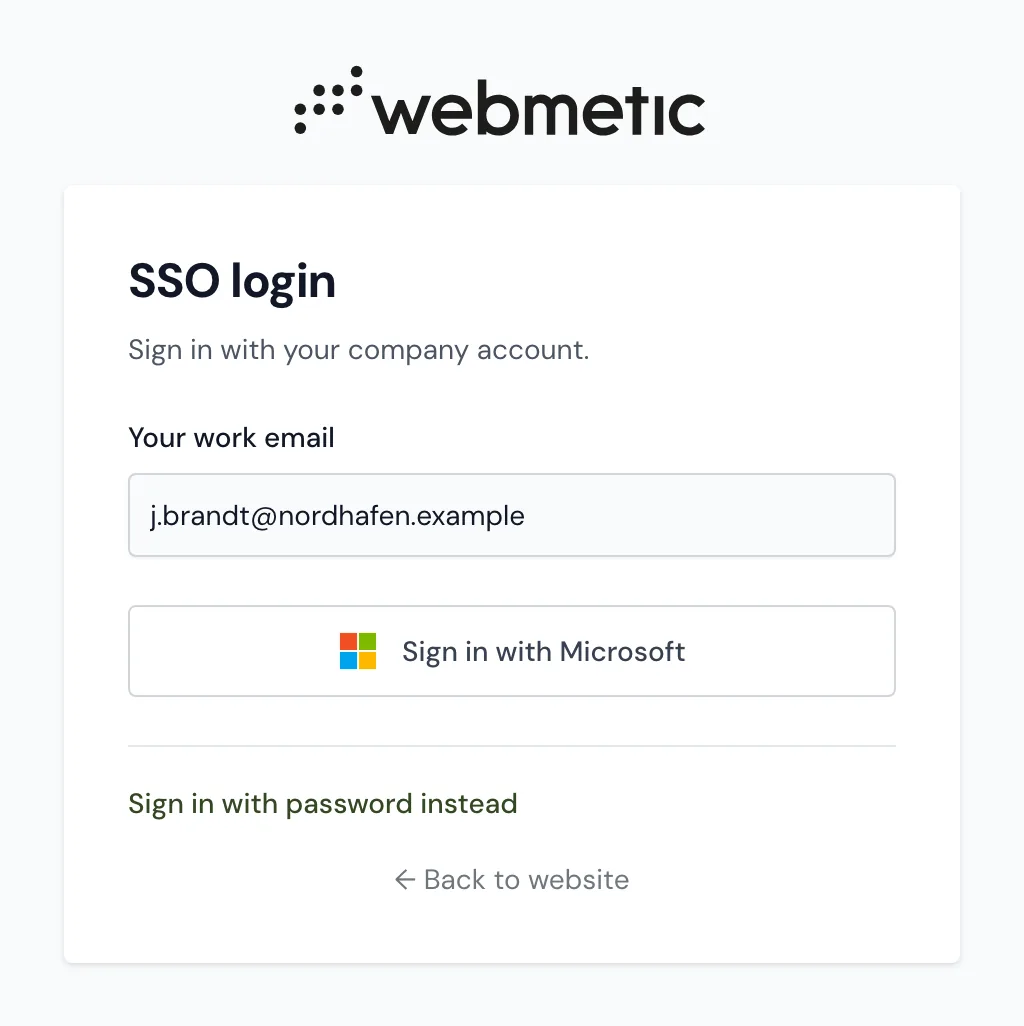
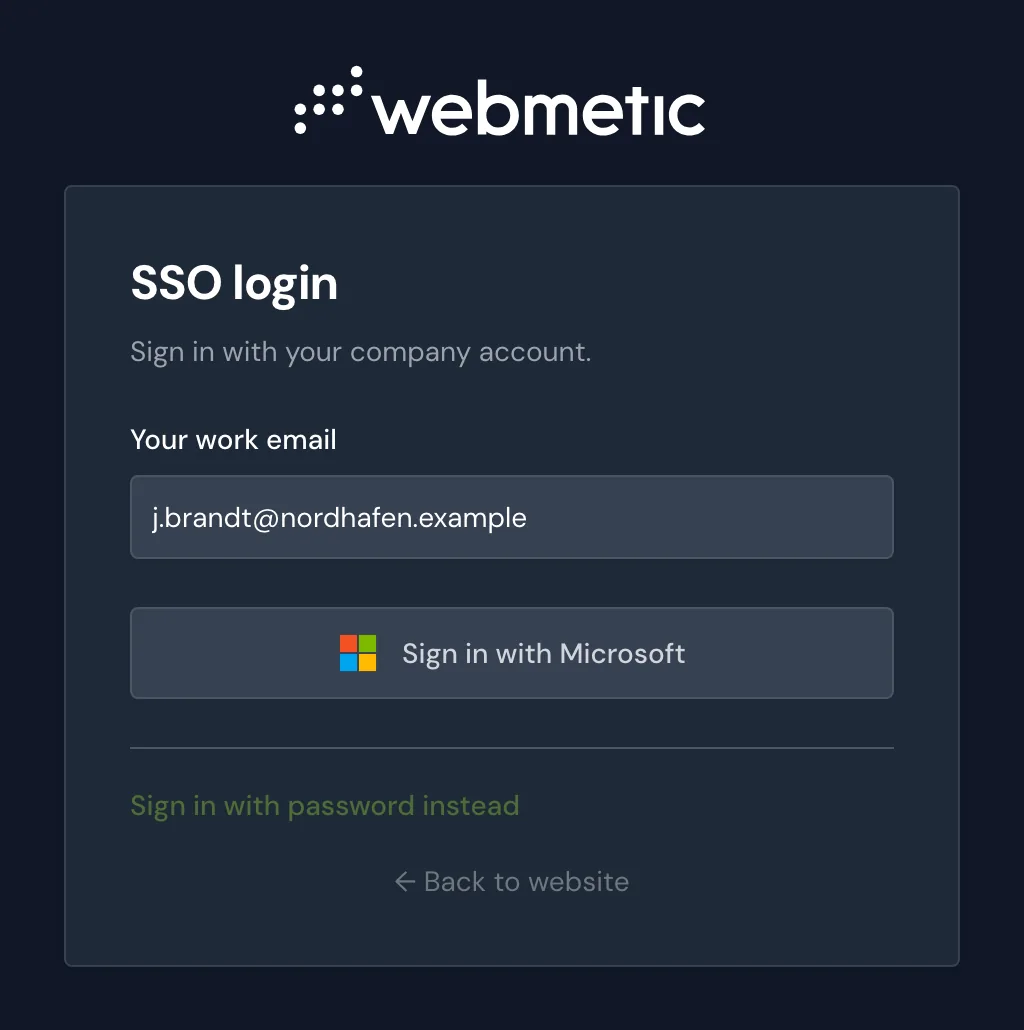
The normal sign-in page doesn't detect SSO from the email address, so you always go through SSO login.
The Sign in with password instead link takes you back to the normal sign-in.
If sign-in ends on the page Sign-in failed, the page shows the reason. Check the three values in SSO settings and your app's redirect URI.
Manage users through SSO
Webmetic recognizes existing users by their email address, which has to match the sign-in name at Microsoft. Anyone who already has a user keeps their role and data.
For a new person, Webmetic creates a user when they first sign in, as long as Microsoft Entra admits them. The person's email domain has to match the email address of a user who's already in your account.
New users have the User role and no password. You grant admin rights under Users and roles.
Users without a password connect the AI assistant with the API key. Ask an admin for the API key.
If the page shows the message "SSO isn't available for this email domain.", first add the person under Menu > Company > Users. They can then sign in with SSO.
Webmetic doesn't delete a user when you block a person in Microsoft Entra. When someone leaves your company, delete them under Users too.
Turn on SSO-only mode
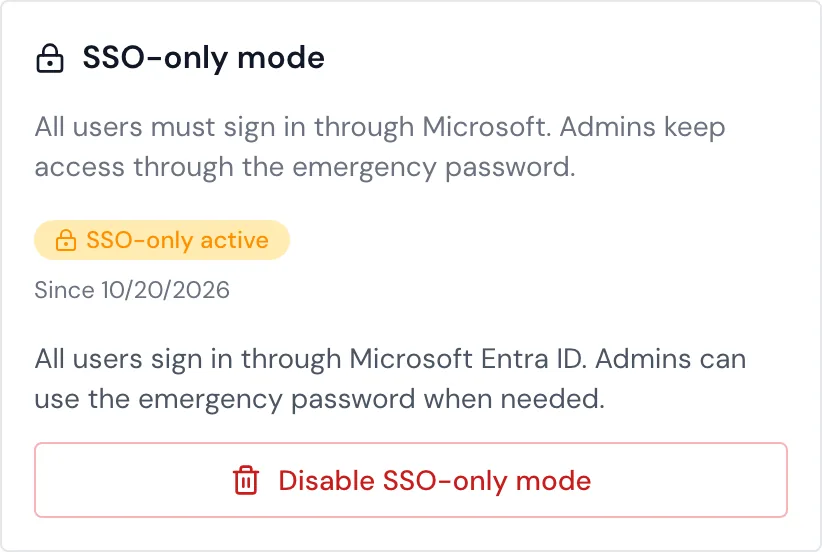
In SSO-only mode, people with the User role can only sign in through SSO. Admins keep their password and receive a shared emergency password as well.
The SSO-only mode section is only available once SSO is saved.
- Open Menu > Company > SSO settings.
- In the SSO-only mode section, enter a new password under Emergency password. The password needs at least 30 characters and three of four character types: upper case, lower case, digits, and special characters.
- Click Enable SSO-only mode. The section now shows the status SSO-only active and the date.
Keep the emergency password somewhere safe, for example in a password manager. Webmetic can't show it to you again.
To set a new emergency password, turn the mode off and on again.
The mode changes the following:
- User: Signing in with a password is blocked. The sign-in page points to SSO login.
- Admins: You keep signing in with your own password. Instead of your password, you can also use the emergency password, together with your own email address.
- Emergency password: Each account has one emergency password, and every admin can use it.
- AI assistant: People with the User role connect the AI assistant with the API key they receive from an admin. For details, see Security and access.
Change settings
Renew the client secret before it expires in Microsoft Entra. Once the secret has expired, every SSO sign-in ends on the page Sign-in failed.
Admins can still sign in to the dashboard with their password or the emergency password.
- In your app, create a new secret under Certificates & secrets and copy its Value.
- Open Menu > Company > SSO settings.
- Enter the new value in the Client secret field.
- Click Save.
If you leave the Client secret field empty, Webmetic keeps the stored secret. If you switch to a different app, enter its secret too.
Turn off SSO
To turn off only SSO-only mode, click Disable SSO-only mode and confirm. SSO stays on, and people with the User role can sign in with a password again.
To turn off SSO completely:
- Open Menu > Company > SSO settings.
- In the Microsoft Entra ID configuration section, click Disable.
- Confirm. Webmetic shows the message "SSO disabled."
The Disable button also turns off SSO-only mode and deletes the emergency password.
From then on, everyone signs in with a password. Users without a password click Forgot password? on the sign-in page, and Webmetic emails them a new password.
If your account moves to a plan without SSO, SSO-only mode ends and everyone signs in with a password. Your settings stay saved and apply again once your account is on Enterprise.
During that time, the SSO sign-in page says that SSO isn't included in your plan.