

Websites
Add more websites, switch between them, and remove websites you no longer need.
One account can track several websites, for example your country domains your-website.com and your-website.co.uk or the microsite for a trade fair. Each website has its own status and its own company list. At the end you'll have:
- another website in your account with its own company list, which shows Active as soon as visits arrive
- or one website fewer that you no longer need
- the picker in the top left for switching between your websites
Before you start
- Time: Adding a website takes less than a minute, but it only shows Active once visits with your account ID arrive.
- Access: To add the tracking code to the new website, you need access to that website. Otherwise, hand this step to your IT team or agency.
- Rights: Every user of your account can add and remove websites; you don't need admin rights.
- Plan: How many domains you can add depends on your plan. The trial, Growth, and Enterprise have no limit. If a partner manages your account, they decide which menu items you see.
- Cost: Adding and removing websites costs no credits. The companies of all your websites do count toward your usage, though.
Add a website
Because the tracking code contains only your account ID and no domain, you add the same code to every website.
- Open Menu > Websites. The Website management window lists all websites of the account.
- Under Add a new website, enter the domain, for example
your-website.co.uk. - Click Add. Webmetic shows the message Website added. The new website starts as Not integrated.
- Add the tracking code, which you find under Menu > Tracking code, to the new website.
- Click the Refresh status icon next to the status. As soon as visits with your account ID arrive, Webmetic shows the Active status.
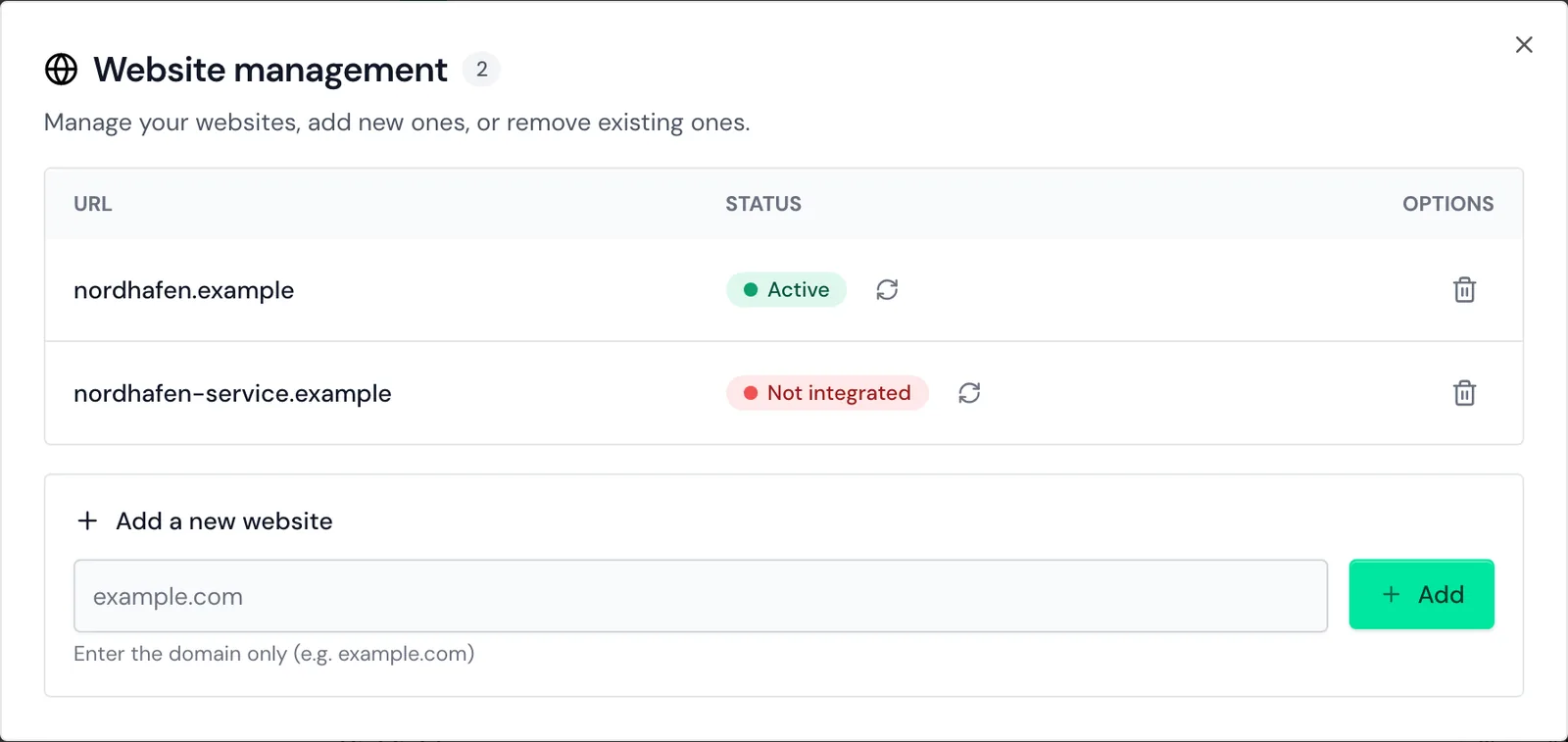
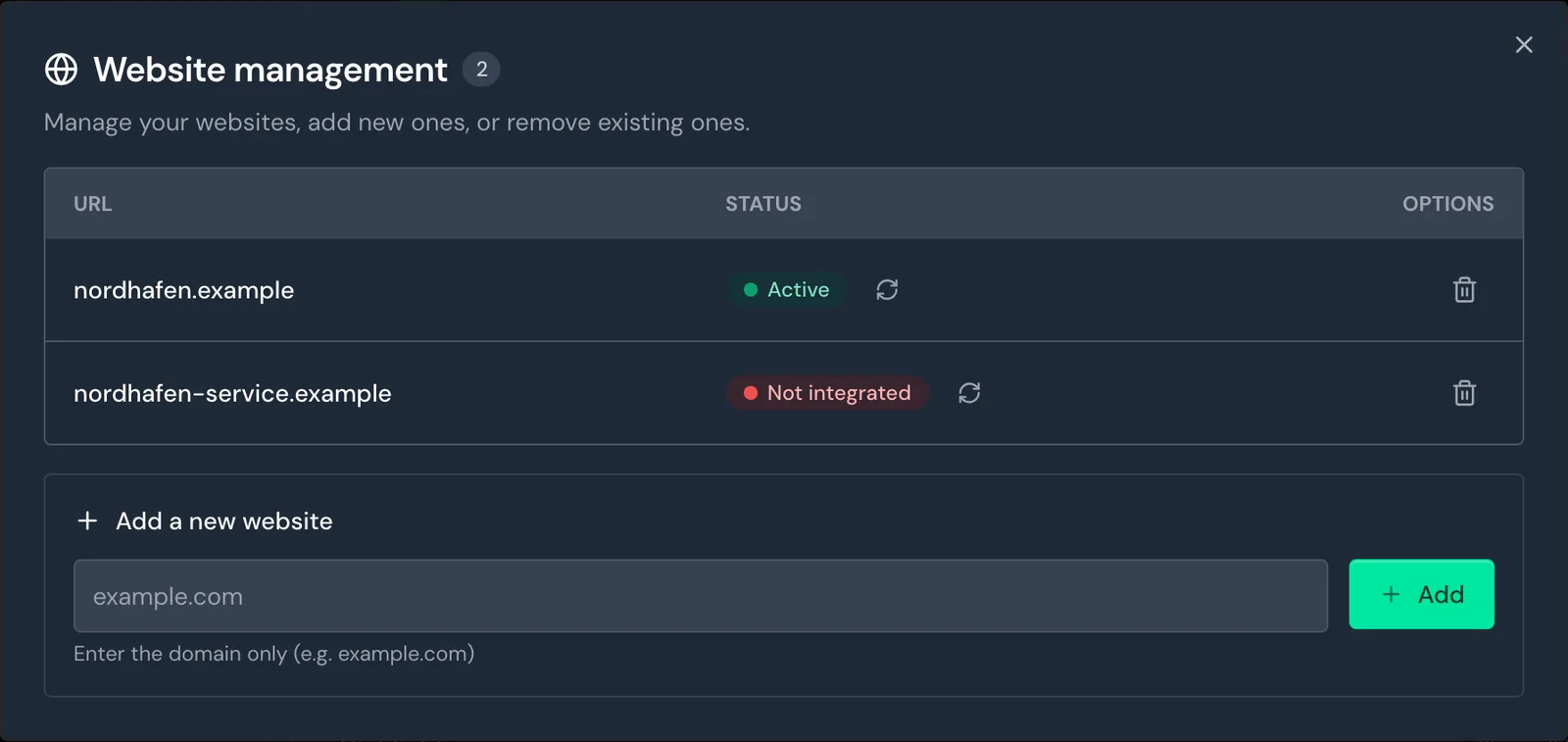
For what each status means, see Website status.
Webmetic stores only the domain and writes it in lowercase: https://www.shop.your-website.com/pricing becomes your-website.com. The list shows domains with umlauts or accents in their xn-- form, so your-website-köln.com, for example, becomes xn--your-website-kln-zwb.com.
For localhost, an IP address, or a single word, Webmetic shows the message That's not a valid domain. Enter a domain like example.com.
If the domain is already in your account, Webmetic shows the message This website has already been added. This also happens when you enter one of its subdomains. For details, see Track subdomains.
When you reach your plan's limit, Webmetic shows the Upgrade to Growth button instead of the form. If your account moves to a plan with a lower limit, for example after the trial, all your websites stay, but you can't add more. Only admins book a different plan. For details, see Plans.
Switch between websites
- Click your website's name in the top left. The picker lists all websites of the account.
- Choose a website. Webmetic shows the same tab for that website.
When you switch, Webmetic resets the selected company, the segment, the date range, and the subdomain view. On a smartphone, Webmetic shows a globe icon instead of the name.
Each website has its own company list, its own segments, and its own status, and each notification belongs to one website. Users, credits, and the tracking code are shared by all websites, and every user sees every website.
The websites appear in the order you added them, and you can't change this order. Webmetic opens the first one when you start the dashboard, and the Deep check tests only that one.
Remove a website
- Open Menu > Websites.
- In the website's row, click the trash icon Delete website. The Delete website window asks you to confirm.
- Click Delete. Webmetic shows the message Website deleted.
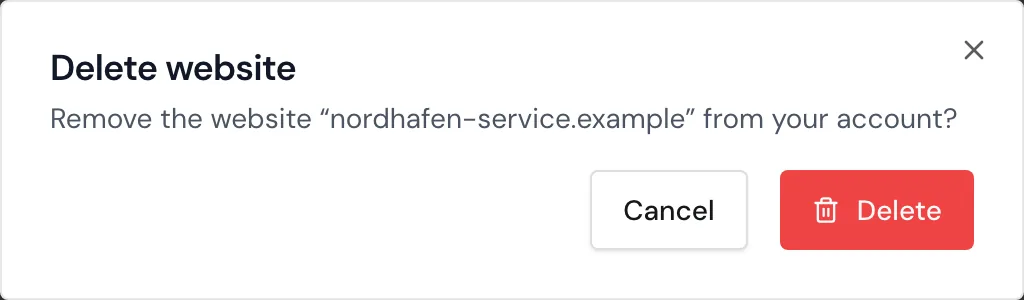
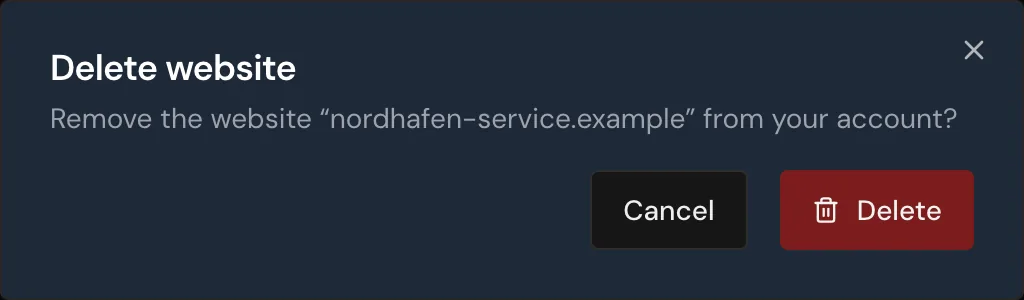
If you remove the website you're viewing, Webmetic then switches to the first remaining website. You can't remove the last website in your account; its trash icon is grayed out.
Removing a website changes the following:
- Tracking code: The code on the website keeps sending visits. Remove it from the website too if Webmetic should no longer track it.
- Data: Webmetic doesn't delete any tracked data, but you no longer see the website's company list in the dashboard.
- Notifications: Webmetic stops sending this website's notifications, but their settings stay saved.
- Usage: From the next daily update, the website's companies no longer count toward your usage, not even in the current period.
Change your domain
Because you can't rename a website, follow these steps after a relaunch on a new domain:
- Add the new domain as described above.
- Add the tracking code to the new domain.
- Remove the old domain once you no longer need its company list.
Earlier visits stay with the old domain; Webmetic doesn't move them to the new one.