

Profile and password
Change your name, language, and password, and choose the theme of the dashboard.
Your personal settings are in the profile menu in the top right and apply only to you, not to the whole account. At the end you'll have:
- your name the way your team sees it in the dashboard
- the dashboard and emails to you in German or English
- a password that only you know
- a light or dark theme, if you like
Before you start
- Time: Each of these changes takes one or two minutes.
- Account: You need a Webmetic login. The Forgot password? link is on the sign-in page, and everything else is in the dashboard.
- Rights: Every user in your account changes their own profile, and you don't need admin rights for it.
- Plan: Profile, password, language, and theme are available on every plan, including the Free plan, and they cost no credits.
Open the profile menu
- Click your name or initials in the top right. The profile menu opens.
You also find Notifications there, which belong to the account and not to you personally. For details, see Set up notifications. With Support you write to us. For details, see Support.
If a partner manages your account, the partner decides which menu items you see.
Change your name
- Open the profile menu and click My profile. The Profile window opens.
- Change your name under First name and Last name.
- Click Save profile. Webmetic shows the message "Profile updated."
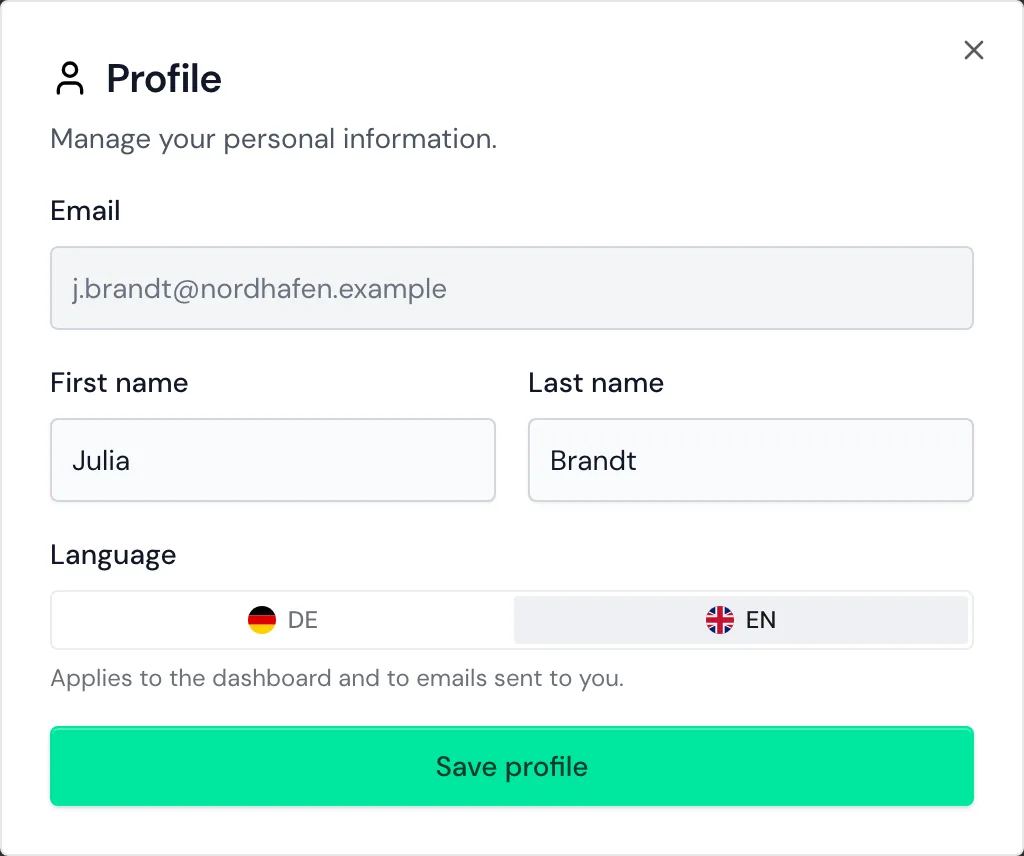
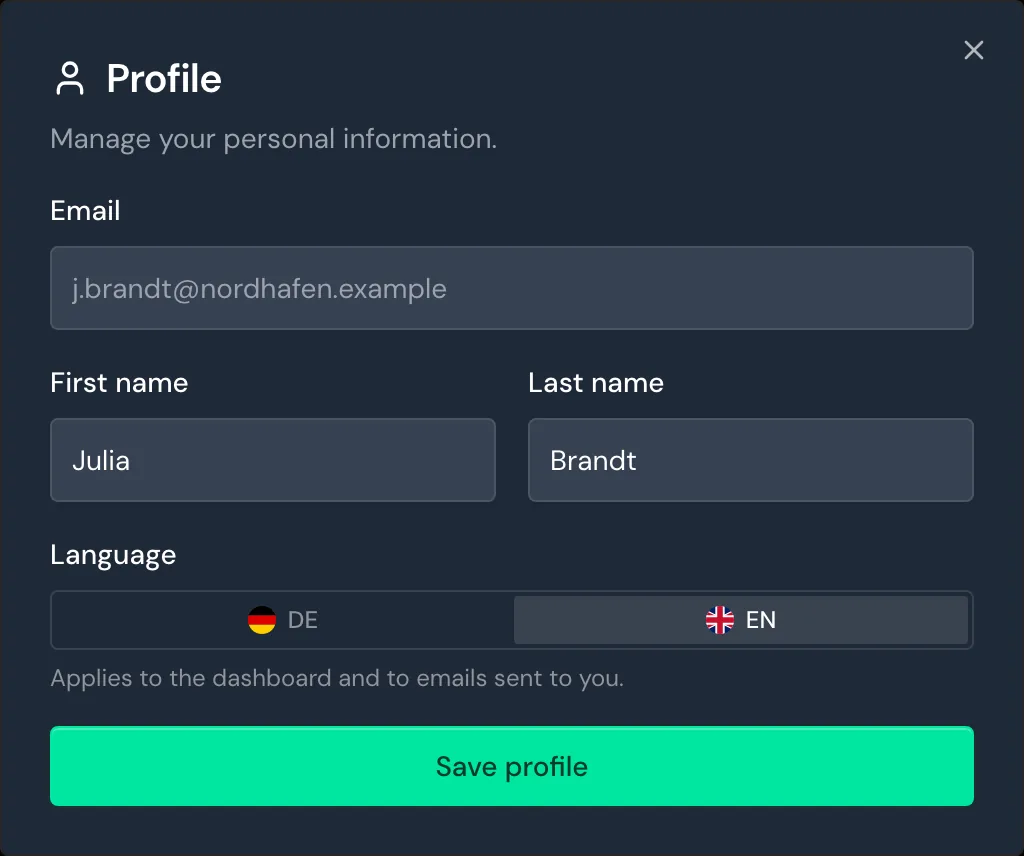
Your name appears in the top right, under Menu > Company > Users, and on your new comments. The new name appears in the top right no later than when you reload the page.
The Email field shows the address you sign in with, and you can't edit it.
Choose your language
- Open the profile menu and click DE or EN. Webmetic switches the language at once and saves your choice.
You find the same switch in the Profile window under Language, and there too you don't need to click Save profile.
Because Webmetic saves the language for you personally and not in the browser, it also applies on another device. The language also applies to emails to you, for example notifications and a new password. The language choice on the sign-in page only lasts until you sign in, and after that Webmetic shows your saved language.
Change your password
- Open the profile menu and click Change password. The Change password window opens.
- Enter the password you use today under Current password.
- Enter the new password under New password, and Webmetic turns each requirement green once it's met.
- Enter the same password again under Confirm new password.
- Click Change password. Webmetic shows the message "Password updated." and clears the fields.
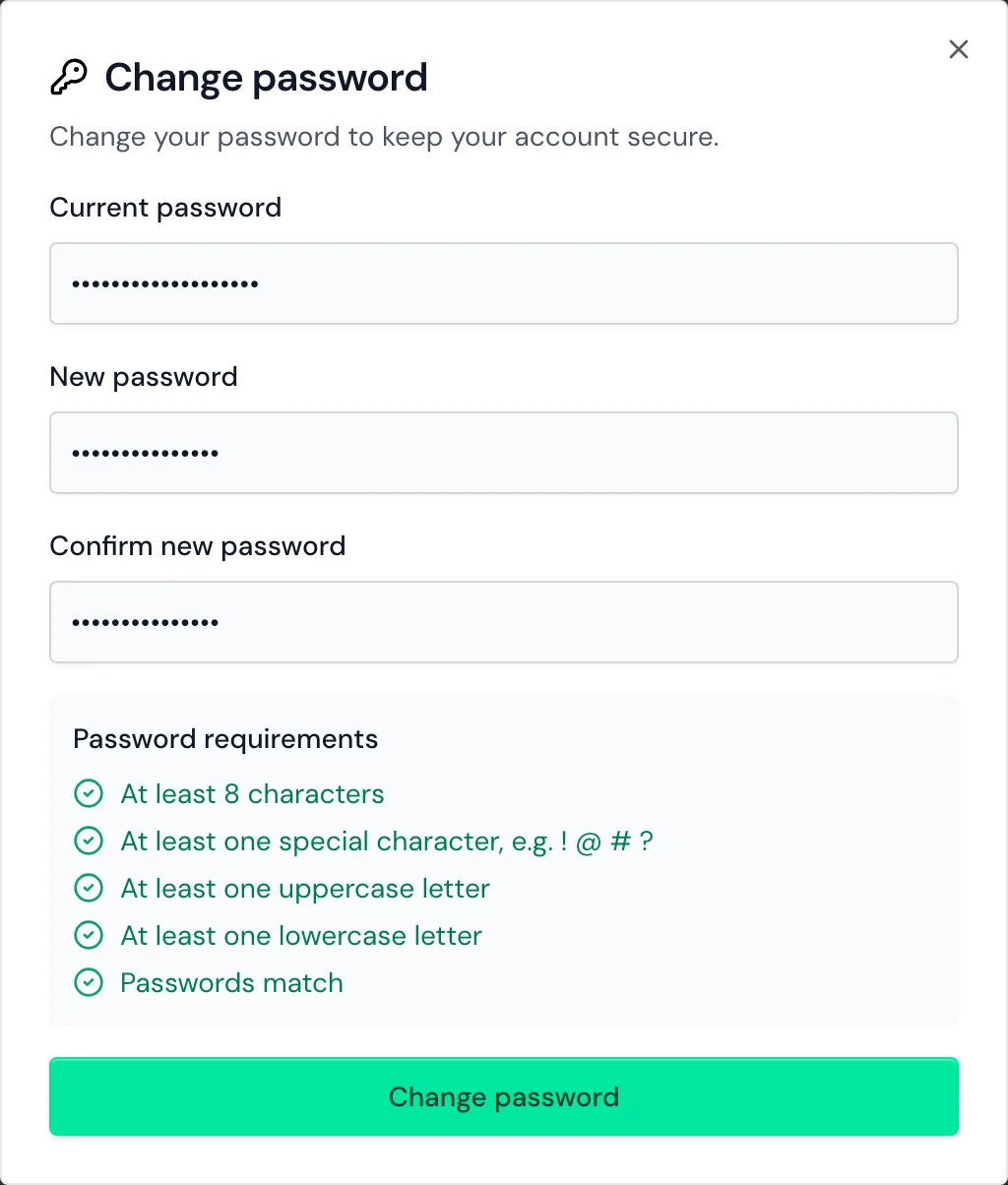
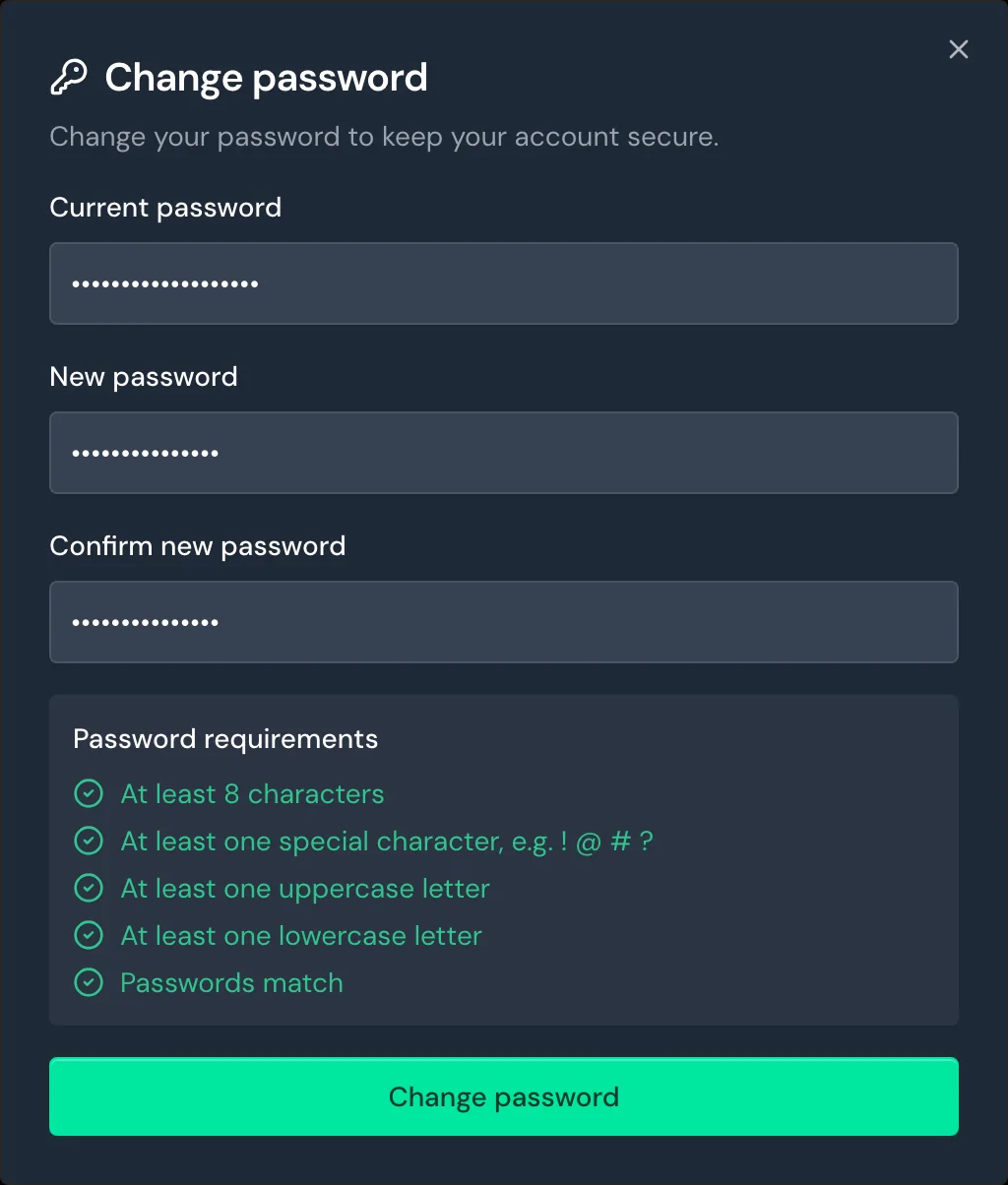
The new password needs at least 8 characters, uppercase and lowercase letters, and a special character such as ! or ?. If you no longer know your current password, have a new password sent to you.
Reset a forgotten password
- Open the sign-in page and click Forgot password?. The Reset password page opens.
- Under Your email, enter the address you sign in with.
- Click Reset password. Webmetic emails you a new password from
support@webmetic.de. - Click Go to sign in and sign in with the new password.
We recommend changing the password you received under Change password afterwards, because it was sent in an email.
Choose a theme
- Open the profile menu and click Light, Dark, or System. The dashboard switches at once.
System follows your operating system and applies as long as you don't choose anything else. Because Webmetic saves the theme only in this browser, you choose it again on another device.
Sign out
- Open the profile menu and click Sign out. Webmetic shows the sign-in page.
Sign in with single sign-on
If Webmetic created your user the first time you signed in with single sign-on, you don't have a Webmetic password. You then sign in on the sign-in page with SSO login, and Change password doesn't work for you.
You change your name and language as described above. If your plan no longer includes SSO, sign in with a password that you get through Forgot password?. Single sign-on describes how an admin sets up SSO.
Change your email address or delete your account
Because you can't change your email address or delete your account yourself in the dashboard, contact Support for either.