

Manage data
Send a company to your CRM or download its profile as a PDF or AI briefing.
In the Manage data section you pass a company on from Webmetic, for example to your sales team before a first call. At the end you'll have:
- the company as a new record in your CRM, in HubSpot updated about once a day
- or a PDF with the company's profile that you can pass on
- or a text file with the profile and visits for an AI assistant of your choice
Before you start
- Time: Each of the three actions takes less than a minute.
- Account: You need a Webmetic account with a website where Webmetic has already identified companies.
- Access: Before you send to a CRM, an admin has to connect it under Menu > Integrations. Only admins see this menu item.
- Rights: Once the CRM is connected, every user of your account can send companies. Every user can create the PDF and the AI briefing, even without a CRM.
- Plan: All three actions are available in every plan, and none of them costs credits. On the Free plan, integrations and downloads only work with the companies you can read in the dashboard. For details, see Free plan.
Find the section
- In the company list, click a company to open its company profile.
- Look for the Manage data section to the right of the profile, below Tags and above Comments.
Where you find the section depends on the width of your screen:
- On a wide screen, the sidebar on the right is always open.
- If the window is narrower, Webmetic only shows a strip of icons on the right. Click the share icon or Open sidebar. A number on the icon shows how many CRMs the company has been sent to.
- On a smartphone and on a tablet in portrait mode, tap the sidebar icon in the top right of the profile. A panel with the same sections opens.
Without a connected CRM, you only see Create PDF and Create AI briefing. For each connected CRM, Webmetic adds one more button.
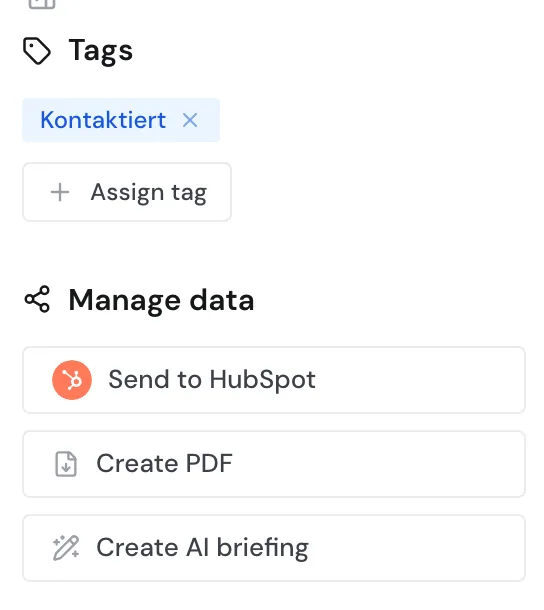
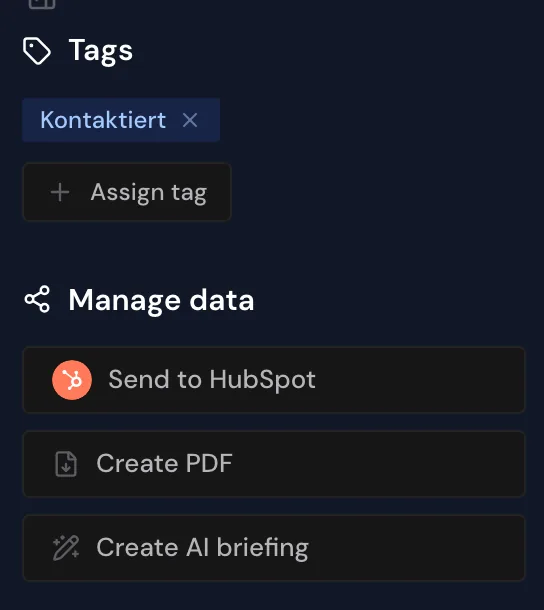
Send a company to your CRM
Webmetic shows buttons for HubSpot, Lexware Office, and Samdock, but not for Evalanche. Webmetic only ever sends the company whose profile you have open.
Webmetic never deletes a record it creates in your CRM. That also applies when you take the company out again later. So check first whether the company belongs in your CRM.
- Open the company's profile.
- Under Manage data, click Send to HubSpot. For another CRM, the button shows its name, for example Send to Samdock.
The button now shows Sent to HubSpot with a green dot, and Webmetic transfers the company in the background.
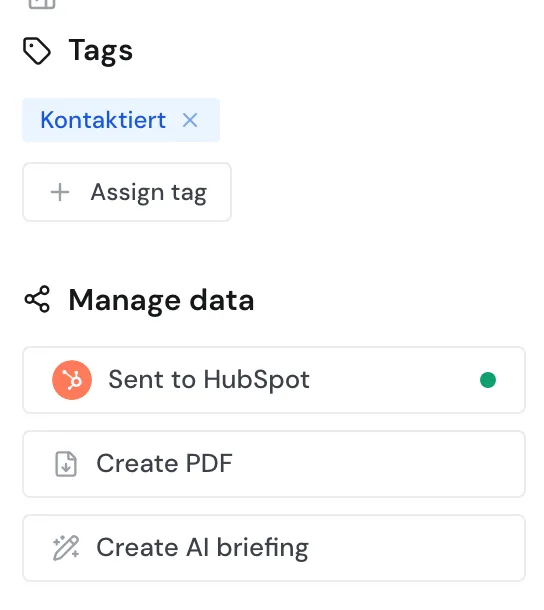
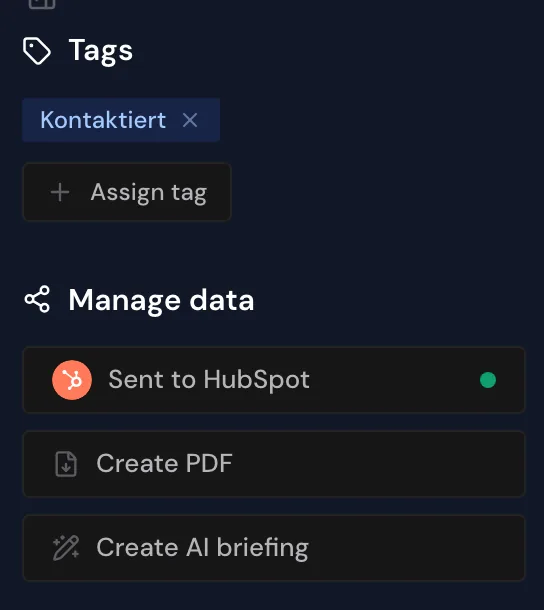
The status Sent to HubSpot only means that Webmetic has queued the company for sending. If the transfer fails, the dashboard shows no message. So check the record in your CRM.
What you find in your CRM afterwards depends on the CRM:
| CRM | What Webmetic creates | Afterwards |
|---|---|---|
| HubSpot | A company with the fields your admin has mapped. If the option for that is turned on, Webmetic adds the visits as notes. If a company with the same domain already exists, Webmetic links it, provided the option for that is turned on. This option is turned on by default. | Webmetic updates the fields as long as the company stays sent, and adds new visits when the option for that is turned on. |
| Lexware Office | One contact with name, address, postal code, city, country, email address, and phone number. If a contact with the same email address already exists, Webmetic uses that contact. | No visits and no later changes. |
| Samdock | A request in the Samdock inbox: an organization with the company details, a link to Webmetic, the activity, and figures about the visits. Webmetic also creates a lead named after the company. | No later changes. |
If the button for your CRM is missing, the CRM isn't connected yet. An admin connects it under one of these menu items:
Take a company out again
For HubSpot, Lexware Office, and Samdock you can take a company out again, and Webmetic doesn't ask for confirmation.
- Open the company's profile.
- Under Manage data, click Sent to HubSpot. The button shows Send to HubSpot again.
The record in your CRM stays. Only HubSpot changes: Webmetic stops updating the record and adds no new visits. If you no longer need the record, delete it in your CRM.
If you send a company again after taking it out, Webmetic always creates a new record in Samdock. In Lexware Office this happens when the company has no email address. If the option Sync website visits is turned on in HubSpot, Webmetic adds the visits as notes a second time. If the option Match existing companies is turned off there, a second company is created too.
Download the profile as a PDF
The PDF sums up the company on a few pages, for example for someone on your team who doesn't use Webmetic.
- Under Manage data, click Create PDF. While Webmetic creates the PDF, both downloads are locked.
- Wait for the download. Your browser saves a file whose name starts with
Company_profile_and the company's name.
In the PDF you find:
- the header with industry, number of employees, and revenue
- the company description: what it does, how it makes money, and who it sells to
- a legal notice block with website, managing directors, address, phone number, email address, VAT ID, commercial register, and fax
- the industries with their code numbers
- an overview with activity, visits, pages viewed, and interactions
- the visits with pages, duration, scroll depth, and events
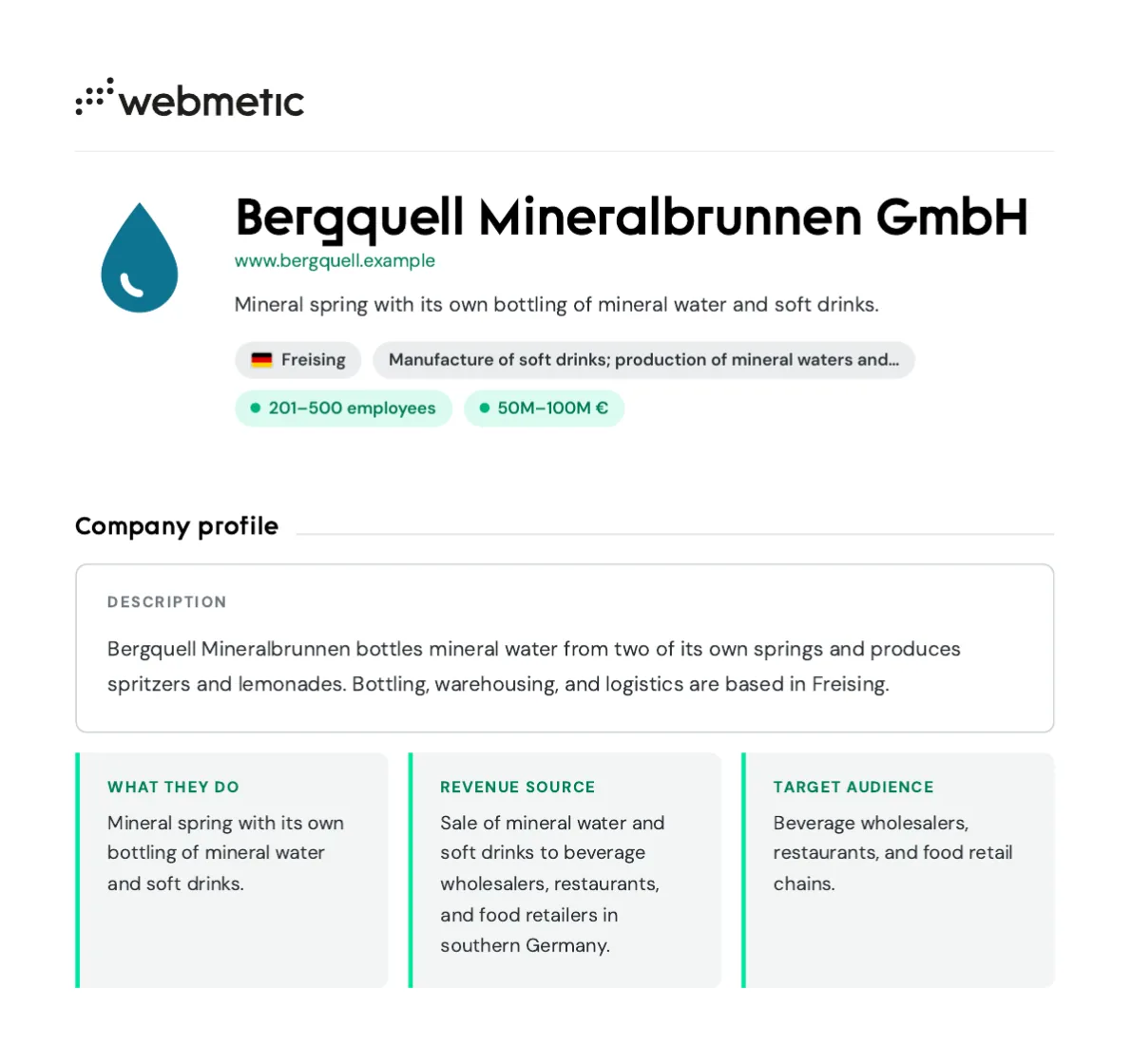
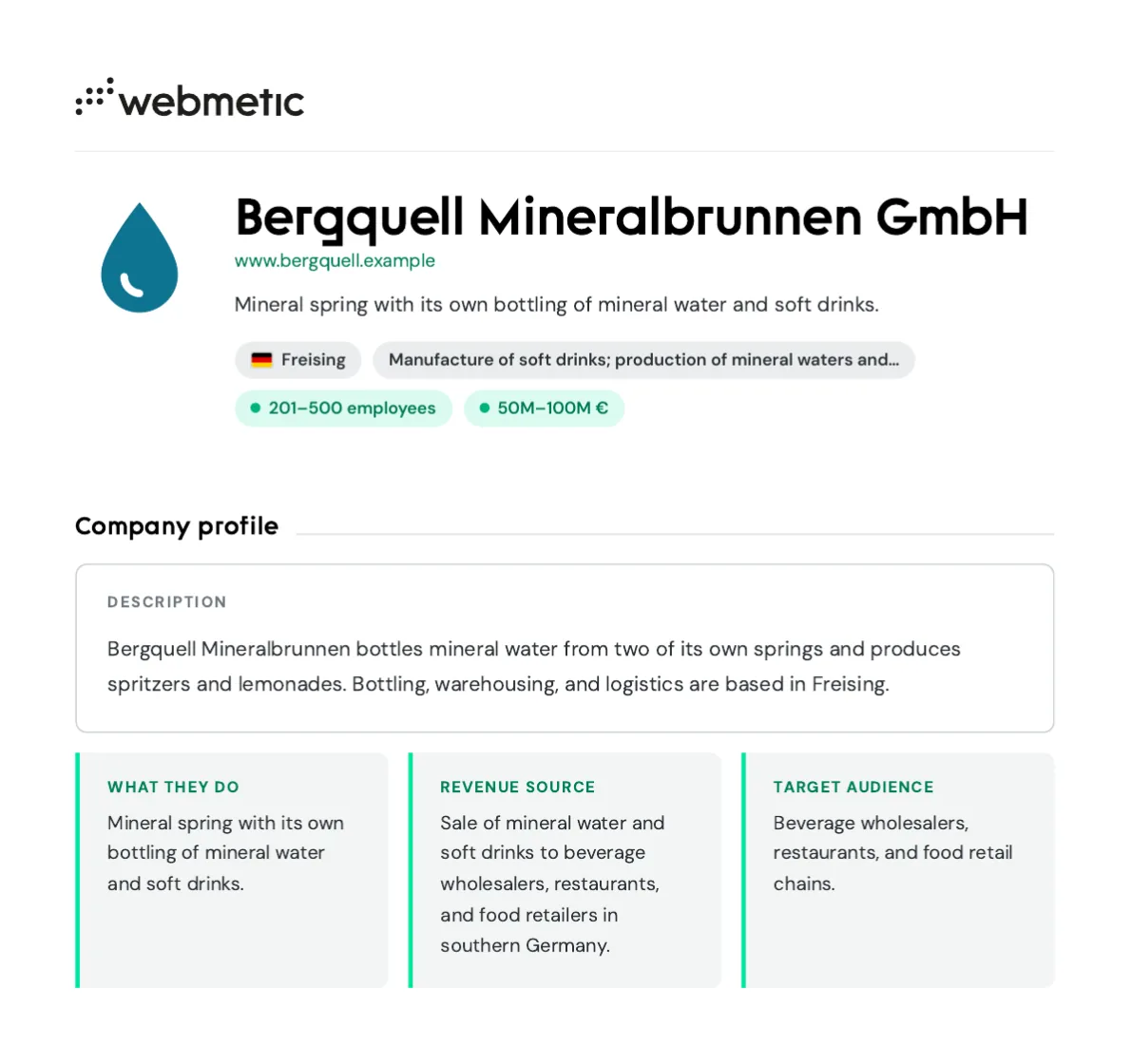
The PDF shows the latest 50 visits and appears in the language of your dashboard. In the PDF and the AI briefing, activity is still called Lead Score. The PDF doesn't contain tags, comments, contacts, relevance, or fit. You can't select single sections or add your own logo.
If the download fails, Webmetic shows the message Couldn't create the PDF.
Download the AI briefing
The AI briefing is a text file for an AI assistant. Webmetic writes it from the stored data without using any AI. The file itself explains to an AI model how to read the data.
- Under Manage data, click Create AI briefing. While Webmetic creates the file, both downloads are locked.
- Wait for the download. Your browser saves a file whose name starts with
AI_briefing_and ends with.md.
In the AI briefing you find:
- the date it was created and an explanation of what visit, duration, scroll depth, events, and lead score mean
- the company details, the industry codes, and the descriptions
- an overview with the period, the sources of the visits, devices, interactions, and the ten most visited pages
- the visits: in detail for visits with several pages or events, briefly in one table for visits with a single page
The AI briefing also contains the latest 50 visits, but no tags, comments, contacts, relevance, or fit.
Check first whether your company may load this data into an external AI tool. To use the AI briefing:
- Open a new chat in your AI assistant.
- Attach the file or paste its text.
- Ask your question, for example "Which topics interest this company, and how should I open the first call?"
If the download fails, Webmetic shows the message Couldn't create the AI briefing.