

n8n templates
Set up a ready-made n8n template so Webmetic data reaches HubSpot, Teams, or Outlook without building your own workflow.
Webmetic has published three templates on n8n.io: call tasks for new companies, follow-ups on open deals, and a weekly campaign report. You copy a template, connect your apps, and switch the workflow on.
Before you start
- Time: Setting up a template takes about 5 to 10 minutes.
- Account: You need n8n with the Webmetic node and a credential of the type Webmetic API. To set up both, see n8n.
- Access: For the call and deal templates you need HubSpot, OpenAI, and Microsoft Teams. The campaign report needs OpenAI and Microsoft Outlook. You connect HubSpot with the token of a private app.
- Rights: Only admins see the Integrations menu item. If a partner manages your account, the partner decides whether it appears.
- Plan: Integrations are available on every plan, including the Free plan. On the Free plan, Webmetic transfers only the companies you see by name. For details, see Free plan.
- Cost: The deal template and the campaign report cost no credits. The call template unlocks contacts, and that costs credits. For details, see Credits.
- Contacts: For the call template, you choose once under Menu > Contact profile which departments and levels Webmetic searches for. For the steps, see Set up contacts.
You get the templates in English, and they send your Webmetic data such as the company profile and the pages read to OpenAI, HubSpot, Teams, and Outlook.
The call template also sends the contact's name and job title to OpenAI. The template also creates the person in HubSpot and posts their name, job title, and phone number in your Teams channel.
Check with your data protection advisor whether this fits your data processing.
Import a template
These steps apply to all three templates. If you already have a credential of the type Webmetic API in n8n, start at step 4.
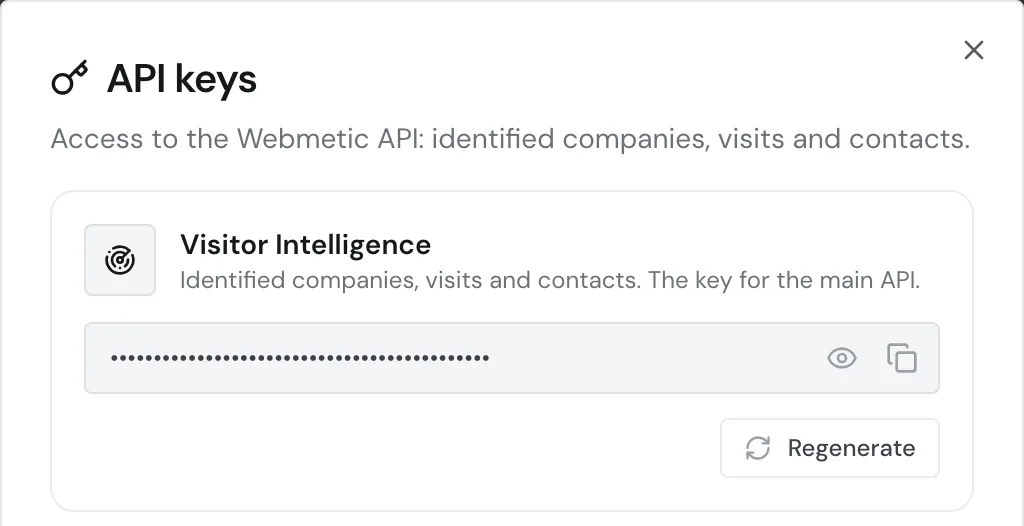
- Click Menu > Integrations > API. The API keys window opens.
- If the Visitor Intelligence card shows No key generated yet., click Generate key.
- In the Visitor Intelligence card, click the Copy icon.
- Open the template's page on n8n.io. You'll find the link further down in the section of each template.
- Click Use for free.
- Copy the template into your n8n. The template contains no credentials for any app.
- In each Webmetic node, select your credential of the type Webmetic API. If you don't have one yet, create a new credential with the key you copied.
- Connect the other nodes to your accounts. The sections on the individual templates name these nodes.
- In the node with the settings, replace the sample values such as
example.comandAcme GmbH. - Under
domain, enter the main domain as it appears under Menu > Websites: withouthttps://and withoutwww., for exampleyour-website.com. This also applies if you use the tracking code on a subdomain. - On the Free plan: Add the filter for hidden companies right after the Webmetic node that fetches the visits.
- Click Publish in n8n. The workflow then runs on the schedule of its first node.
Create call tasks for new companies
Template on n8n.io: Create HubSpot call tasks for new B2B visitors with Webmetic, OpenAI and Teams
For each new company that reaches your minimum activity, the template creates a contact as a lead with a call task in your HubSpot. If the company already has an open deal, only the deal owner gets a task.
- 1Every 5 minutesFetch Webmetic Visits fetches the companies whose first visit to your website falls in the last hour.
- 2Select companiesDeduplicate Companies lets each of your companies through only once. Filter Interested Companies keeps the companies at or above your minimum activity.
- 3Check for an open dealPost to HubSpot Company Search looks up the company by its domain. If there is an open deal, Add Task to HubSpot Deal creates a task for the owner.
- 4Find a contactWithout an open deal, Find Contacts via Webmetic unlocks the email and phone of a matching person.
- 5Write the call scriptCall Script Agent uses your OpenAI account to write a call script that doesn't mention the website visit.
- 6Send to HubSpot and TeamsAdd Contact to HubSpot creates the person as a contact with the lifecycle stage lead. Create HubSpot Call Task adds the call task. Notify Sales via Teams announces the company and the person.
What you set up:
- Set Lead Criteria: Fill in
domain,minLeadScore,yourCompany,whatYouSell, andscriptLanguage.minLeadScoreis the minimum activity from 0 to 100, set to50by default. For details, see Activity. - HubSpot: Connect the searches Post to HubSpot Company Search and Post to HubSpot Deal Search. Also connect Add Task to HubSpot Deal, Add Contact to HubSpot, and Create HubSpot Call Task.
- OpenAI: Connect OpenAI Chat GPT-5.
- Microsoft Teams: Connect Notify Sales via Teams and choose the team and channel there.
You only use credits in Find Contacts via Webmetic, and only for the data Webmetic delivers. If Webmetic finds nobody or your account has already unlocked the person, it costs nothing.
The template lets each company through only once, before it checks the activity. That's why the activity at the first fetch is what counts.
If a company with an open deal visits your website again, the deal template tells you.
A run every 5 minutes adds up to about 8,640 executions a month. Because n8n Cloud prices its plans by monthly executions, check your plan first.
Choose at most 60 minutes in the first node, because Fetch Webmetic Visits only reads the last hour.
Follow up on open deals after a return visit
Template on n8n.io: Follow up on open HubSpot deals using Webmetic, OpenAI and Microsoft Teams
When a company with an open deal in your HubSpot visits your website again, the deal owner gets a follow-up task with a suggestion from the AI.
- 1Every hourGet returning visits fetches the companies with at least two visits to your website in the last 7 days.
- 2Once a dayOnce per company per day lets each company through at most once a day, and on a later day only after a new visit.
- 3Find the dealFind company in HubSpot looks up the company by its domain. Only companies with an open deal continue, and Find open deal picks the most recently changed one.
- 4Suggest the next stepSuggest next step uses OpenAI to write a suggestion that doesn't mention the website visit.
- 5Create the taskCreate follow-up task creates the task for the deal owner. Notify account manager in Teams announces it.
What you set up:
- Settings: Fill in
domain,yourCompany,whatYouSell, andlanguage. - HubSpot: Connect Find company in HubSpot, Find open deal, and Create follow-up task.
- OpenAI: Connect OpenAI Chat Model.
- Microsoft Teams: Connect Notify account manager in Teams and choose the team and channel there.
This template uses none of your credits and finds a company only if its domain in your HubSpot exactly matches its website in Webmetic.
Send a weekly campaign report
Template on n8n.io: Send weekly B2B campaign performance reports with Webmetic, OpenAI and Outlook
Every Monday your team gets an email showing how many new companies visited your website last week, and through which source and campaign.
- 1Mondays at 8Get new visits fetches the companies whose first visit to your website falls in the last 7 days.
- 2Assign the sourceAdd source and campaign reads source, medium, and campaign from the UTM parameters. Where they are missing, it shows
(direct)or(none). - 3CountCount per source and campaign counts the companies per source and campaign.
- 4Write the reportWrite the report uses OpenAI to write a summary, a table, up to five companies per paid campaign, and a budget tip.
- 5Send the reportSend the report sends the report through Outlook to the addresses in
reportTo.
What you set up:
- Settings: Fill in
domain,reportTo, andlanguage. Separate several addresses with commas. - OpenAI: Connect OpenAI Chat Model.
- Microsoft Outlook: Connect Send the report.
This template uses none of your credits. Campaign names come from the UTM parameters of your ads. For details, see Campaigns and channels.
Troubleshooting
Why does n8n report "This domain is not in your Webmetic account"?
The domain field doesn't contain the main domain from your account. Correct the value as described in step 10.
Why does the call template stop?
If your account hasn't set up contacts yet, the run stops at Find Contacts via Webmetic with the message "The contact setup in Webmetic is missing". Complete the setup under Menu > Contact profile.
Why does the report count hidden companies?
The templates don't filter out hidden companies. If the filter from step 11 is missing, your campaign report on the Free plan counts every "Verborgenes Unternehmen" (hidden company).
Webmetic delivers no contacts for hidden companies.