

Visits and page views
See in the profile which pages a company viewed on each visit, for how long, and where it came from.
For every company, Webmetic shows all visits with their page views. At the end you'll have:
- the pages of each visit in their order, with time on page and scroll depth
- the company's actions and where each visit came from
- with Lead Insights, the history: how often and how intensively the company comes back
Before you start
- Time: The steps take a few minutes.
- Account: You need a Webmetic account with a website that runs the tracking code.
- Access: Webmetic shows the highlight, Lead Insights, and the campaign chip only on a large screen, from a window width of 1,024 pixels.
- Rights: Every user of the account sees the visits, and you don't need admin rights.
- Plan: You see visits on every plan, and viewing them costs no credits. Webmetic only shows visits for companies you can read. For details, see Free plan.
- Session recording: The recording button appears during the trial and on the Growth plan and higher.
Read the highlight in the profile
- Open the company list in Visitor Intelligence.
- Click a company. The profile opens next to the list.
- Scroll down the profile to Highlight:, where Webmetic shows one visit already expanded.
As the highlight, you see the most interesting of the ten newest visits: the one with the most active time and the most actions. The highlight only considers visits that match the filter you set on the list.
Below the highlight sits the button to the visits view, for example Show all 5 sessions. The number counts all visits that match your filter, and with only one visit, the button reads Show 1 session.
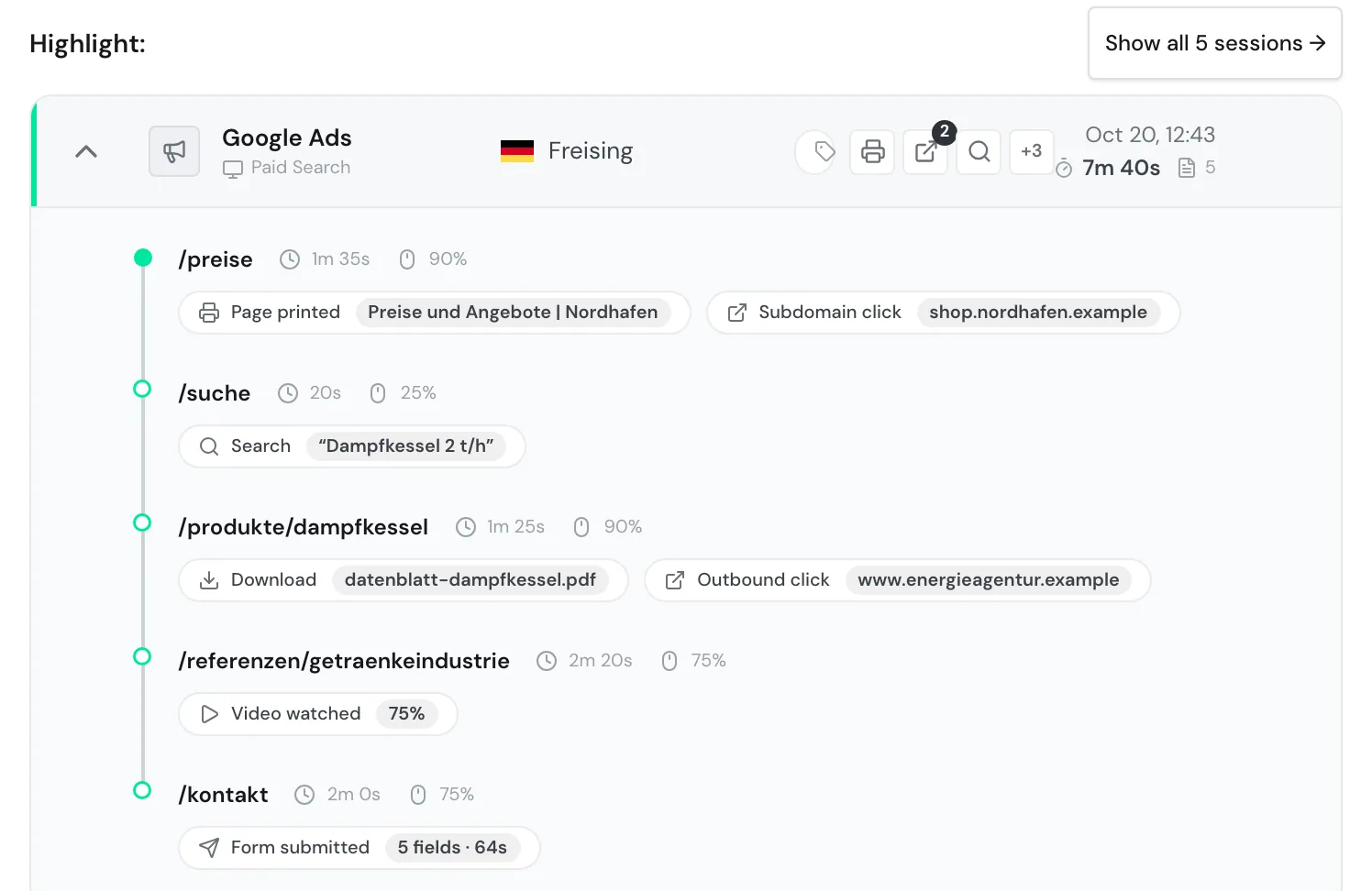
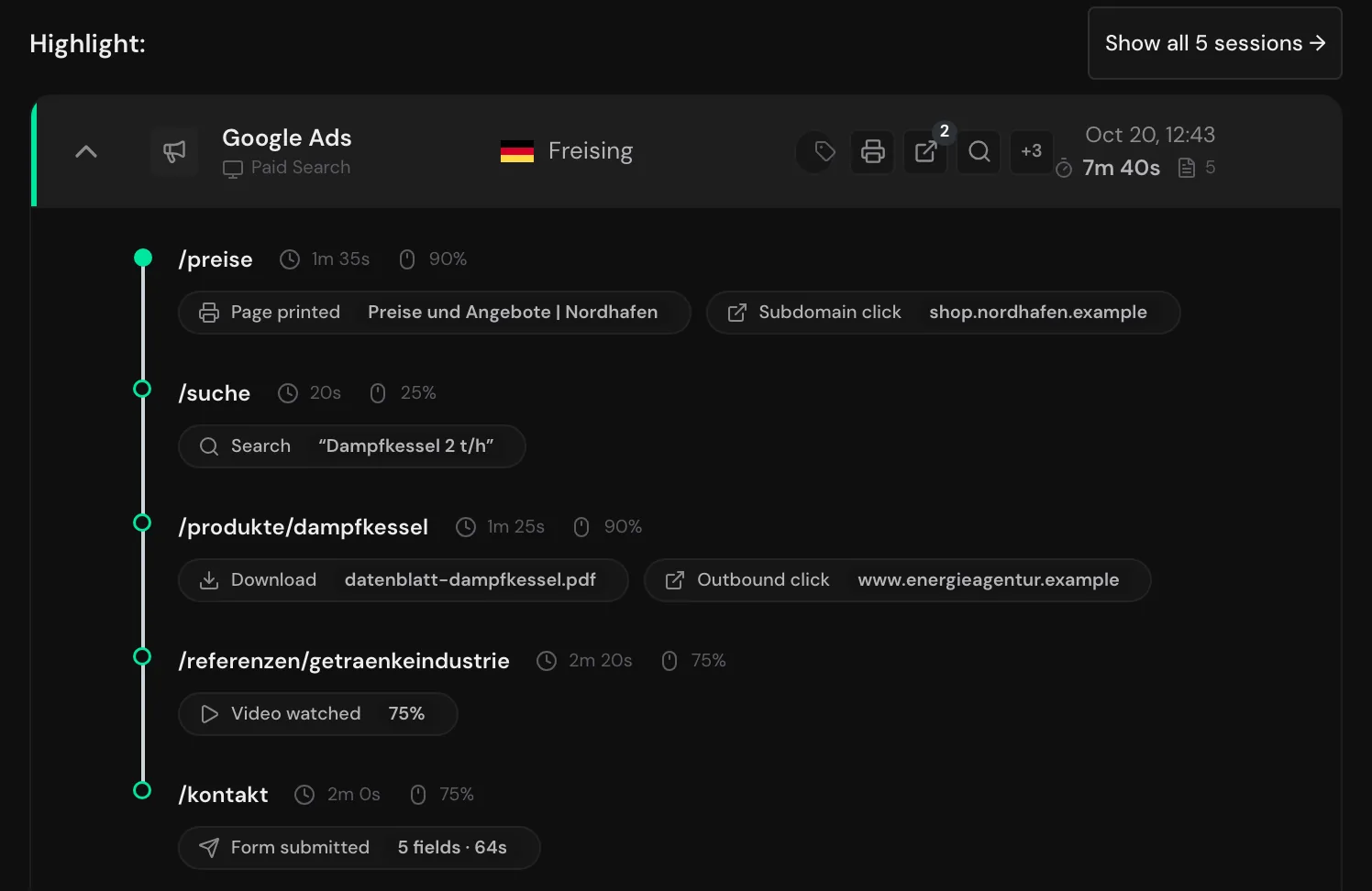
Open all visits
- Below the highlight, click the button to the visits view, for example Show all 5 sessions. The visits view opens with Lead Insights and the list of visits.
- Click a visit row. You see its page timeline, and another click collapses it again.
- If there are more than ten visits, page through them below the list.
- To return to the company profile, click Back to overview.
The newest visit is at the top and already expanded, and older ones follow below. Webmetic shows date and time in your browser's time zone. The list only contains visits that your own tracking code recorded with your Account ID.
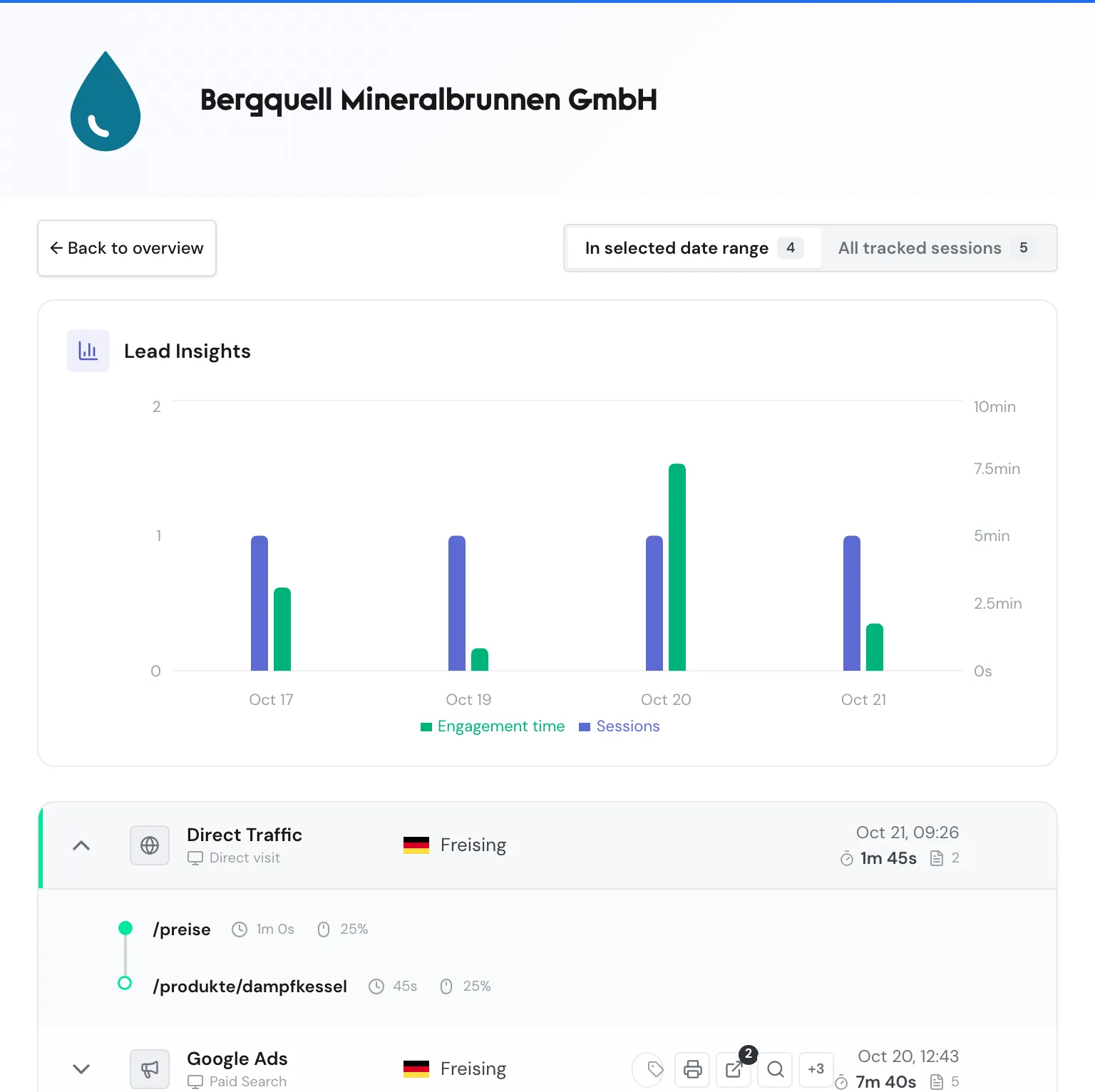
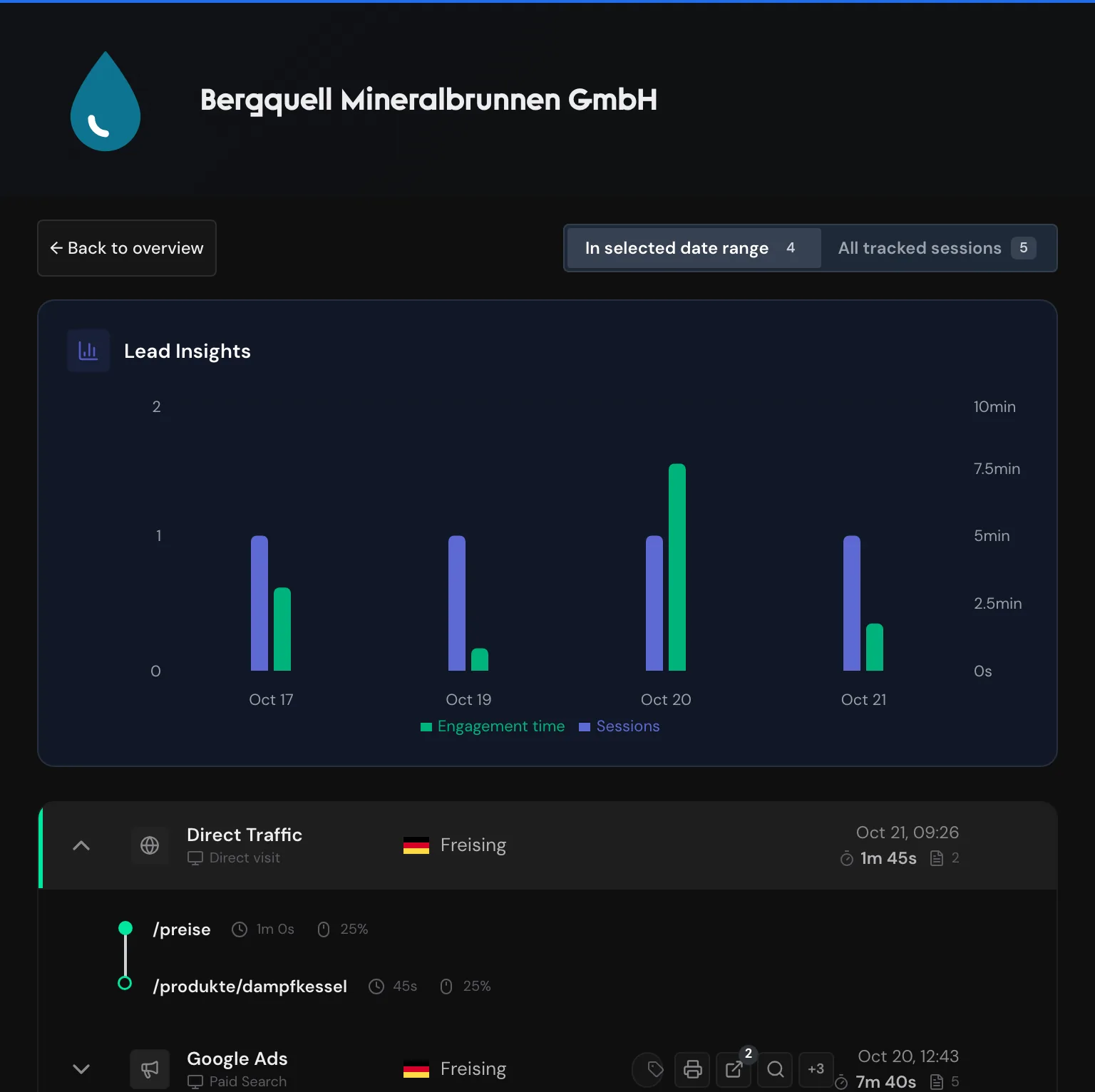
Switch the date range
With two switches above the list you choose which visits Webmetic shows, and each switch shows how many visits it covers.
| Switch | What Webmetic shows |
|---|---|
| In selected date range | Only visits that match the list's filter: the date range, the visit conditions of an active segment, and a Path or UTM search |
| All tracked sessions | All visits of the company, regardless of date range, segment, and search. A selected subdomain still applies |
- To see the company's full history, click All tracked sessions.
- To see only the matching visits again, click In selected date range.
Visit conditions of a segment are, for example, UTM values, city, duration, or page path. If you search the list for a campaign, In selected date range shows exactly the visits from that campaign. Filters and search explains the search modes.
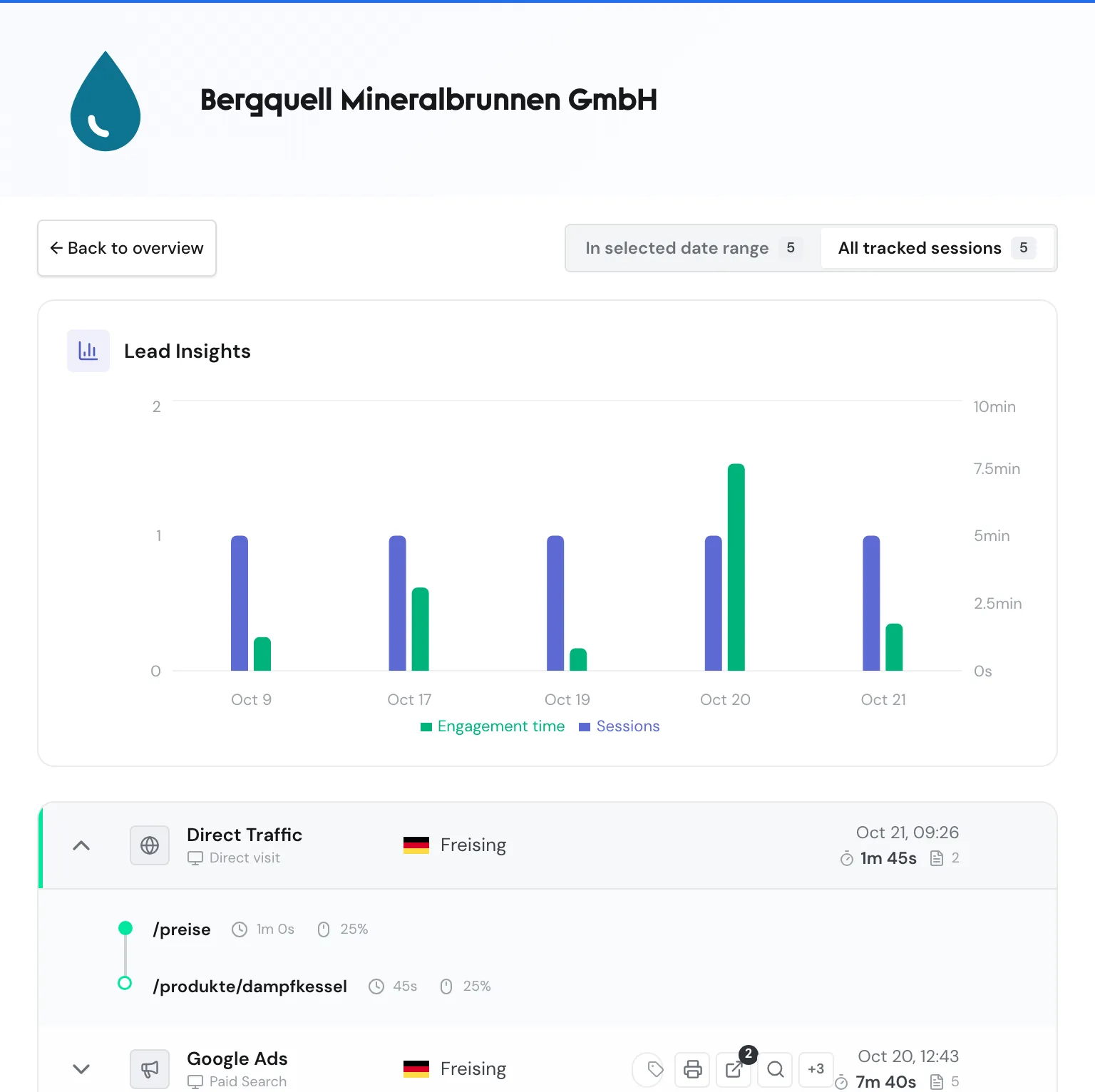
Read a visit row
Each row sums up one visit:
| Item | Meaning |
|---|---|
| Channel | Where the visit came from, for example Google Ads with the sublabel Paid Search. For referring websites, the sublabel shows their host name. For details, see Campaigns and channels |
| Device | A phone icon for mobile devices, a monitor for all others. The row doesn't show browser or operating system |
| Location | The city with the country's flag |
| Campaign chip | The campaign from the UTM parameters, only on a large screen |
| Events | Up to three tiles by event type with a count, more as "+2" and so on. The full list is in Recorded events |
| Date and time | When the visit started |
| Stopwatch | The active time of the whole visit, the sum of all pages. Without measurable time, the value is missing |
| Document icon | The number of pages viewed |
| Recording | The View session recording button, if the visit has a recording |
Not every visit has a recording. Session recording describes how to watch recordings.
Read the page timeline
- Click a visit row. You see the page timeline of that visit.
- Optional: Click a path. Your browser opens the full address with all parameters in a new tab.
The timeline lists the pages in the order in which the company viewed them:
| Item | Meaning |
|---|---|
| Entry page | The first page of the visit has a filled dot, all later pages a ring |
| Path | The address without parameters. If a page is on another host, that host appears in gray before it, for example a shop on a subdomain. The timeline doesn't show the page title |
| Clock icon | The active time on the page. The time counts while the tab is visible and the person used the mouse, keyboard, scroll wheel, or touchscreen in the last 60 seconds. Without a measurement, Webmetic shows the time until the next page view, capped |
| Mouse icon | The scroll depth as the deepest step reached: 25, 50, 75, or 90%. 90% is the highest value. Pages that can't scroll show no value |
| Chips | The events below the page where they happened, for example Download or Form submitted |
If someone reloads the same address, Webmetic doesn't count a second page view. If the address differs only in its parameters, a new entry appears, and the same path then shows twice in a row.
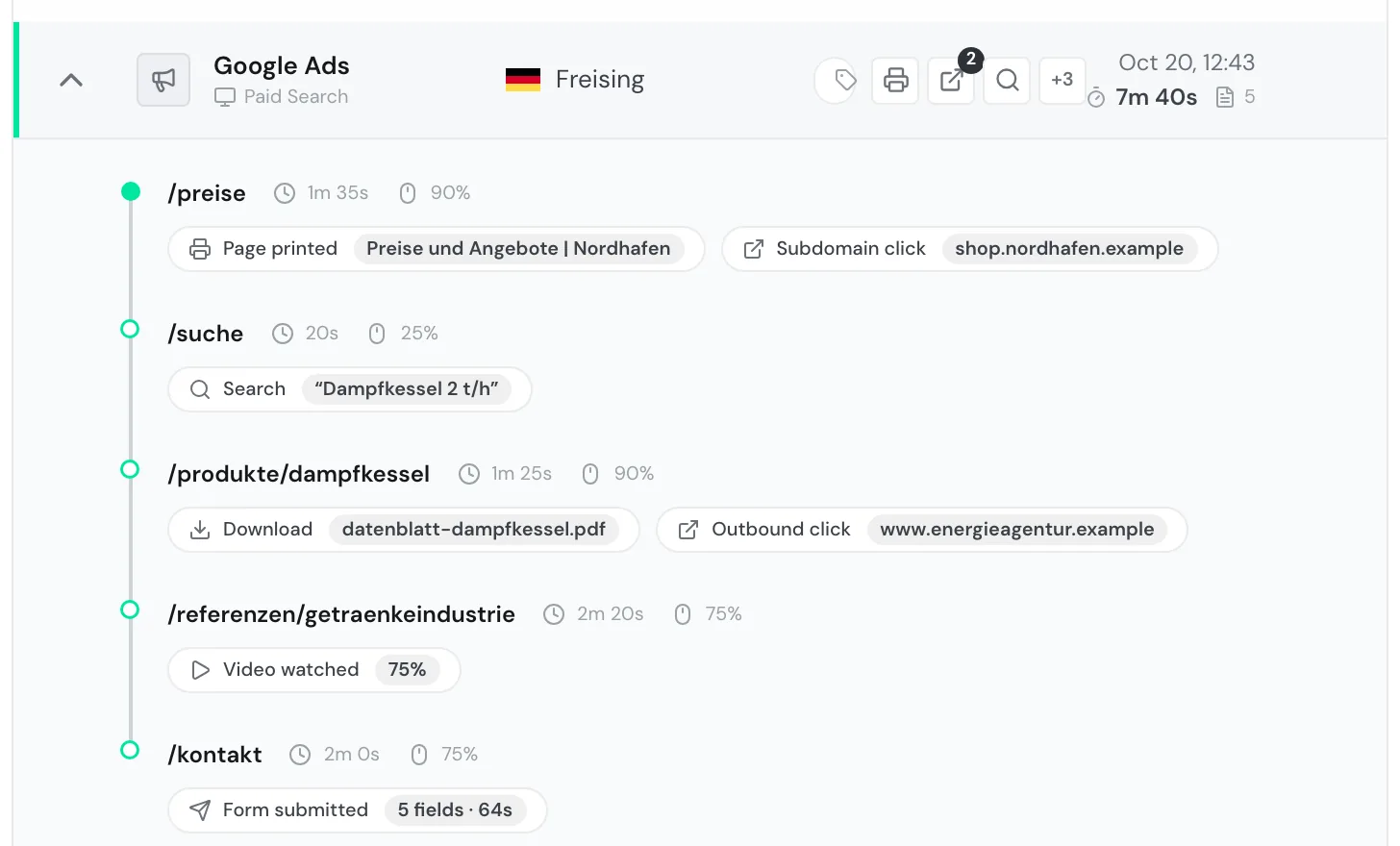
Read Lead Insights
- Open a company's visits view.
- If you want to see the full history, click All tracked sessions.
You find Lead Insights above the list of visits. It shows two bars per period:
- Sessions: the number of visits, on the left axis
- Engagement time: the summed active time, on the right axis
The chart follows the switch above the list and uses up to 100 visits. How finely it splits the bars depends on how far apart the visits are:
| Spread of the visits | One bar per |
|---|---|
| up to 14 days | day |
| up to 90 days | calendar week, labeled W |
| up to 365 days | month |
| longer | quarter |
The chart skips periods without a visit and shows no bar for them. Webmetic shows Lead Insights only in the visits view, not in the profile itself.
When a new visit starts
A visit belongs to one device and one internet connection. Webmetic starts a new visit:
- after 30 minutes without a page view
- on a new day
- when someone arrives during a visit through a new campaign link, for example through an ad or a link with different UTM parameters
Several people from the same company appear as separate visits, and so does the same person on another device or network. Channel and campaign come from the first page of a visit and apply to the whole visit.
No UTM parameters on internal links
Don't put UTM parameters on links within your website. Otherwise, every click on such a link starts a new visit.
View visits on a phone
- Open a company from the list.
- Tap the Sessions tab. You see the visits with their page timeline.
On screens narrower than 1,024 pixels, you don't see the highlight, Lead Insights, Back to overview, or the campaign chip. You reach profile, contacts, and comments through the Profile, Contacts, and Notes tabs.