

Session recording
Switch on session recording and see how a company moved through your website.
A session recording plays back a visit to your website. You can see, for example, whether an engineering company scrolled down your pricing page to the contact form and typed something there. You see mouse movements, clicks, and scrolling, but Webmetic hides anything typed into form fields.
At the end you'll have:
- session recording switched on in your website's code
- an icon for playback on visits in the company profile
- a player that shows how a visitor moved, clicked, scrolled, and typed, with text from form fields hidden
Before you start
- Time: Switching it on takes a few minutes, and you can play back new visits as soon as they appear in the company profile.
- Account: You need a Webmetic account with the tracking code installed. Installation shows how to add it.
- Access: To switch it on, you need access to your website's code, to Google Tag Manager, or to WordPress. In WordPress, you need administrator rights.
- Rights: You don't need admin rights in Webmetic. Every user can open the tracking code and play back visits.
- Plan: You can watch recordings during the trial and on the Growth plan or higher. Recording and playback cost no credits.
Switch on recording
The code running on your website decides whether it records, not a switch in the dashboard. Which route is right depends on how you installed the tracking code.
Tracking code from the dashboard
Use this route for the tracking code in the HTML, for Shopify, and for Matomo Tag Manager.
- Open Menu > Tracking code.
- Under Choose a method, select HTML snippet.
- Under Copy the snippet, leave the Session recording box ticked. Webmetic updates the code right away.
- Click Copy. The button changes to Copied.
- Replace the tracking code on your website with the copied code.
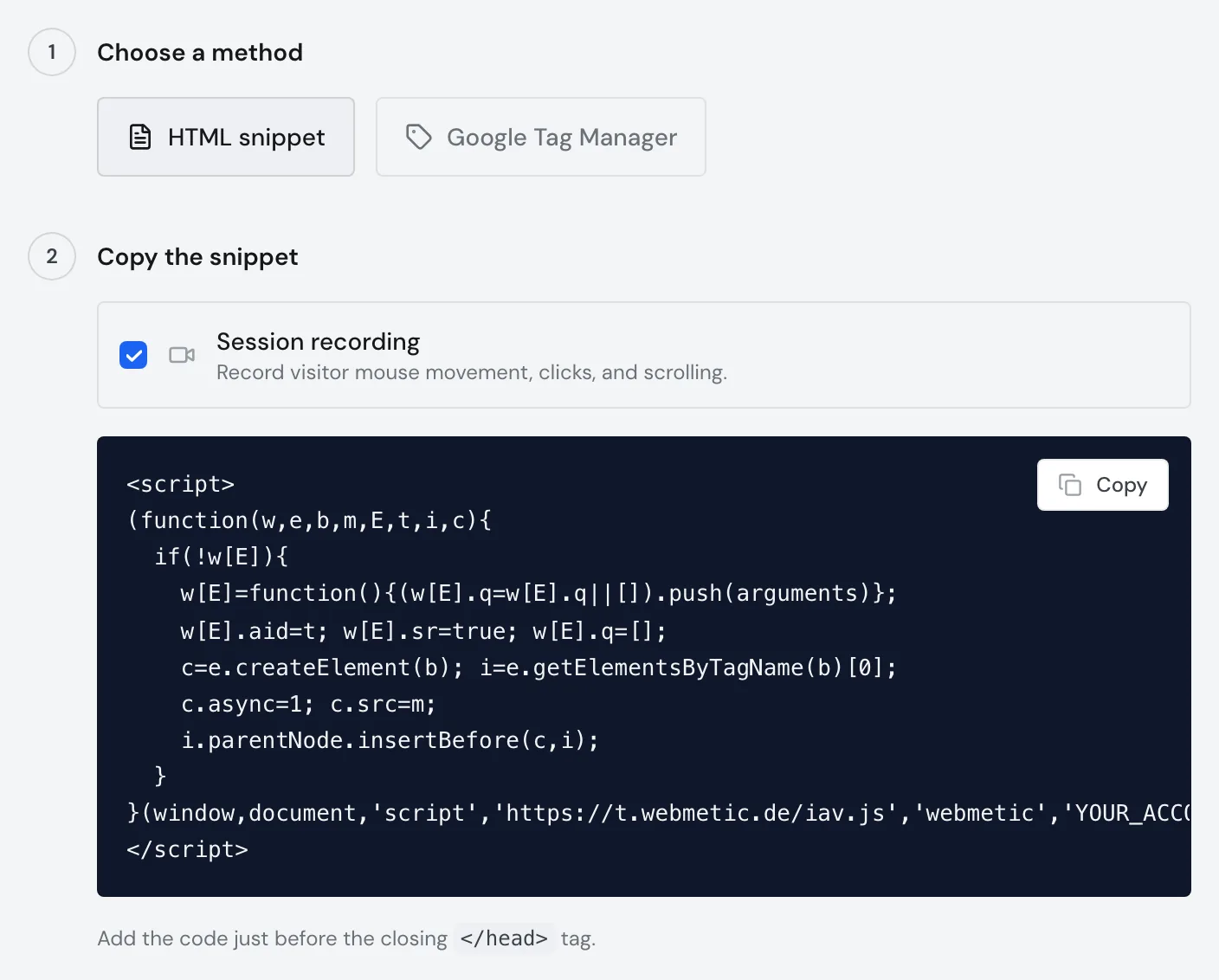
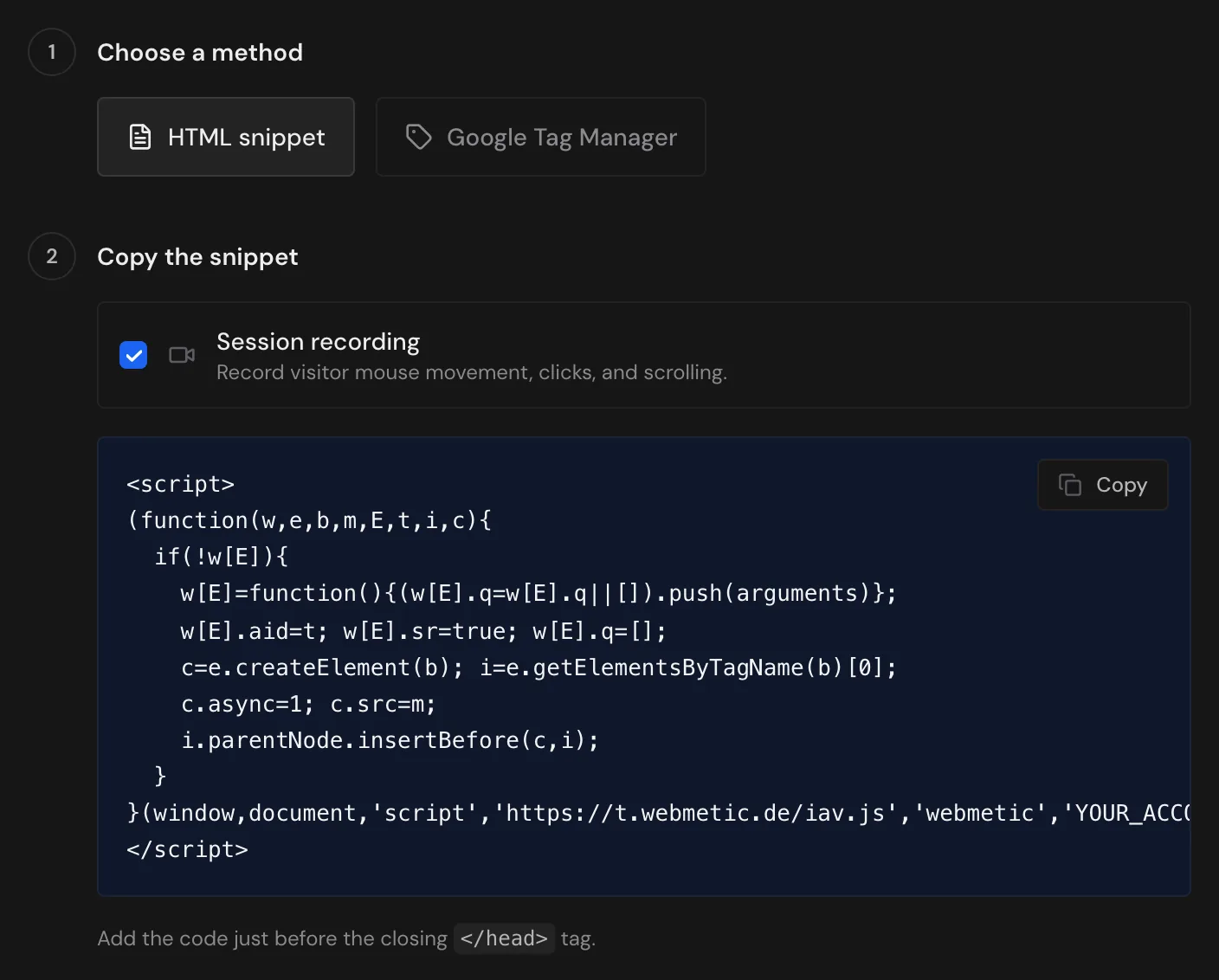
The box only changes the code you copy: Webmetic doesn't remember the tick and sets it again every time you open the window. Only the new code on your website starts recording.
You can watch the recordings during the trial and on the Growth plan or higher. Leave the box ticked if your plan includes this, and untick it otherwise.
With the Google Tag Manager method, the window shows no box, because there you tick it in the Webmetic template instead.
Google Tag Manager
- In Google Tag Manager, open your Webmetic tag.
- Turn on Enable Session Replay. The box is in English in every Google Tag Manager language and starts unticked.
- Save the tag and publish the container, because only then does the new version run on your website.
You'll find all the steps for this in Google Tag Manager.
WordPress plugin
- In WordPress, open Settings > Webmetic.
- Tick Enable Session Replay. The box starts unticked in the plugin.
- Click Save Settings.
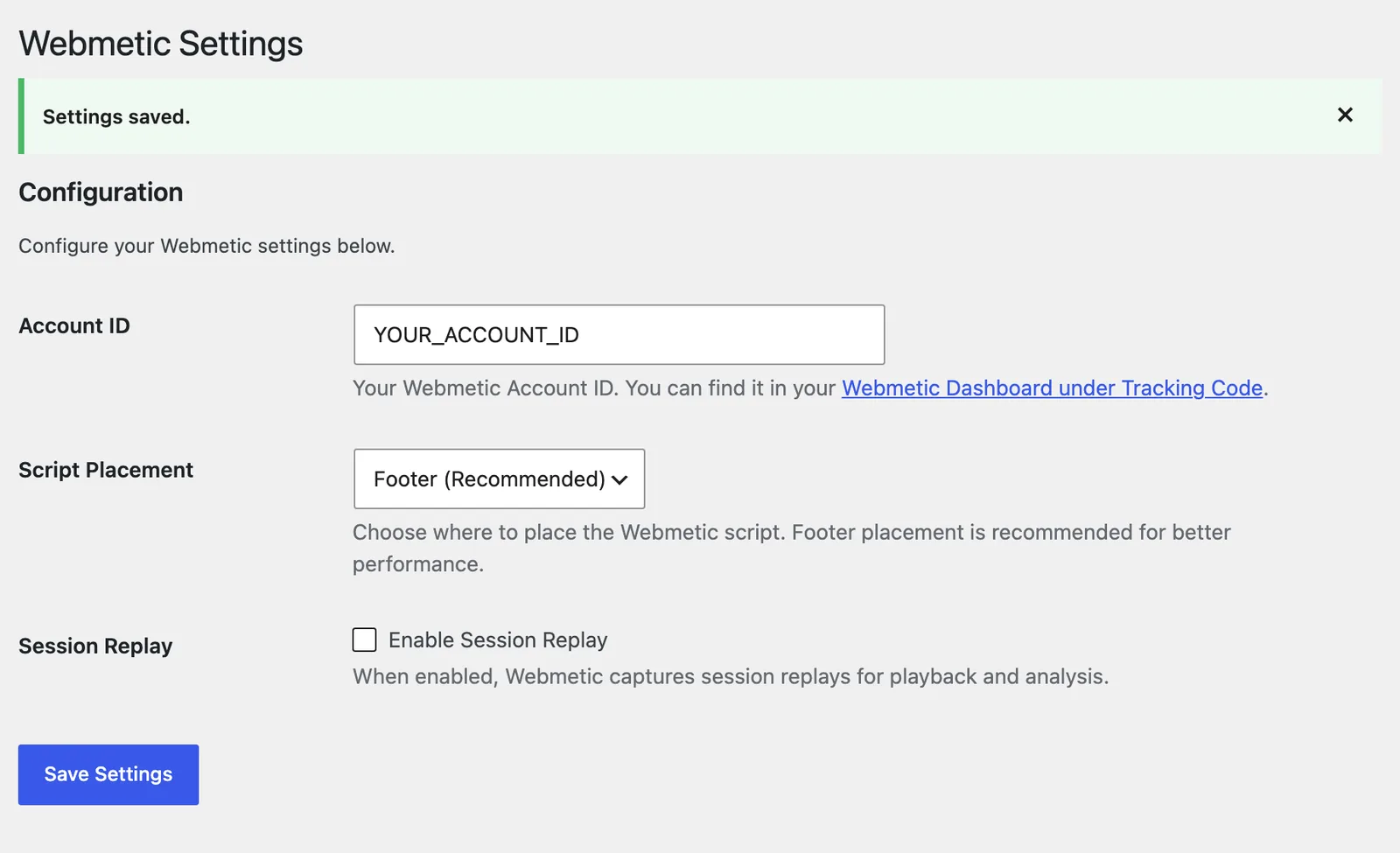
For more on the plugin, see WordPress.
Check recording
- Open Menu > Tracking code and scroll to Verify installation.
- Click Deep check. Webmetic opens your website and looks for the tracking code.
- Read the third row under the message Tracking code installed correctly. The status Session recording active means the code on your start page records.
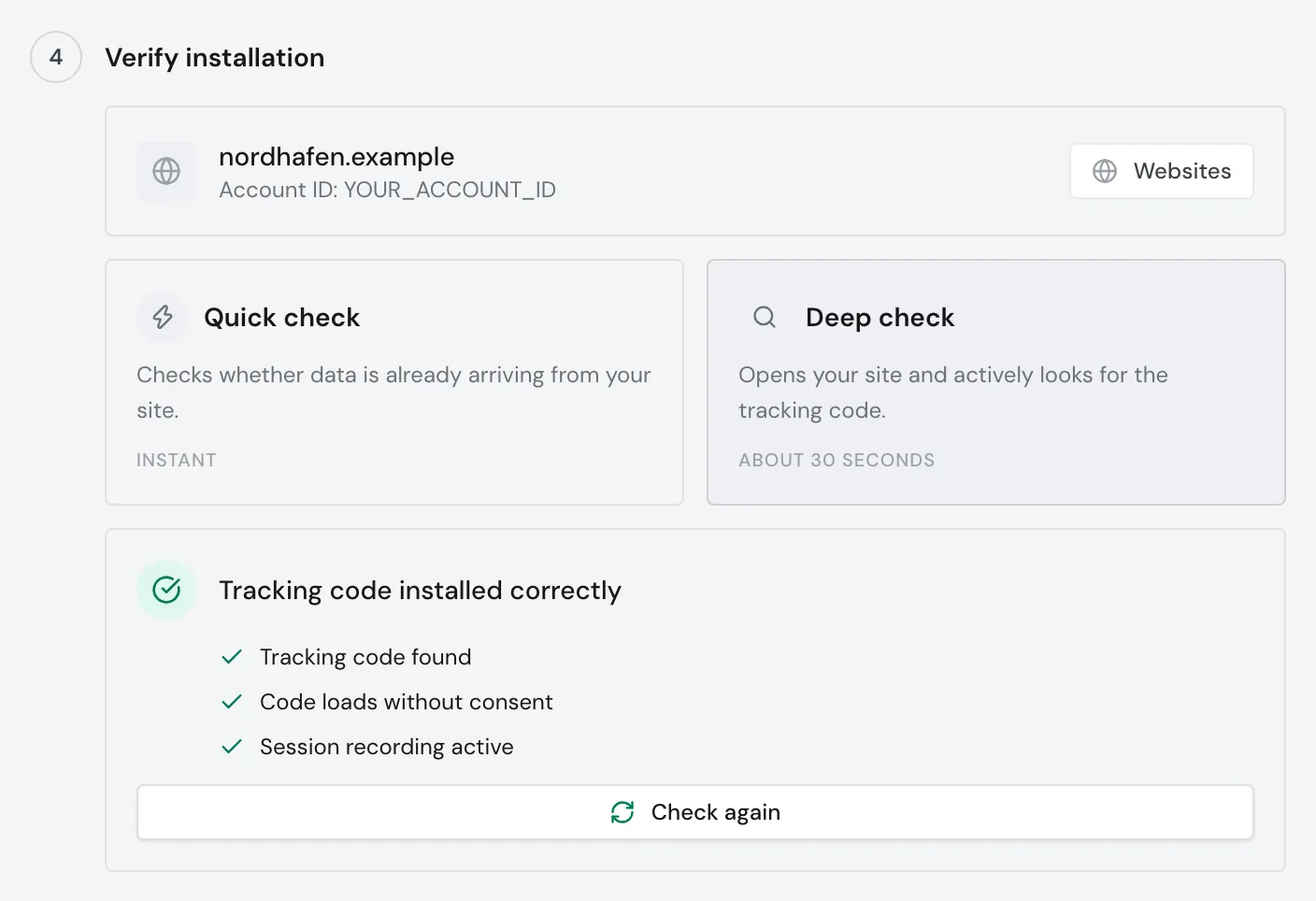
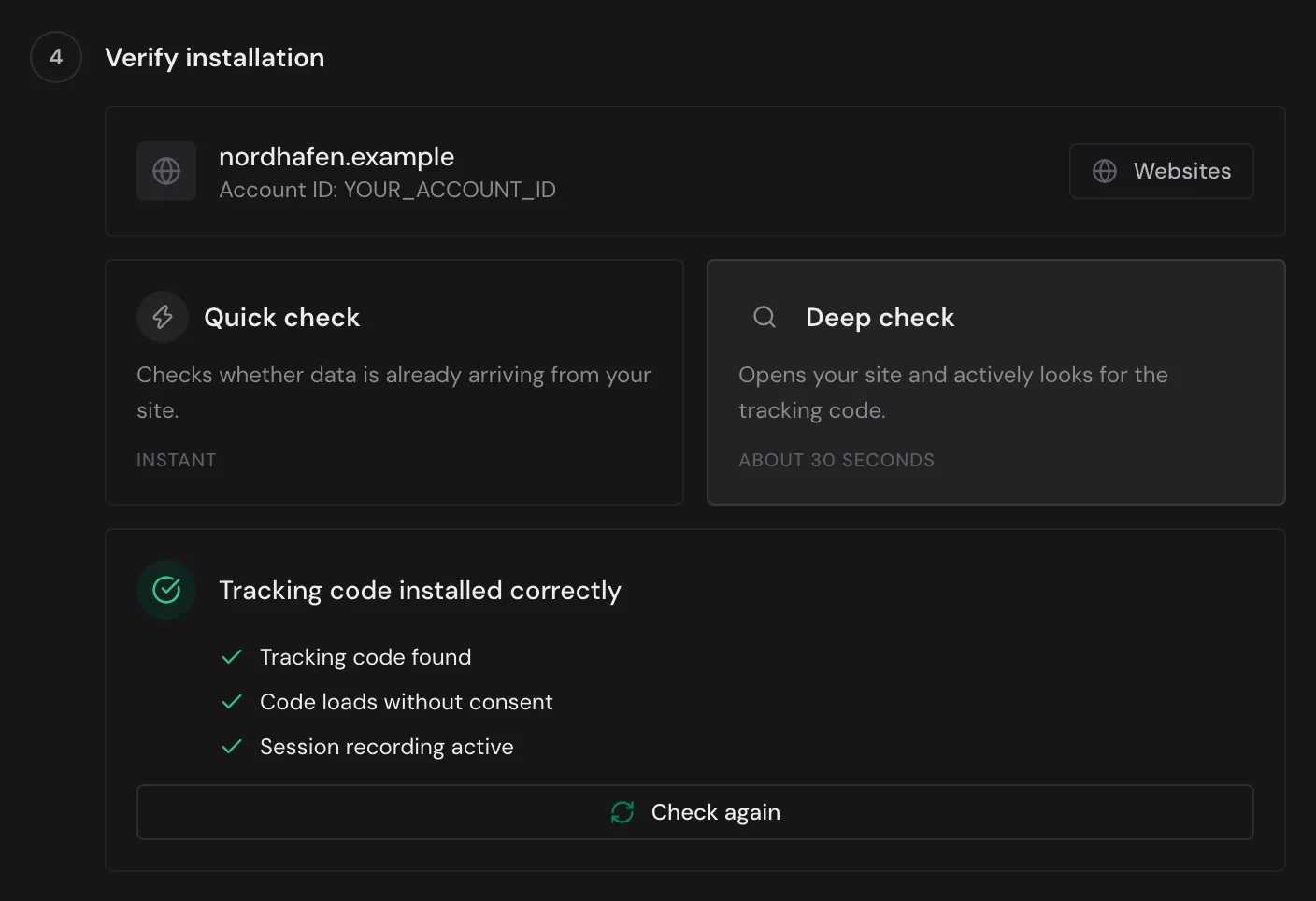
The deep check only reads the code, so you only see in the company profile whether anything actually arrives. It also checks only the first website in your account and only its start page. For the short form of the tracking code, it always shows the status Session recording inactive. For details, see Special cases.
Open a recording in the company profile
You can only play back visits of identified companies, because the player only opens from a company profile. Not every visit has a recording.
- In the Visitor Intelligence tab, click a company. The profile shows one selected visit under Highlight.
- Check whether that visit's row ends in a round green icon showing a screen with a play symbol.
- If the icon is missing, click the button for all visits, for example Show all 5 sessions. Webmetic shows all visits of the company, and every visit with a recording has the icon.
- Click the icon, which shows View session recording when you hover over it.
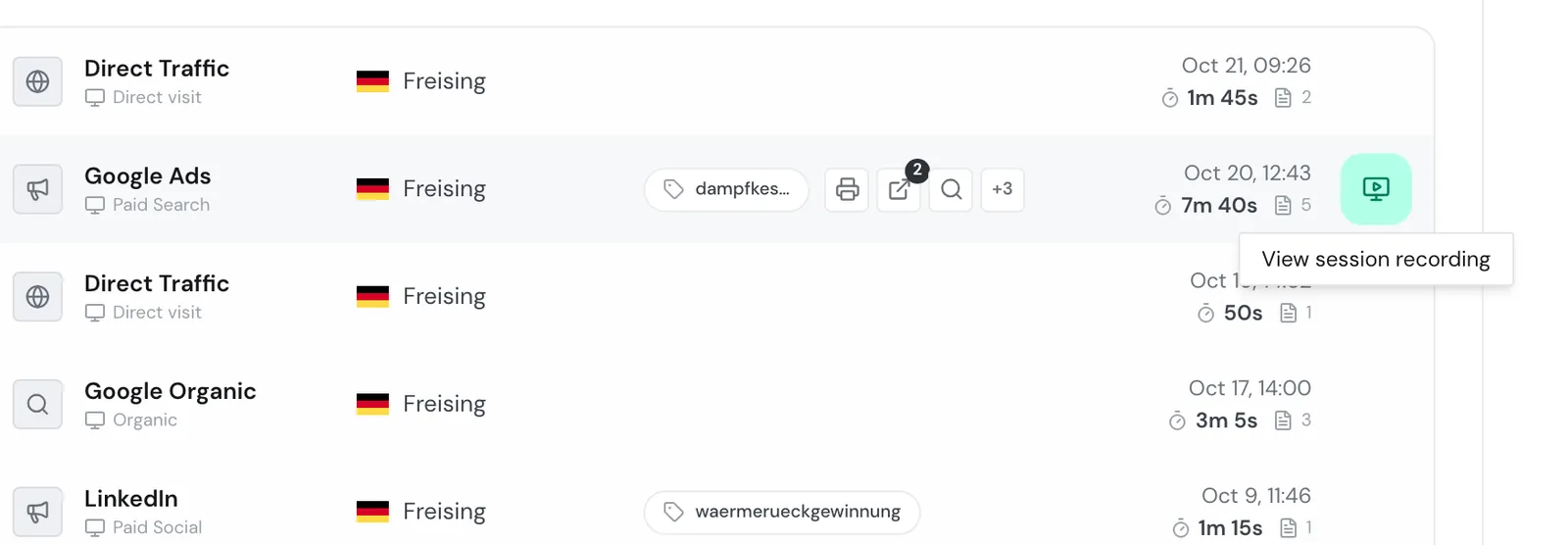
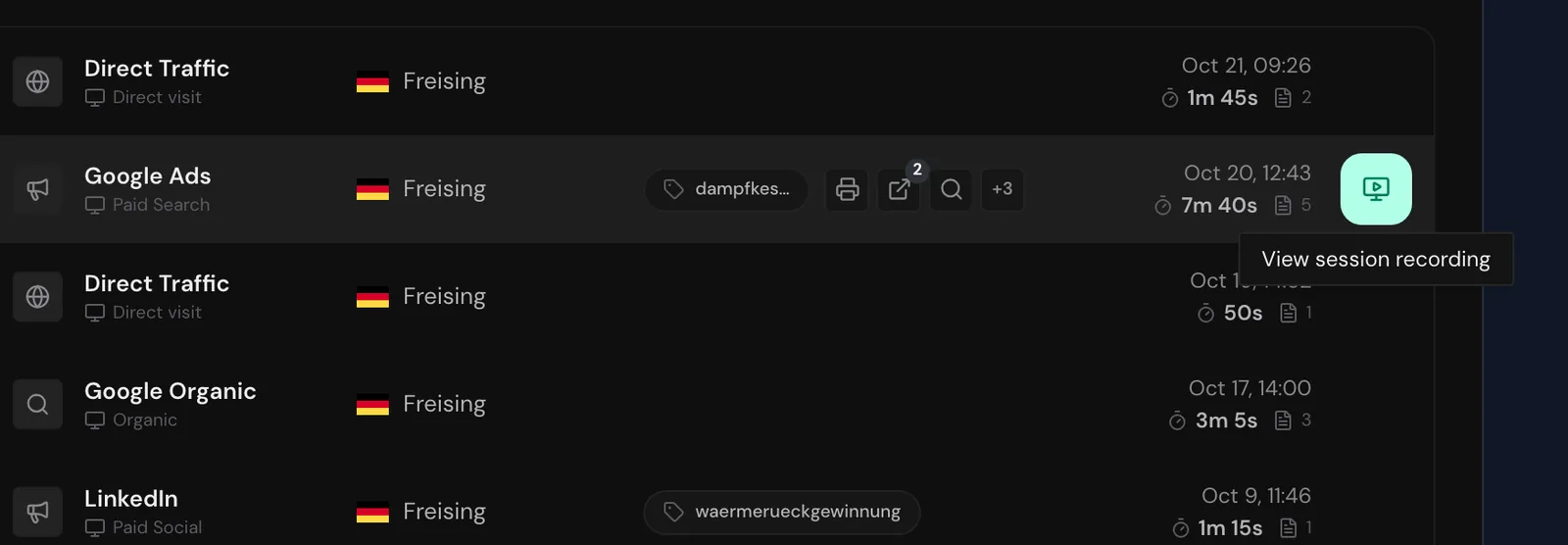
The player opens on top of the profile and starts right away. The Back to overview button takes you from the list of visits back to the profile.
On the Free and Starter plans, the icon is missing on every visit.
Play a recording
The player has the title Session recording. The timeline sits below the picture, and clicking it jumps to the point you clicked. Next to it you see the elapsed time and the total length.
The buttons below the timeline control the player:
- Restart: starts from the beginning.
- -10s and +10s: jump back or forward 10 seconds.
- Play/pause (Space): pauses or resumes playback.
- Skip inactivity: skips pauses in which nothing happens and is ticked from the start.
- Speed: switches between 1x, 2x, 4x, and 8x, starting at 2x.
In the top right, you switch to full screen or close the player. Clicking next to the player closes it too. At the end, the player shows the message Recording ended.
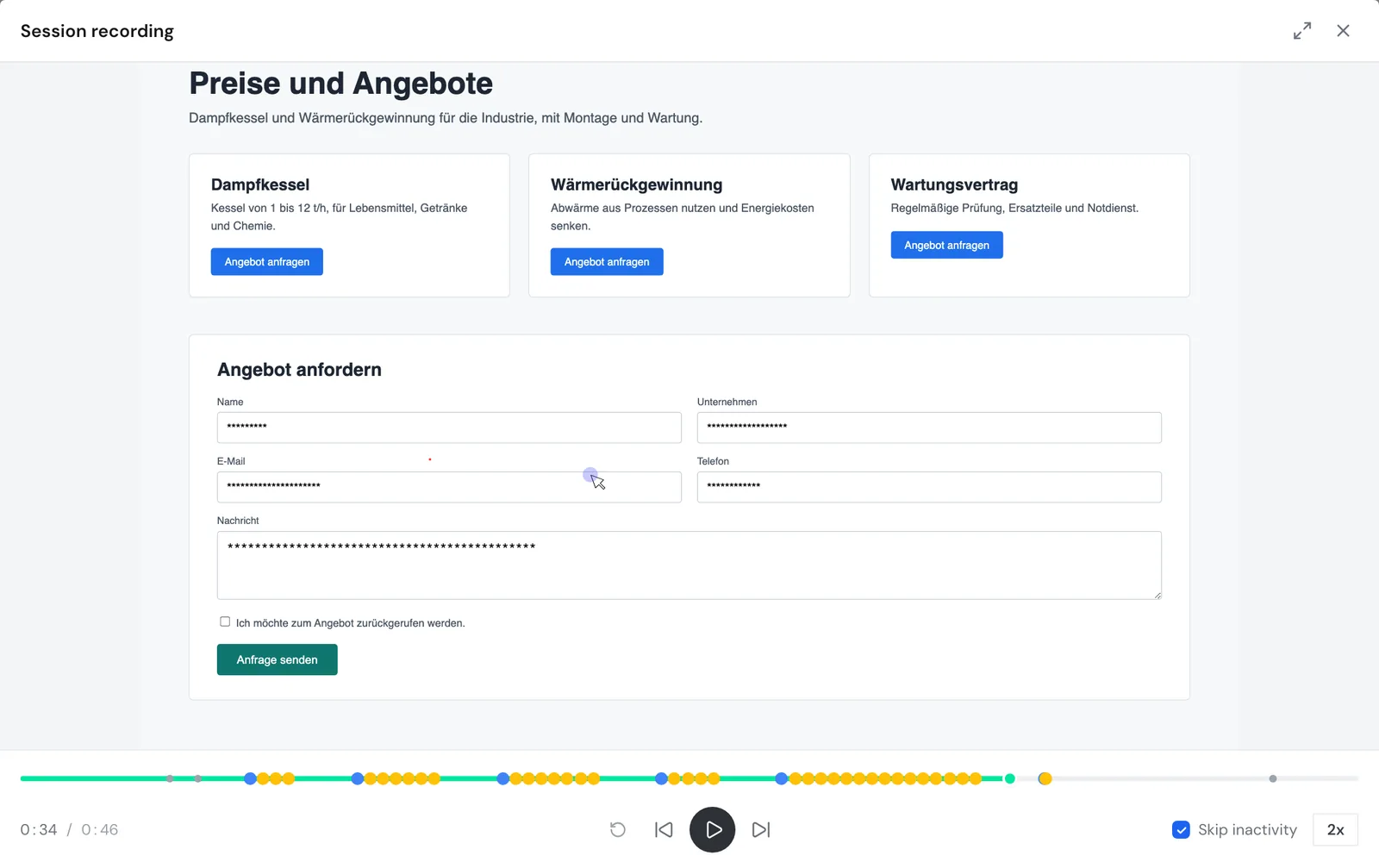
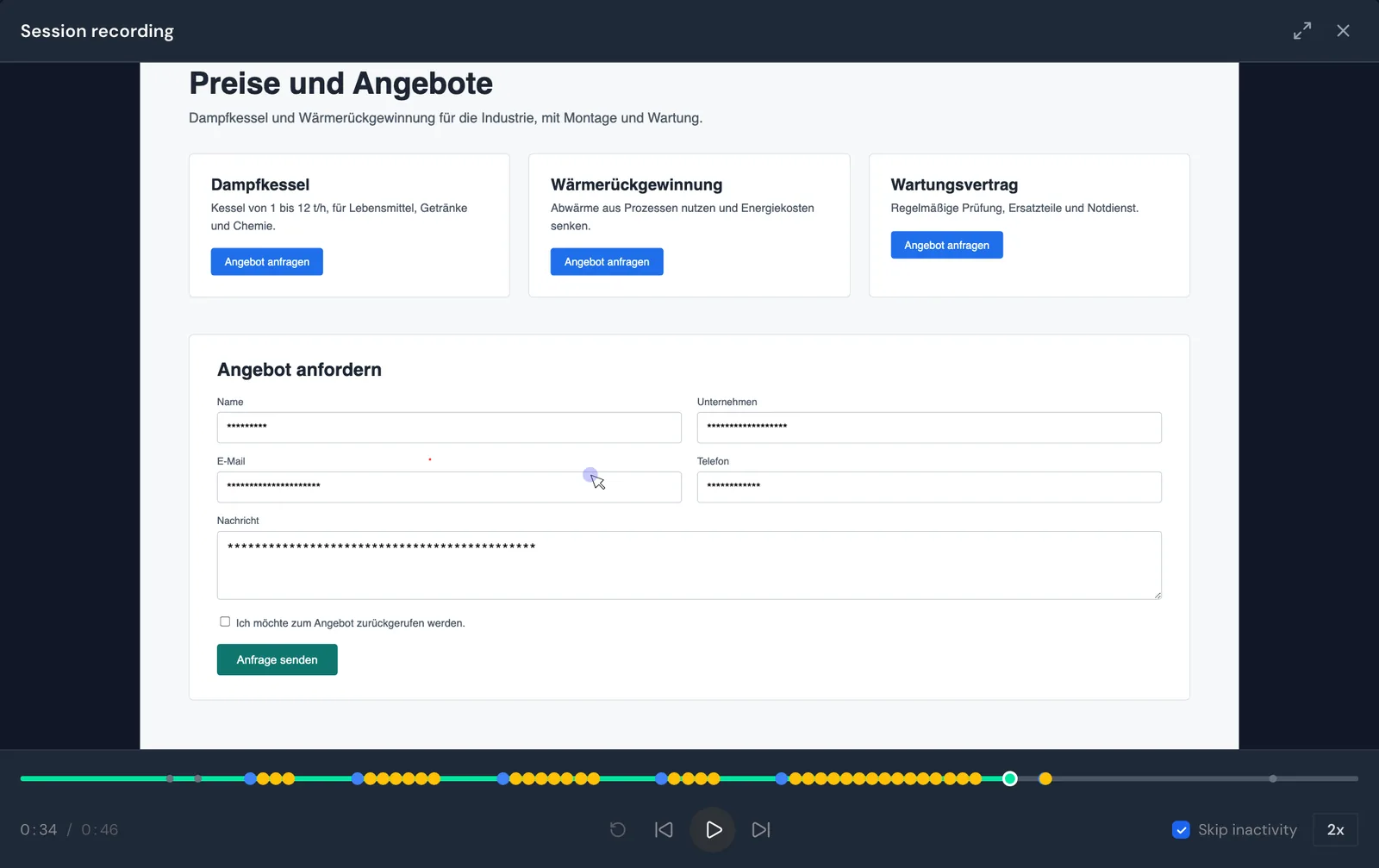
Colored markers on the timeline show what the visitor did. Blue dots stand for a Click, amber ones for a Text input. A red line marks a Page change and small gray dots a Scroll, and hovering over a marker shows its type and time.
You can control the player with the keyboard: Space plays and pauses, the arrow keys ← and → jump 10 seconds, and Esc closes the player.
If a visit can't be played back, the player shows the message No complete recording found.
Switch off recording
Replace the code on your website with code that has the box unticked:
- Tracking code from the dashboard: Untick Session recording, copy the code, and replace it on your website.
- Google Tag Manager: Turn off Enable Session Replay and publish the container.
- WordPress: Untick Enable Session Replay and click Save Settings.
From then on, Webmetic stops recording for every new visit to your website.
What gets recorded
Webmetic only starts recording once a page has finished loading. This is how content appears in the player:
| Content | In the recording |
|---|---|
| Mouse movements, clicks, scrolling | visible |
| Text that your page shows | visible, also in customer portals or after login |
| Choices in checkboxes and radio buttons | visible |
| Anything typed into form fields | hidden: asterisks matching the length of the entry |
| Images | not recorded |
| Embedded content from other domains, for example videos, maps, or third-party forms | not recorded |
| Graphics the page draws itself (canvas) | not recorded |
You can't hide other areas in Webmetic. Some ad blockers prevent recording.
You can't delete, download, or share single recordings in the dashboard.
Data protection
Webmetic records through the tracking code, so if your consent tool only loads the code after consent, recording only starts then. Whether the code may load before consent is a question for your data protection advisor.
You are the controller for your website's visit data, and Webmetic processes it on your behalf. Webmetic describes session recording in its privacy policy.
The Privacy notice in the Tracking Code window doesn't mention session recording. Check with your data protection advisor whether your privacy policy should name it.
This page is not legal advice.