

Comments
Keep comments on a company that every user of your account sees in the profile.
With comments, your team shares what it knows about a company, for example "Pricing page four times this week. Prepare a quote." At the end you'll have:
- a comment on the company that every user of your account sees in the profile
- the number of comments on the company's card in the company list
Before you start
- Time: You write a comment in a few seconds.
- Account: You need a Webmetic account with a website where Webmetic has already identified companies.
- Rights: Every user of your account can write comments. Only the person who wrote a comment can edit or delete it. This also applies to admins, who can't edit or delete other people's comments either.
- Plan: Comments are available in every plan and cost no credits. On the Free plan, you can only comment on the companies you can read in the dashboard. For details, see Free plan.
You can't undo deleting a comment, and when you edit a comment, Webmetic doesn't keep the old text either.
Find the comments
- In the company list, click a company to open its company profile.
- Look for the Comments section to the right of the profile, below Manage data.
Webmetic shows the newest comment first, along with the person's name and the time, for example "1 day ago". As the name, you see the user's first and last name, or their email address if no name is set.
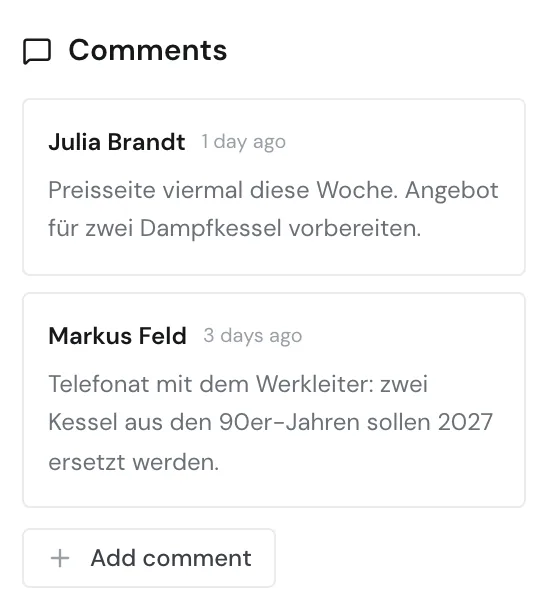

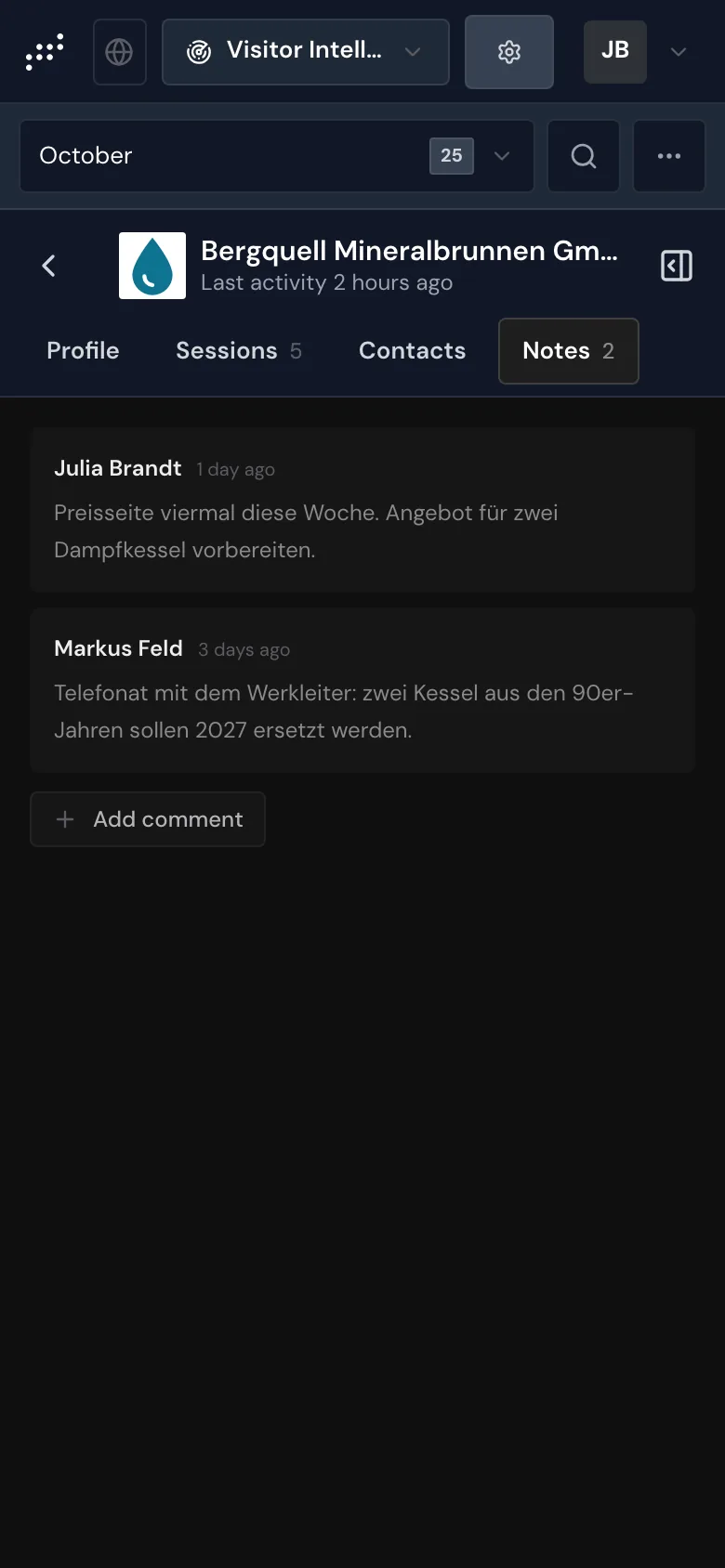
If your window is narrower, Webmetic only shows a strip of icons on the right. In that case, click the speech bubble that shows the number of comments next to it. On a smartphone and on a tablet in portrait mode, open the Notes tab or tap the sidebar icon in the top right.
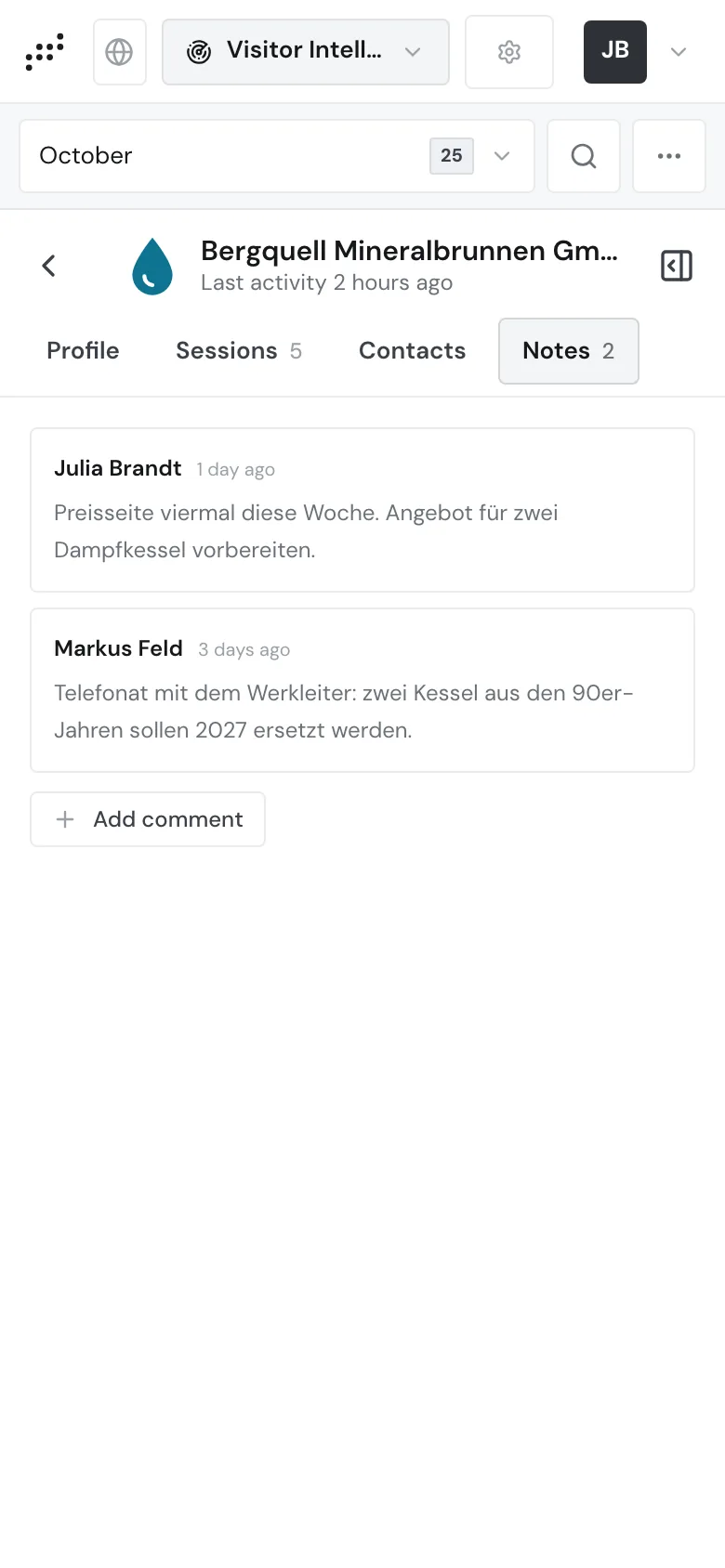
Write a comment
- Under Comments, click Add comment to open a text box.
- Type your text. Webmetic keeps your line breaks.
- Click Save or press Ctrl+Enter, on a Mac Cmd+Enter. The comment appears at the top of the list.
You can't save an empty box, and if you click Cancel, Webmetic discards the text.
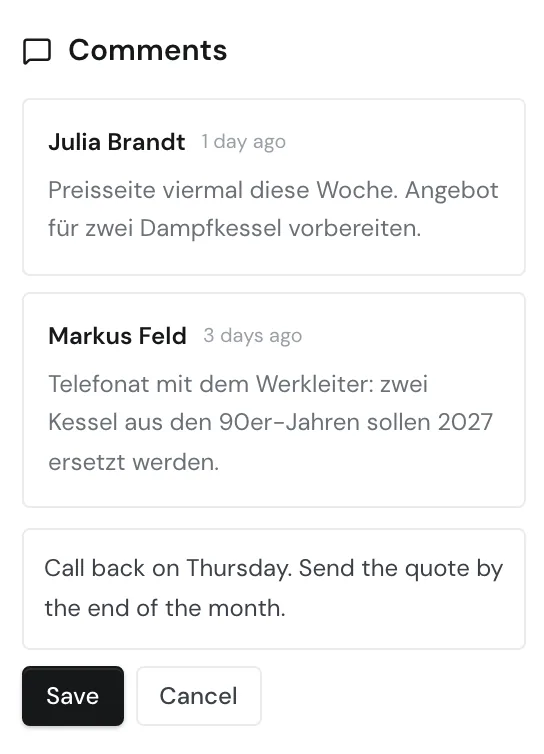
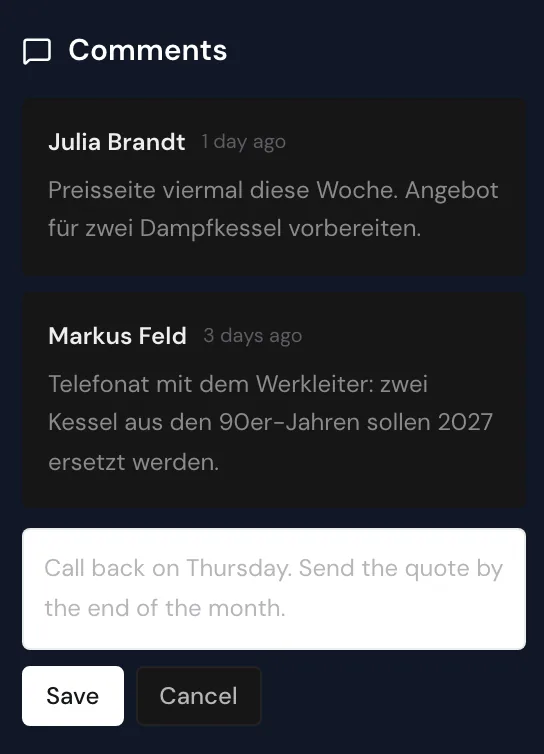
If saving fails, Webmetic shows no message. After saving, check that your comment appears at the top of the list.
Edit a comment
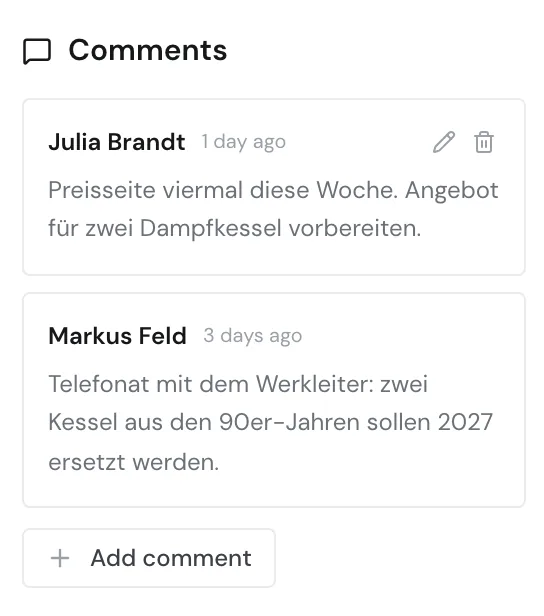
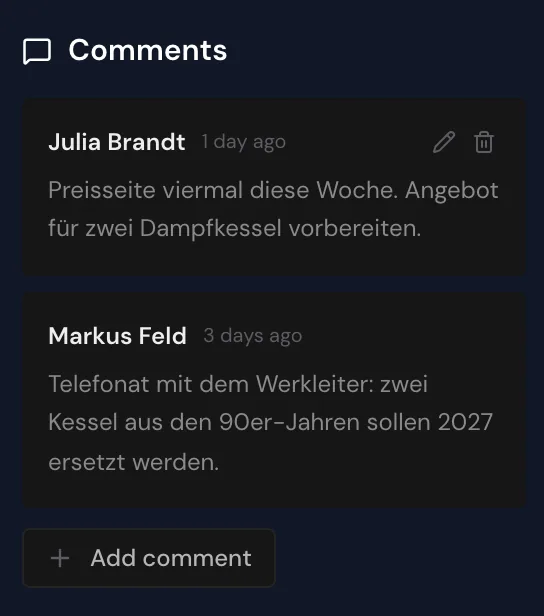
- Move your mouse over your comment until a pencil and a bin appear.
- Click the pencil with the tooltip Edit.
- Change the text and click Save. The comment then shows the marker edited.
You only see the icons on your own comments, because only the person who wrote a comment may change it.
Delete a comment
You can't restore a deleted comment, and Webmetic removes it for every user.
- Move your mouse over your comment until the bin appears.
- Click the bin with the tooltip Delete. Webmetic shows the question Delete this comment?.
- Click Delete. The comment disappears from the list.
Visibility and limits
A comment belongs to your account and to one website, and every user of your account sees it in the company's profile on that website. If the same company visits a second website in your account, it has its own comments there.
You see the number of comments in three places:
- on the company's card in the company list, next to a speech bubble
- on the speech bubble in the narrow strip of icons
- on the Notes tab on a smartphone
Comments have these limits:
- You can't mention anyone, because Webmetic treats an @ as plain text.
- Webmetic doesn't notify anyone about new comments.
- Comments are plain text and have no formatting, attachments, or replies.
- You can't search comments or filter by them in segments.
- Comments stay in Webmetic, so they are not in the export, the PDF, the AI briefing, the API, or the AI assistant.
If you want to filter companies by a trait, give them a tag. Enter anything your sales team should see in the CRM directly there.